

Have questions about paid ads, campaign optimisation, or platform features? Browse our knowledge base for step-by-step guides, FAQs, and expert insights to help you succeed.
Adding A Partner To Pinterest Business Account and Ads
On This Page
Login to Pinterest Business Account.
Once signed in, you will see your business’ logo (if you have set up your profile) at the top right hand corner- click the arrow to the right of that.

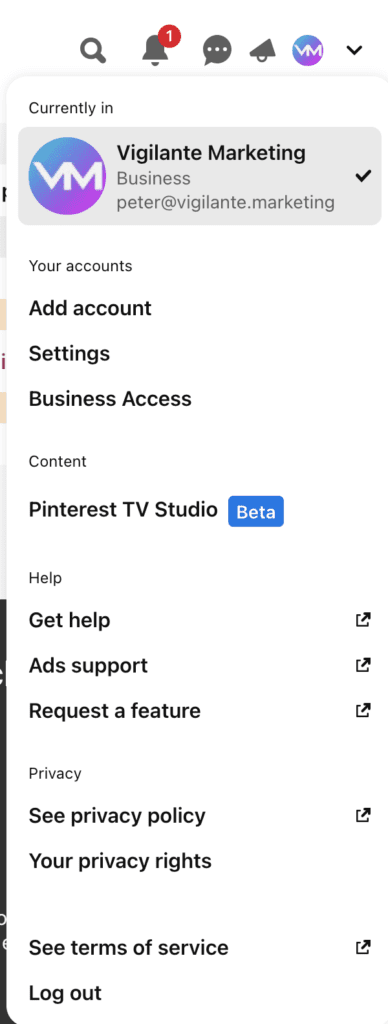
Once you click the arrow you will see the menu below, and under the “Your Accounts” section – Click on “Business Access”
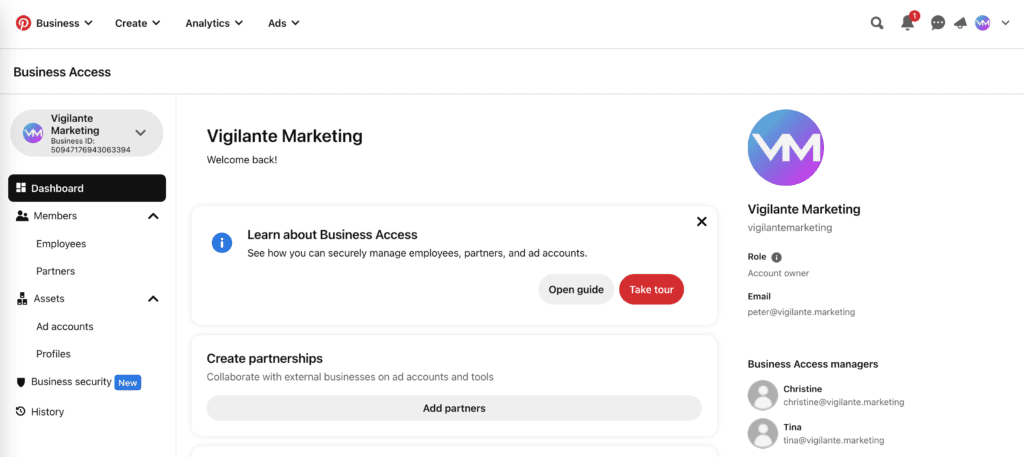
Once on the screen below, you will see a menu on the left side, and under “Members” click on “Partners”
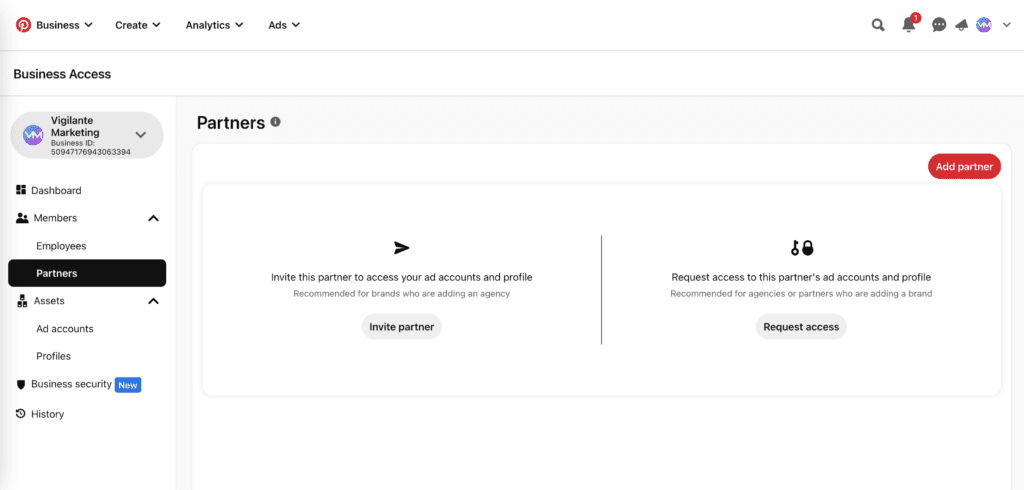
Once you are in the “Partners” page, click on “Invite Partner”
This will open a pop-up window that allows you to enter a Business ID of who you want to invite, if you are adding Vigilante Marketing use Business ID: 50947176943063394 and the “Invite this partner to access your ad accounts and tools” setting.
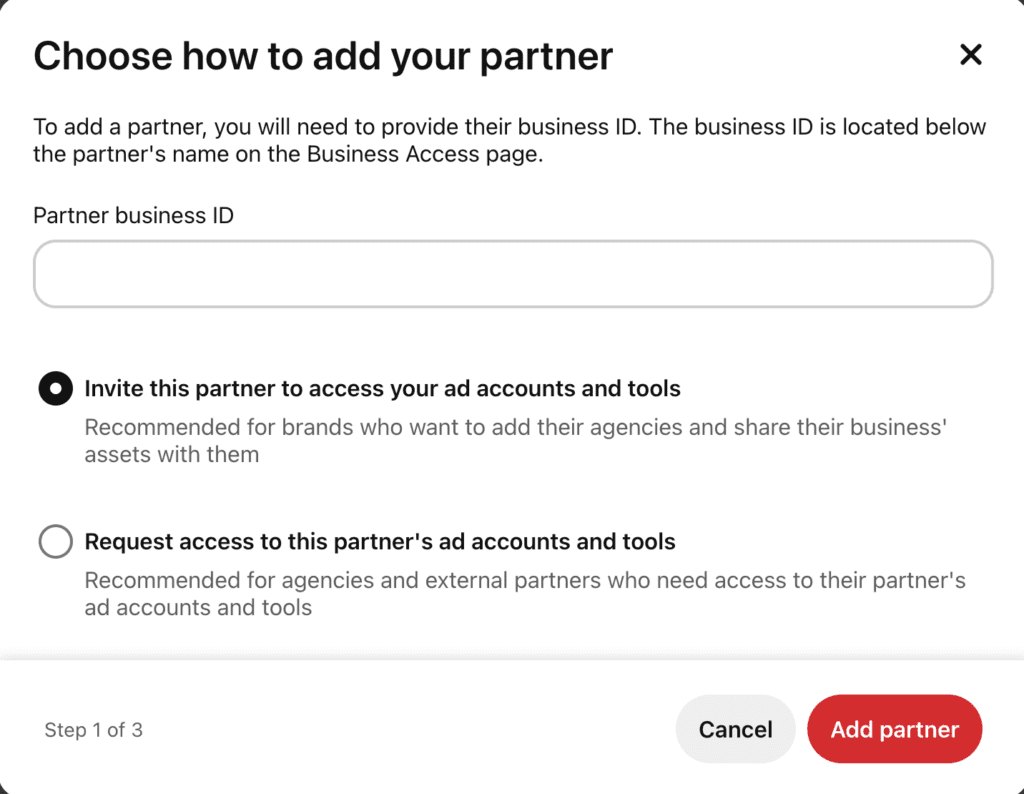
Click “Add Partner”
On the left side, select the business’s profile whose access you want to give to the partner. You can choose to assign the Publisher permission now or at a later date.
On the right side, check the “Publisher” box and click the “Assign permissions” button.
Still haven’t found what you’re looking for?
Let us know and we’ll do our best to help out!