

Have questions about paid ads, campaign optimisation, or platform features? Browse our knowledge base for step-by-step guides, FAQs, and expert insights to help you succeed.
Cancelling a Subscription
On This Page
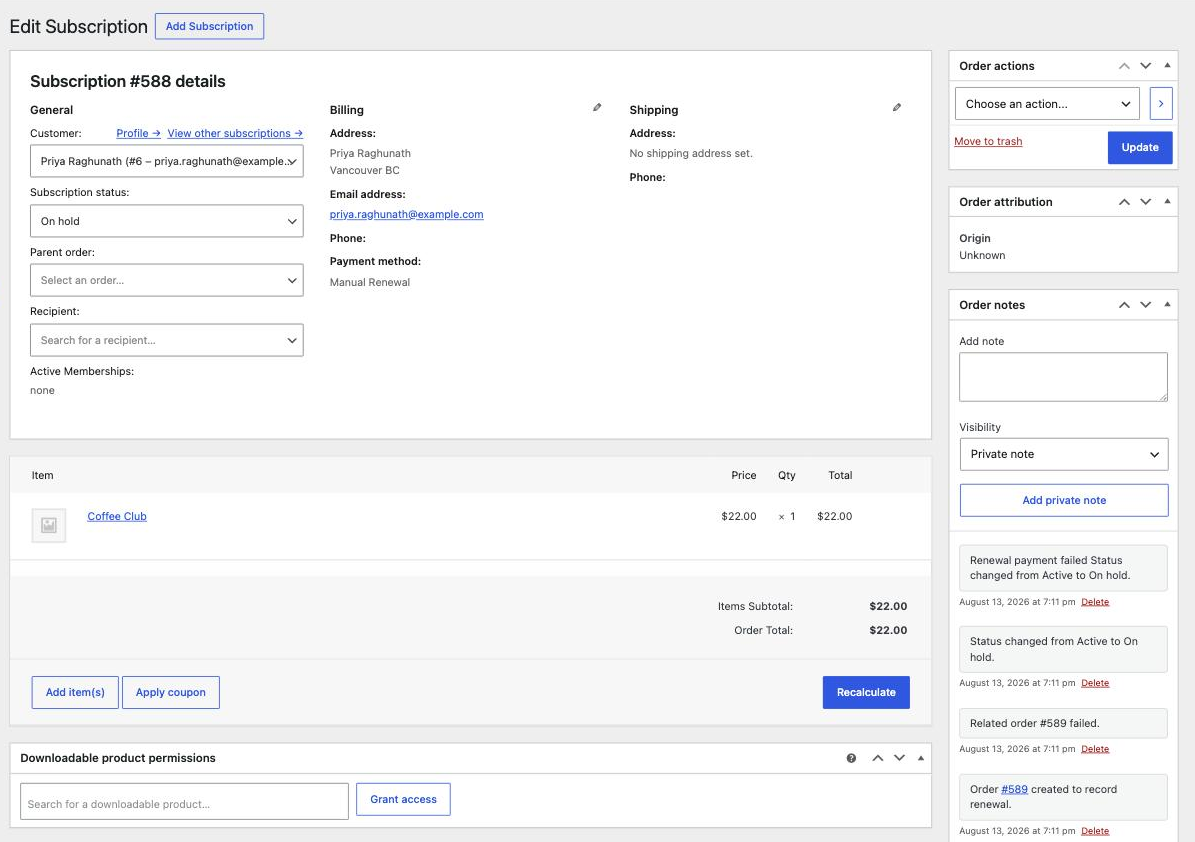
Cancelling a subscription is a dropdown, not a button. You open the subscription, change Subscription status, and press Update. The part worth understanding before you do it is that there are two different kinds of cancelling, and picking the wrong one either cuts a paying customer off early or keeps charging someone who thinks they have left.
Before you cancel anything, ask what the customer actually wants. Most people who write in saying “cancel my subscription” mean “stop taking my money”, not “remove my access this afternoon”. Those are different settings, and the first one is almost always the right answer.
The two kinds of cancelling
| Status | What it does | When to use it |
|---|---|---|
| Pending cancellation | Stops all future payments, but the customer keeps what they have already paid for until that period ends. It becomes Cancelled on its own at the end. | The normal choice. They asked not to be charged again and they have paid up to a date. |
| Cancelled | Ends it immediately. No further payments, and any access tied to it stops now. | They want out today, they never used it, or you are refunding them. |
If you cancel outright when they had two months left on an annual plan, you have taken away something they paid for, and that is the version that generates a second, unhappier email.
Doing it
- In your dashboard go to WooCommerce, then Subscriptions.
- Find the subscription. See finding a customer’s subscription if you are not sure which one it is.
- Click the subscription number to open it.
- Change Subscription status to either Pending cancellation or Cancelled.
- Click Update on the right.
Cancelling does not refund anything. It stops future payments only. If the customer is owed money back, that is a separate job on the relevant order, and it should be done deliberately rather than assumed. See refunding a subscription payment.
The customer can usually do this themselves
On most sites, a customer can cancel from their own account. It is worth checking before you do it for them, because the sustainable fix is to send them the instructions rather than becoming their cancel button.
Worth knowing why they so often cannot find it: the cancel option is not on their list of subscriptions, it is inside the individual subscription after clicking View. Almost everyone who gives up has stopped at the list. Send them cancelling your subscription and it usually does not come back.
What not to do
- Do not delete a subscription. It destroys the record of what somebody paid and when, and the customer’s own account stops matching yours. Cancelling keeps the history, which is what you want if they ever query a charge.
- Do not change the amount or the dates to make it stop. Use the status field. Editing dates to dodge a renewal leaves a confusing record and often does not work anyway.
- Do not cancel because a payment failed. A failed payment is its own situation with its own fix. See when a subscription payment fails.
Reinstating one
If you cancel by mistake, set the status back to Active and press Update. Check the next payment date afterwards, because it may need moving so the customer is not billed immediately or skipped entirely.
When to email us instead
- Anything where money has already moved and you are unsure what to reverse.
- A cancellation that also needs a membership or site access removing, if the two are linked.
- More than a handful at once. Ask us rather than clicking through fifty.
What we need if something fails
The subscription number, the customer’s email, and which of the two cancellations you intended. If a payment has already gone out, say so before making a second change.
Related
- Finding a customer’s subscription
- Cancelling your subscription (the version to send to members)
- What not to touch, and when to email us instead
Still haven’t found what you’re looking for?
Let us know and we’ll do our best to help out!