

Have questions about paid ads, campaign optimisation, or platform features? Browse our knowledge base for step-by-step guides, FAQs, and expert insights to help you succeed.
Finding a Customer’s Subscription
On This Page
A subscription is the standing arrangement: this customer, this amount, this often, until somebody stops it. It is not the same thing as an order. Each time a subscription is due, it creates a renewal order, so one subscription can sit behind dozens of orders. When a customer writes in about “my payment”, the subscription is nearly always the right place to look.
Where they are
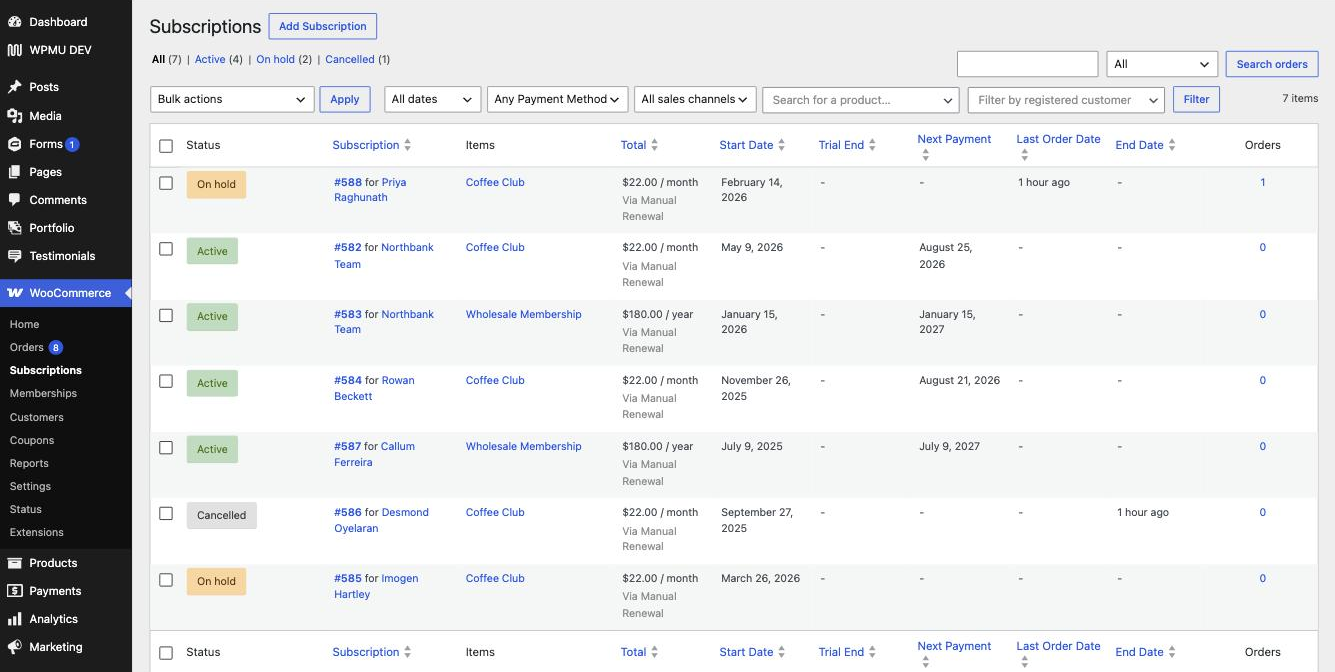
In your dashboard, go to WooCommerce, then Subscriptions. Everything the shop has ever set up is listed there.
Finding the right one
- By customer. Use Filter by registered customer and start typing their name or email. This is the reliable way, because it matches the account rather than guessing at spelling.
- By status. The links across the top (All, Active, On hold, Cancelled) filter instantly. On hold is the useful one when someone says their payment did not work.
- By number. If they quoted a number such as #588, search for it.
- From an order. Open the order and look for the related subscription, which is linked from it.
Reading the list
| Status | What it means |
|---|---|
| Active | Running normally and will bill again on the next payment date. |
| On hold | Paused. Either somebody paused it deliberately, or a payment failed. Worth checking which. |
| Pending cancellation | Will not bill again, but the customer keeps it until the paid period ends. |
| Cancelled | Ended. Kept for the record. |
| Expired | Ran to its natural end rather than being stopped. |
The other columns worth knowing: Next Payment is when money moves next, and a blank there means nothing is scheduled. Orders counts the renewal orders it has generated, and a number you can click.
A customer with two subscriptions is common. Before answering “your subscription is…”, check whether they have more than one, because half of the confusing questions come from a customer looking at one and you looking at another. The customer name in the list links straight to their other subscriptions.
Opening one
Click the subscription number. The detail screen shows the customer, the billing address, what they are subscribed to, the status dropdown, and a complete order notes panel down the right-hand side recording every change, payment and failure with a date. That panel usually answers the question on its own.
Looking is safe. Editing is not always. Opening a subscription and reading it changes nothing. Changing the status, the amount or the dates changes what happens to real money, so know which you are doing before pressing Update.
What we need if something fails
The subscription number and the customer’s email address. If it is about a specific charge, the date and the amount too.
Related
Still haven’t found what you’re looking for?
Let us know and we’ll do our best to help out!