

Have questions about paid ads, campaign optimisation, or platform features? Browse our knowledge base for step-by-step guides, FAQs, and expert insights to help you succeed.
Granting or Ending a Membership by Hand
On This Page
Memberships normally create themselves the moment someone buys online. You only create one by hand when that path did not happen: they paid at the office, they paid by cheque, they are being comped, or their plan is set up to be granted manually. The steps are the same in every case.
First, do they have an account?
A membership has to belong to somebody, so the person needs a customer account on the site before they can have one. This trips people up because adding someone to your CRM or mailing list does not create anything on the website.
- Go to Users and search for their email address.
- If they are not there, click Add New User, enter their email and set the role to Customer.
- Leave the password alone and make sure Send the new user an email about their account is ticked.
You never have to invent a password. The site emails the person a link so they choose their own, which means nobody has to send a password by email. Their username is their email address, and if the email does not arrive they can use “Lost your password?” on the login page to get another one.
Granting the membership
- Go to WooCommerce, then Memberships.
- Click Add Member at the top of the list.
- In Member, start typing their email address and pick their account from the list.
- Choose the Plan they are joining.
- Set the Status to Active.
- Set the Start and End dates to match what they paid for.
- Click Create.
Check they do not already have one first. Search the Members list for their email before you add anything. Creating a second membership on the same plan for the same person does not double their access, it just leaves two records that disagree, and the next person to look will not know which is real.
Setting the end date
Match the date to whatever they actually paid for, not to today. If your memberships all run to the end of the calendar year, use that date rather than counting twelve months forward from the day you happen to be doing the paperwork. Consistent end dates make renewals far easier to manage later.
If a plan is set up with no fixed length, you can leave the end date empty and the membership simply continues until somebody ends it. That is normal for honorary or lifetime members.
Extending or correcting one
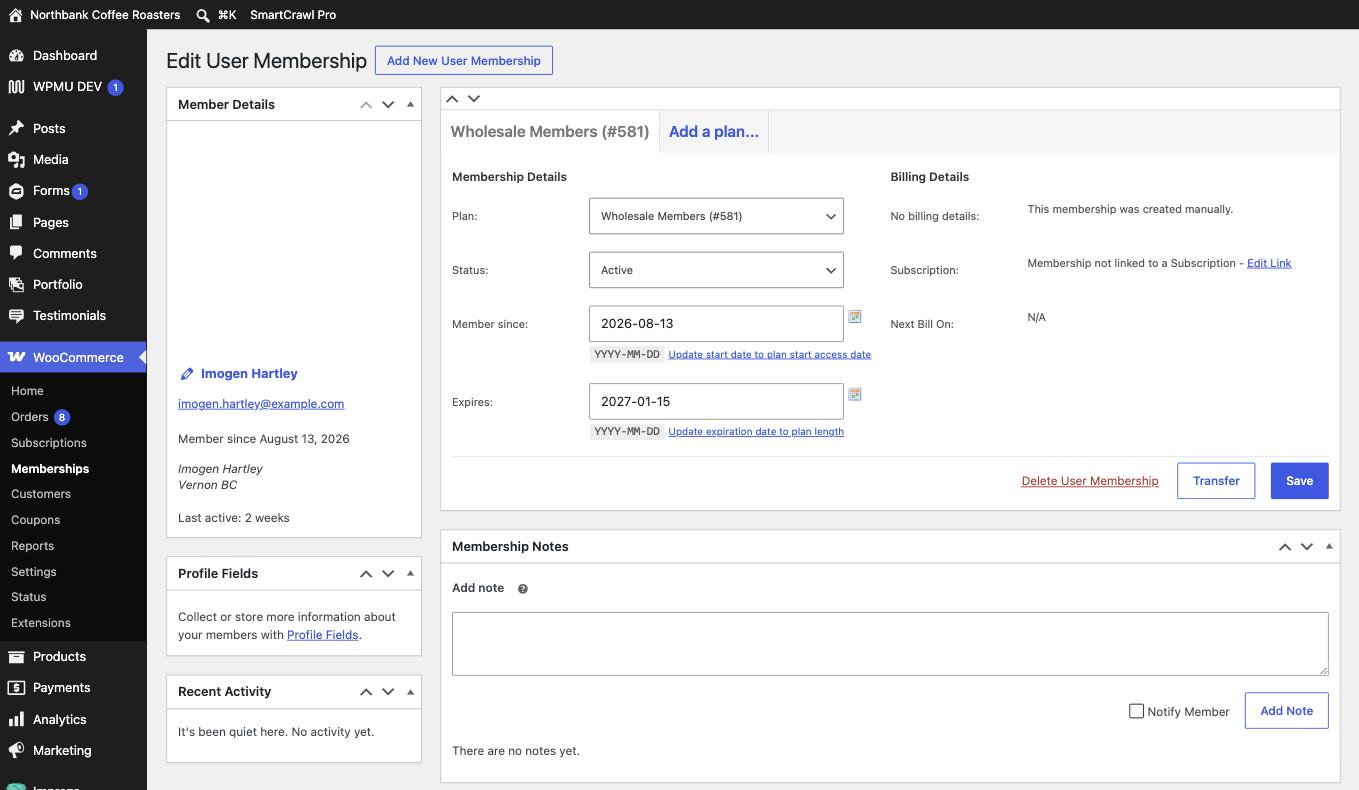
Open the member’s record, change the End date, and save. That is the whole job. You do not need to cancel the old membership and create a new one, and you should not, because doing so throws away the history of when they first joined.
Ending one early
Open the record and change the Status.
| Choose | When |
|---|---|
| Cancelled | Access should stop now. Use this when someone leaves, or a membership was created in error. |
| Expired | The term simply ran out. Usually the site sets this for you when the end date passes. |
| Paused | A temporary hold you intend to lift. The record stays intact and can be resumed. |
Change the status, do not delete the record. Deleting a membership erases the fact that the person was ever a member, which you will need if they come back, query an invoice, or ask when they joined. Cancelling keeps the history and has exactly the same effect on what they can see today.
If they are also paying by subscription
If the person has a subscription for the same plan, deal with the subscription first, because ending the payment ends the access in the right order and keeps the two records agreeing with each other. Only edit the membership directly when there is no subscription behind it, which is the usual case for anyone who paid offline.
What we need if it will not behave
The member’s email address, the plan, what you set the status and end date to, and what they are seeing instead. If a membership you created is not letting someone in, that is worth sending to us rather than trying repeatedly, because creating more records makes it harder to unpick.
Related
Still haven’t found what you’re looking for?
Let us know and we’ll do our best to help out!