

Have questions about paid ads, campaign optimisation, or platform features? Browse our knowledge base for step-by-step guides, FAQs, and expert insights to help you succeed.
Finding a Member and What They Can See
On This Page
The Members list is the register of who currently has access to member-only content. Access comes from the plan a person is attached to, not from anything set on the person themselves, so the answer to “why can they not see it?” is nearly always in the row, not in their user account.
Where the list is
In your dashboard go to WooCommerce, then Memberships. That opens the Members list, which is every person who has ever been given a membership, whatever state it is in now.
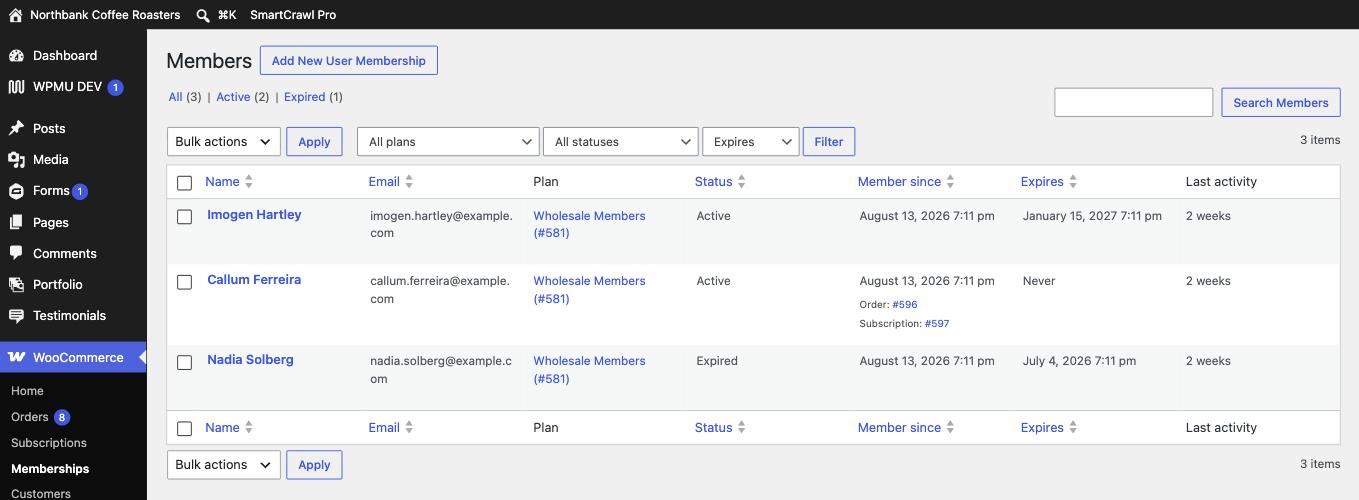
Finding one person
- Use the search box at the top right of the list and enter their email address. Email is more reliable than a name, because names get typed inconsistently and email addresses do not.
- If nothing comes back, search again on their surname alone, in case the account was created with a different address to the one they are emailing you from.
- Still nothing means they have no membership at all, which is a different problem from having an expired one. Check whether they have an order or a subscription before assuming something broke.
Looking costs nothing. Opening the list, searching it and opening a member’s record changes nothing at all. You can explore this screen freely while you work out what is going on.
What the statuses mean
| Status | What it means |
|---|---|
| Active | They have access right now. This is the normal state. |
| Expired | The end date has passed and access has stopped. The record stays so the history is not lost. |
| Cancelled | Ended deliberately before its end date. |
| Paused | On hold. Access is suspended but the record is intact and can be resumed. |
| Pending | Created but not started yet, usually waiting on a payment to clear. |
Two of these look alike from the member’s side and are very different from yours. Expired happened on its own because a date passed. Cancelled happened because somebody or something stopped it. If a member insists they did not cancel, the status tells you whether they are right.
Checking what they can actually see
Open the member’s row and you get their record: the plan, the status, the start and end dates, and the subscription behind it if there is one. There is also a Members Area section listing exactly what that plan entitles them to.
That last part is the useful one when someone says a specific page or download is not working for them. It separates two very different situations: the person does not have access, or the person has access and something else is wrong.
If they say they cannot see something
Work through it in this order, because each step rules out the step after it.
- Do they have a membership at all? Search the list by email.
- Is it active? Read the status label, not the dates.
- Is it the right plan? A person can hold one plan and be trying to reach content that belongs to another.
- Are they logged in as the right account? People commonly have a personal address and a work address, and are signed in with the wrong one.
- Only then treat it as a fault and send it to us.
An admin account is not a fair test. Administrators can see restricted content whether or not they hold a membership, so opening the page yourself and finding it works proves nothing about what the member sees. Trust the member’s record over your own view of the page.
What we need if you get stuck
The member’s email address, the plan name, the status you can see on their row, and the address of the page they cannot reach. With those four things we can usually tell you the cause without needing to ask anything else.
Related
Still haven’t found what you’re looking for?
Let us know and we’ll do our best to help out!