

Have questions about paid ads, campaign optimisation, or platform features? Browse our knowledge base for step-by-step guides, FAQs, and expert insights to help you succeed.
Adding a team member to your website
On This Page
Everyone who works on your website gets their own account, and the account’s role decides what they can reach. Sharing one login between people is the thing to avoid, because you then cannot tell who changed what, and removing one person’s access means changing everybody’s password.
You never need to know anyone’s password, including your own team’s. WordPress emails each new person a link so they set their own. Nobody has to send a password to anybody.
Adding someone
- In the left menu, go to Users and click Add User.
- Enter a Username. Something like
jo.harperis ideal, and it cannot be changed later. - Enter their work email address. This is where their invitation goes, and it must not already be in use on the site.
- Fill in First Name and Last Name, which is what appears if they ever publish a post.
- Leave the Password field as the generated one and do not write it down.
- Leave Send the new user an email about their account ticked.
- Choose the Role using the table below. When in doubt, pick Editor.
- Click Add User.
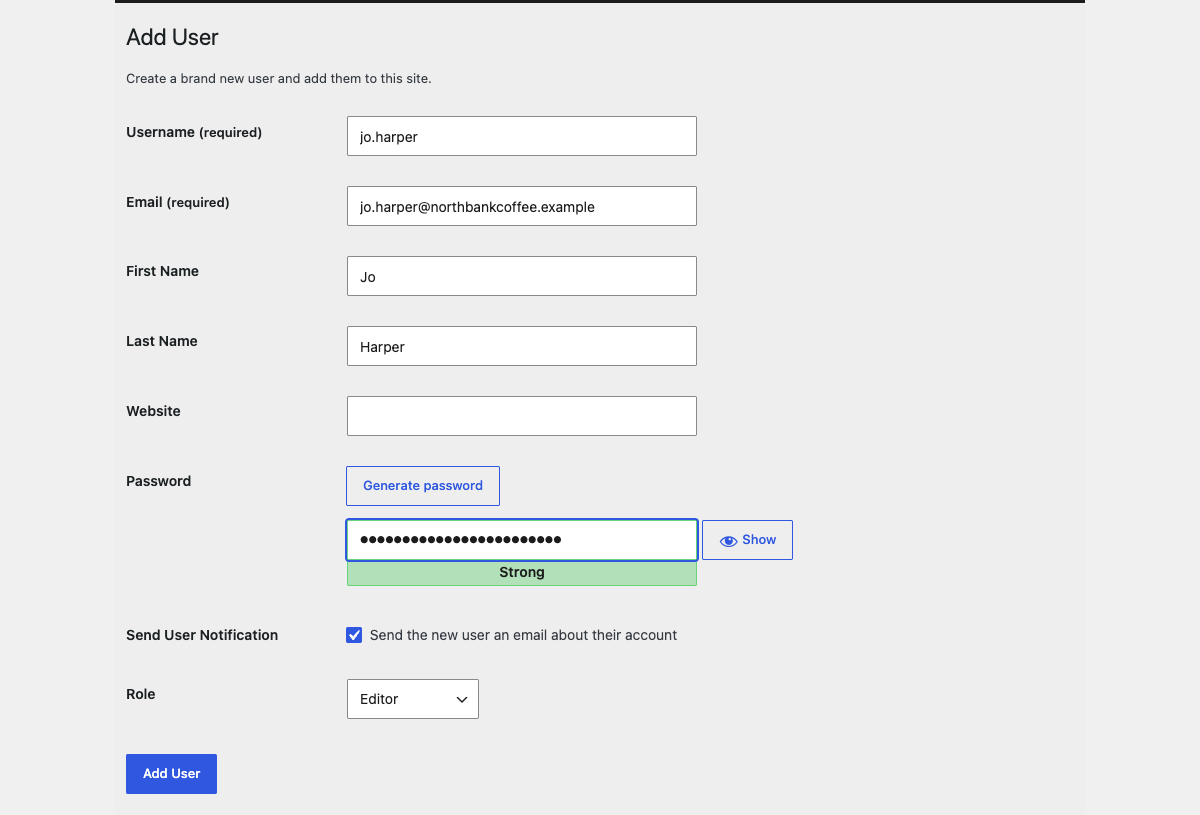
The username is permanent. Email addresses, names and roles can all be changed later, but the username cannot. If somebody joins as
temp2 they are temp2 for the life of the account.
Which role to give somebody
Roles go from least to most powerful. Give the least that lets the person do their job, which is not caution for its own sake: it means an accidental click has a smaller blast radius.
| Role | Give it to |
|---|---|
| Editor | Anyone who writes and publishes content. They can edit and publish any page or post, and upload images. They cannot touch plugins, settings or users. This is the right answer for most people. |
| Author | Someone who should publish their own posts but not touch anyone else’s, and not touch pages. |
| Contributor | Someone who writes drafts for you to approve. They cannot publish anything. |
| Shop manager | Someone handling orders, stock and products, but not the rest of the site. |
| Subscriber / Customer | Nobody, deliberately. These are what site visitors and shop customers get automatically. |
| Administrator | You, us, and nobody else by default. See the warning below. |

Administrator is not “the role for senior people”. It is the role that can deactivate plugins, switch themes, change site-wide settings and delete other users, which is exactly the list in what not to touch. Seniority is not the question; what the person needs to click is. A marketing manager who publishes pages wants Editor.
Giving VM access
If you need us on the site and we are not already there, add us as an Administrator using the address we give you, and let us know it is done. We need administrator level to do maintenance, updates and fixes.
Do not send us your own login. Not because we would misuse it, but because shared logins make it impossible to tell later who made a change, and because you would then have to change your password to remove our access.
Changing what somebody can do
- Go to Users.
- Hover the person’s row and click Edit.
- Change the Role dropdown.
- Scroll to the bottom and click Update User.
To change several people at once, tick their rows, pick a role in Change role to… above the table, and click Change.
Removing somebody who has left
Do this on their last day. An unused account with a known password is the most common way a website gets broken into.
- Go to Users.
- Hover their row and click Delete.
- If they have written posts, choose to attribute all content to another user, then pick whoever should own it.
- Click Confirm Deletion.

Never choose to delete their content. That option removes every post they ever wrote along with the account. Attributing the content to somebody else keeps all of it and only removes their access. If in doubt, attribute it to yourself.
When to email us instead
- You cannot add someone because WordPress says the email address is already in use. That usually means they have an old account, possibly a customer one.
- Someone needs access to Google Analytics, Ads or your social accounts rather than the website. Those are separate systems with their own guides.
- You are not sure whether somebody still has access, and want a list of who can log in.
- You need more than one administrator and want to talk it through first.
Related guides
Still haven’t found what you’re looking for?
Let us know and we’ll do our best to help out!