

Have questions about paid ads, campaign optimisation, or platform features? Browse our knowledge base for step-by-step guides, FAQs, and expert insights to help you succeed.
Adding a page to your menu
On This Page
Publishing a page does not put it in your menu. The two are kept separate on purpose, because plenty of pages are meant to exist without a link at the top of the site: thank you pages, landing pages, policies. So a new page needs one extra step to become visible in the menu.
This is the whole job: tick, add, move, save. Four clicks and a look at the live site. Nothing here can affect the page itself.
First, publish the page
A draft will not appear in the list of pages you can add. If you cannot find your page, that is nearly always the reason. Publish it, then come back.
Adding it
- Go to Appearance, then Menus.
- If you have more than one menu, choose the right one at the top and click Select.
- In the Pages panel on the left, tick your page. Use the Search tab if the list is long.
- Click Add to Menu.
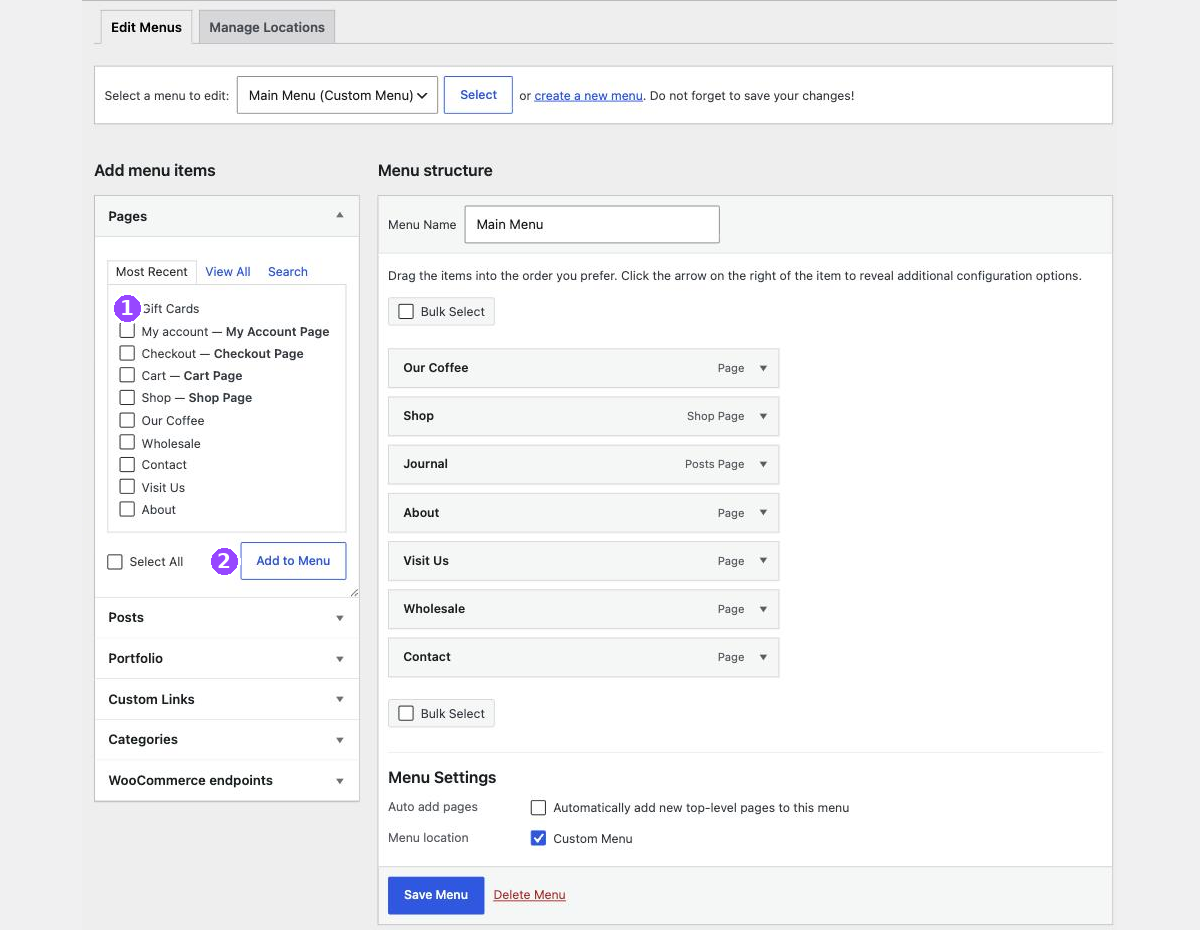
The link appears at the bottom of Menu structure on the right.
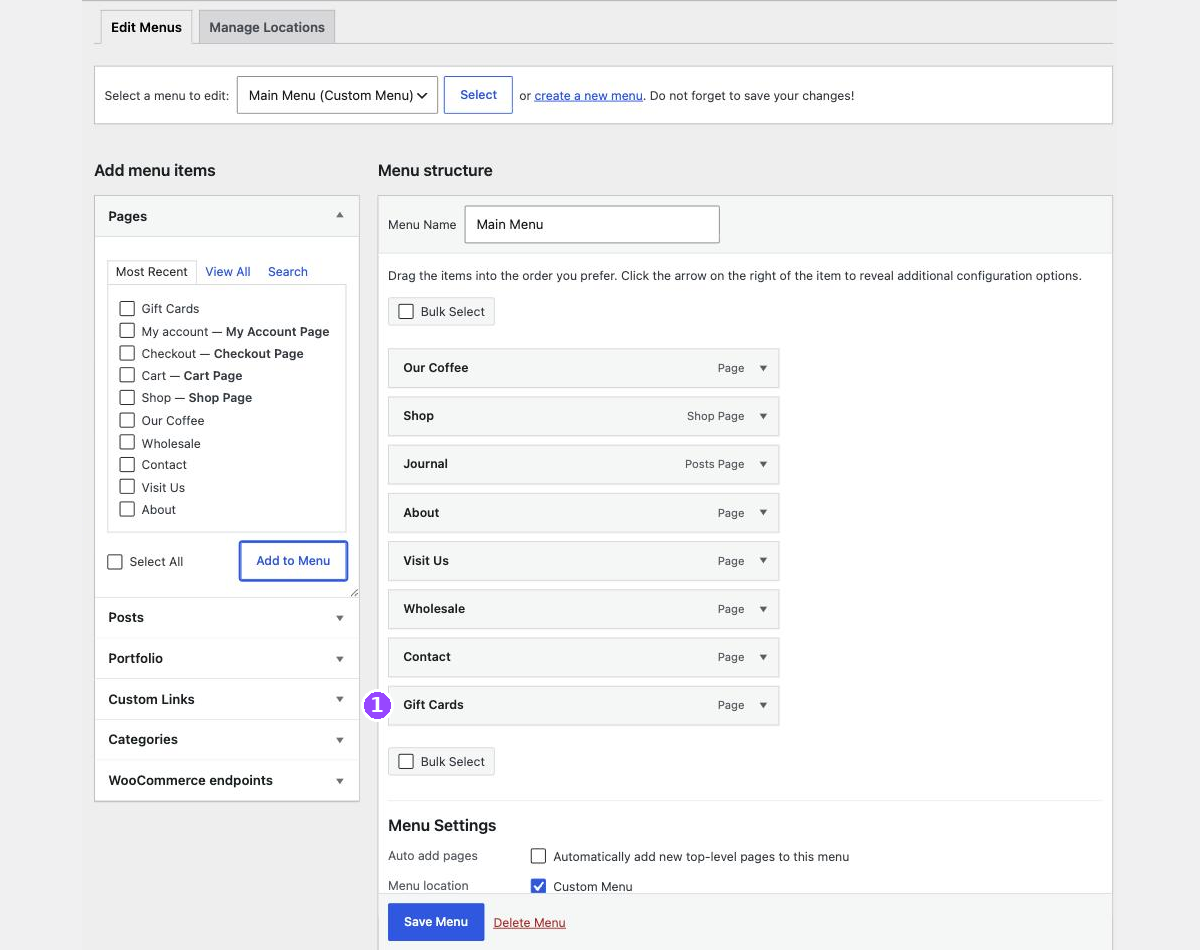
Nothing is live yet. Everything on this screen is held until you click Save Menu. That is useful, because it means you can tidy the order first, but it also means leaving the screen now loses the lot.
Moving it into position
New links always land at the bottom. To move one, click the arrow at its right hand end to open it, then use the Move row.
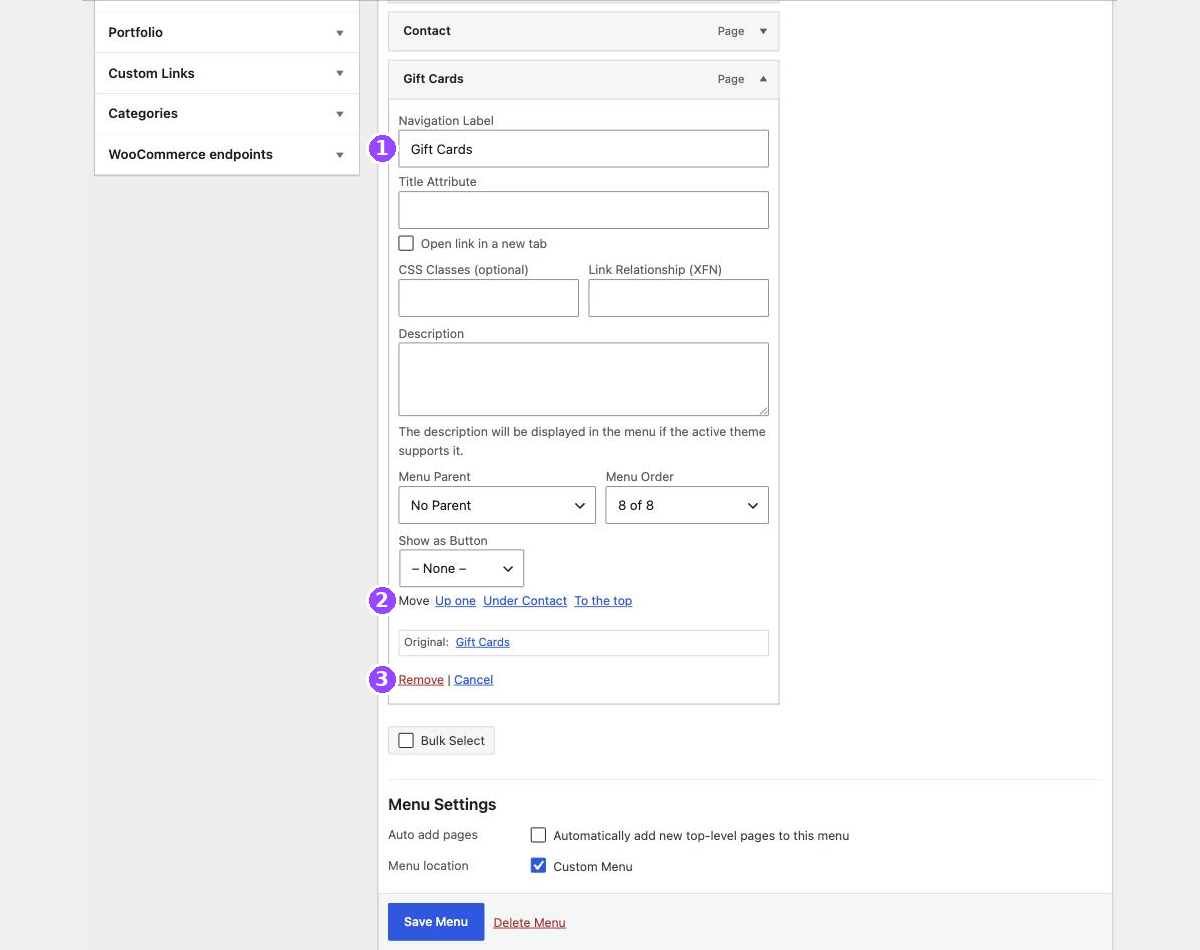
Up one moves it one place; click it as many times as you need. To the top takes it straight to first. While you are here, check Navigation Label, because this is the wording that appears on your site and it does not have to match the page title.
Use Move rather than dragging. The screen invites you to drag, but dragging a link a few pixels too far to the right nests it as a dropdown under its neighbour. The Move links cannot do that by accident.
Saving and checking
- Click Save Menu.
- Open your site in a new tab.
- Check the menu on a computer, then on your phone.
- Click the new link and make sure it lands on the right page.
One extra item is what usually breaks a menu. Menus are designed to fit the number of links they had on day one. Add a seventh or eighth and the row can wrap, crowd the logo, or push a link off the edge. It looks fine in the admin either way, so you have to look at the real page.
If something is not right
| What you are seeing | What it usually means |
|---|---|
| The page is not in the list you can tick | It is still a draft, or it is a post or product rather than a page. Look in the Posts panel or use Search. |
| You added it but the site has not changed | Save Menu was not clicked, or your browser is showing a cached copy. Reload the page. |
| The link is indented under another one | It was dragged too far right. Open it and set Menu Parent to No Parent. |
| The menu now wraps onto two lines | There are more links than the design allows. Email us rather than trying to squeeze it. |
| The link goes to the wrong place | Two pages have similar names and the wrong one was ticked. Remove it and add the right one. |
Removing a link you added by mistake
Open the link, click Remove, then Save Menu. The page itself is untouched.
When to email us instead
- The menu is full and you need something else in it.
- You want a dropdown rather than another link along the top.
- You want the link to open a file, or another website, or to jump partway down a page.
- The link needs to look like a button.
- You want it in the footer as well.
Related guides
Still haven’t found what you’re looking for?
Let us know and we’ll do our best to help out!