

Have questions about paid ads, campaign optimisation, or platform features? Browse our knowledge base for step-by-step guides, FAQs, and expert insights to help you succeed.
Editing your navigation menu
On This Page
Your menu is a list of links, and it is kept separately from your pages. Nothing you do here creates, changes or deletes a page: you are only deciding which pages get a link at the top of the site, what those links say, and what order they come in.
This is one of the safest screens in WordPress. Because a menu only holds links, the worst you can do is end up with a menu that looks wrong, which takes seconds to put back. Your content is never at risk from this screen.
Getting there
- In the left menu of your dashboard, hover Appearance.
- Click Menus.
- If you have more than one menu, pick the one you want from Select a menu to edit and click Select.
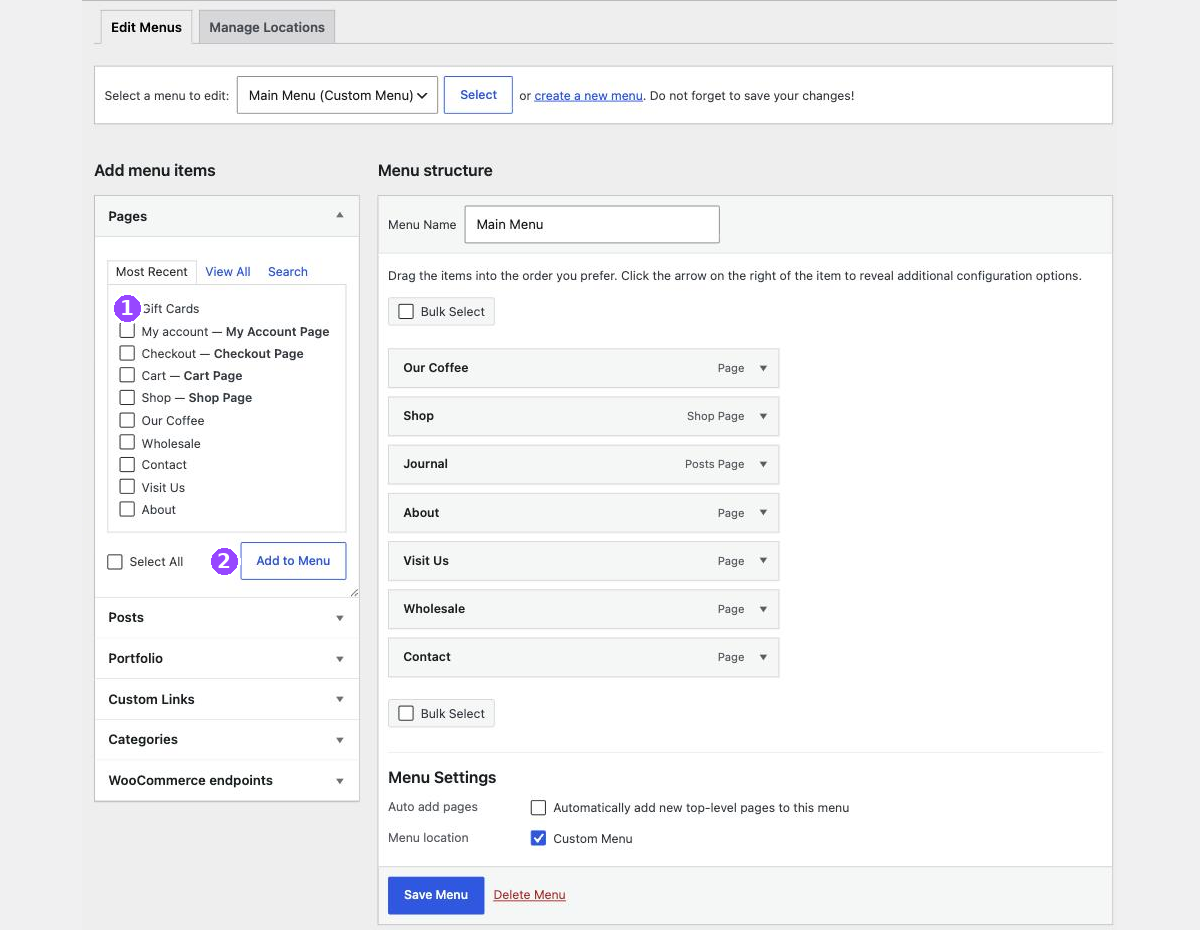
The screen has two halves. The left half is a set of things you can add. The right half, Menu structure, is the menu itself, top to bottom in the order it appears on your site.
Changing what a link says
Click the small arrow at the right hand end of a link to open it up.
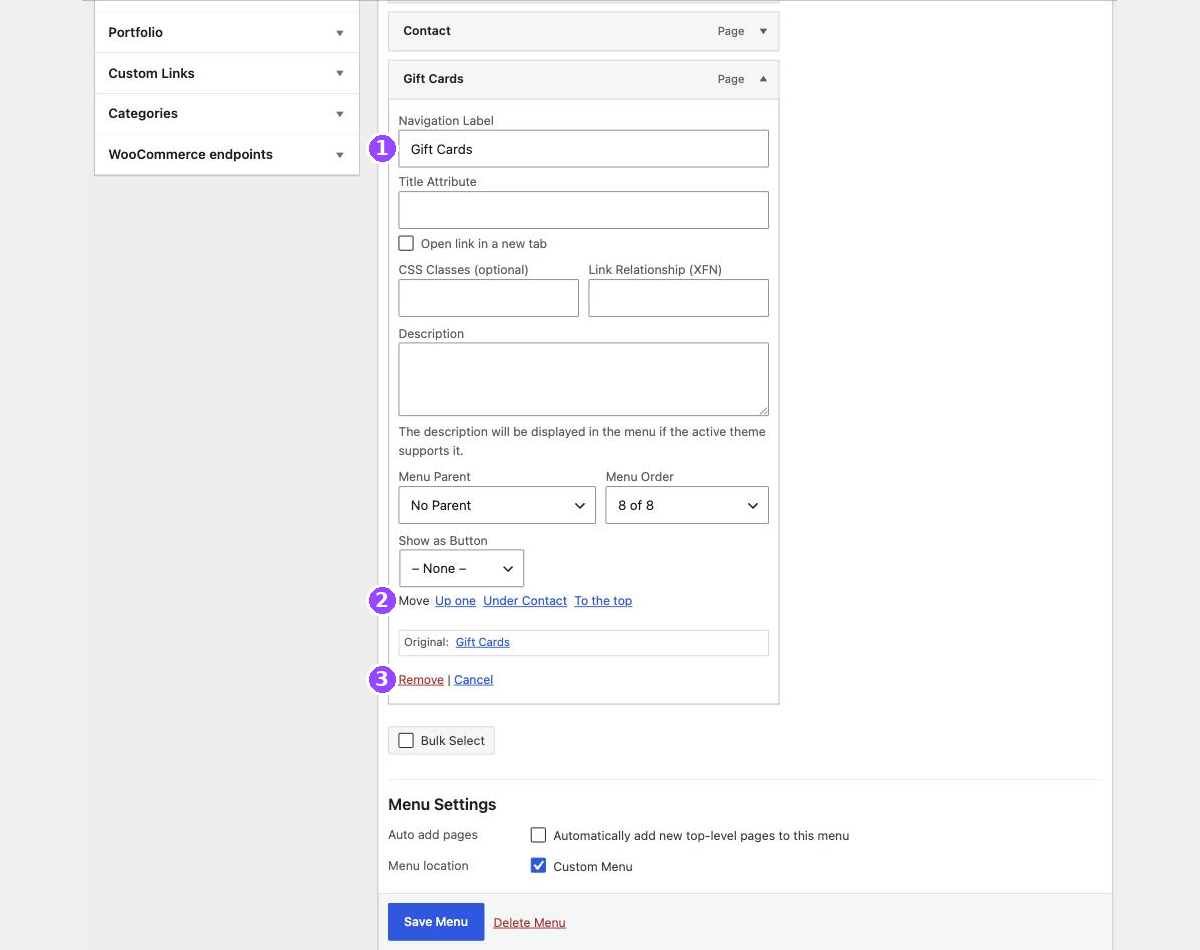
The field you want is Navigation Label. Change it, then click Save Menu.
This changes the menu only, not the page. A page called “Commercial and Wholesale Enquiries” can have a menu link that just says “Wholesale”. Short menu labels are usually better, because long ones wrap onto two lines on smaller screens.
Changing the order
You can drag links up and down, and the on-screen instructions tell you to. Dragging is fiddly, and it is easy to drop a link inside another one by accident. There is an easier way.
Open the link and use the Move row: Up one, Down one, To the top. Click as many times as you need, then Save Menu.
The Move links cannot go wrong. Every click moves the item exactly one position, or straight to the top, and nothing gets nested by accident. If you have ever fought with drag and drop, use these instead.
Dropdowns, which WordPress calls sub items
A link indented underneath another one becomes a dropdown on the live site. WordPress marks it sub item in the list.
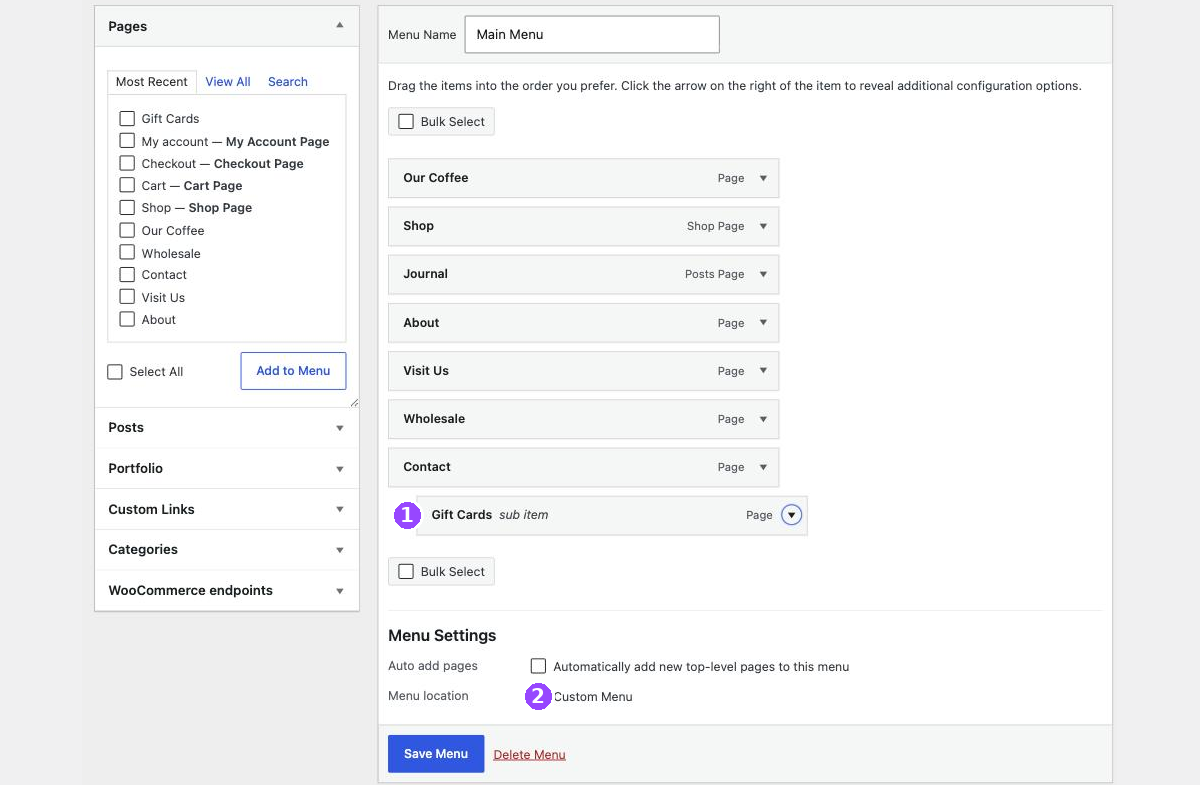
To nest a link, open it and click Under followed by the name of the link above it. To bring it back out to the top level, open it and set Menu Parent to No Parent.
Check a dropdown on a phone before you leave it. Dropdowns behave differently on touch screens, and on some designs a parent link that has children stops being tappable itself. If the parent page matters, add it again as the first item inside its own dropdown.
Taking a link out of the menu
- Open the link with the arrow at its right hand end.
- Click Remove.
- Click Save Menu.
Remove does not delete the page. The page stays exactly where it was, still live, still reachable by its address and still findable in search. You have only taken away its link in the menu.
If you want the page gone as well, that is a separate job done from the Pages list, and it is worth thinking about first: an old page that still gets visitors is usually better redirected than deleted.
What to leave alone on this screen
| Leave alone | Why |
|---|---|
| Menu location checkboxes | These decide which menu appears where in your design. Unticking one can empty the menu on your whole site. |
| Delete Menu | Deletes the entire menu, not one link. There is no undo. |
| CSS Classes | Hooks used by your design. Changing them can restyle or hide a link. |
| Automatically add new top-level pages | Turning this on puts every new page in your menu whether you meant it or not. |
| The menu name | Harmless in itself, but it makes our notes and yours disagree. |
Always finish by looking at the live site
Click Save Menu, then open your site in a new tab and look at the menu, on a computer and on your phone. A menu that is one item too long is the most common problem, and it only shows up on the real page.
When to email us instead
- The menu has more items than fits and starts to wrap or crowd the logo.
- You want a dropdown with headings, columns or images in it.
- You want a different menu on some pages.
- You saved a change and the menu vanished from the site.
- You want a link to something that is not a page, such as a file or another website.
Related guides
Still haven’t found what you’re looking for?
Let us know and we’ll do our best to help out!