

Have questions about paid ads, campaign optimisation, or platform features? Browse our knowledge base for step-by-step guides, FAQs, and expert insights to help you succeed.
Finding the page or post you want to edit
On This Page
There are two ways to reach the thing you want to change, and the quicker one is to find it on your public website first and click Edit from there, because then you cannot possibly open the wrong page.
Opening something to look at it is harmless. You can open any page, read it, and leave without saving. Nothing changes unless you click the save button.
The quick way: find it on your site, then click Edit
Use this whenever you can see the thing you want to change.
- Make sure you are logged in, then browse your website as a visitor would.
- Navigate to the page you want to change.
- In the black bar at the top, click Edit Page.

This is the method to build the habit around. Sites often have pages with similar names, and old pages that are no longer linked anywhere. Starting from the live page removes all of that guesswork.
The other way: find it in the dashboard
Use this when the page is not published yet, or when you are not sure it exists.
- In the left menu, click Pages (or Posts for a news item).
- Find the row you want. Hover it to reveal the actions.
- Click Edit.

What each of those links does
| Link | What it does |
|---|---|
| Edit | Opens the page properly, in the builder your site is designed in. This is the one you want. |
| Quick Edit | Lets you change the title and a few settings inline, without opening the page. Handy, but it cannot touch the page’s content. |
| Trash | Removes the page from your site. Recoverable for 30 days. |
| View | Opens the page as a visitor sees it. |
| Edit Live | A second, different editor. Powerful and easy to make a mess in. |
Use Edit, not Edit Live. They are two separate editors and every VM guide describes Edit. Edit Live works on the design of the whole page rather than just its words, so it is far easier to move something by accident. If you have opened it and are unsure, leave without saving.
When the list is long
Once a site has been running a few years its Pages list is long. Three tools cut it down.
- The search box at the top right. It searches the page’s content as well as its title.
- The status links above the table: All, Published, Drafts.
- Clicking the Title or Date column heading to sort, which is the fastest way to find something edited recently.
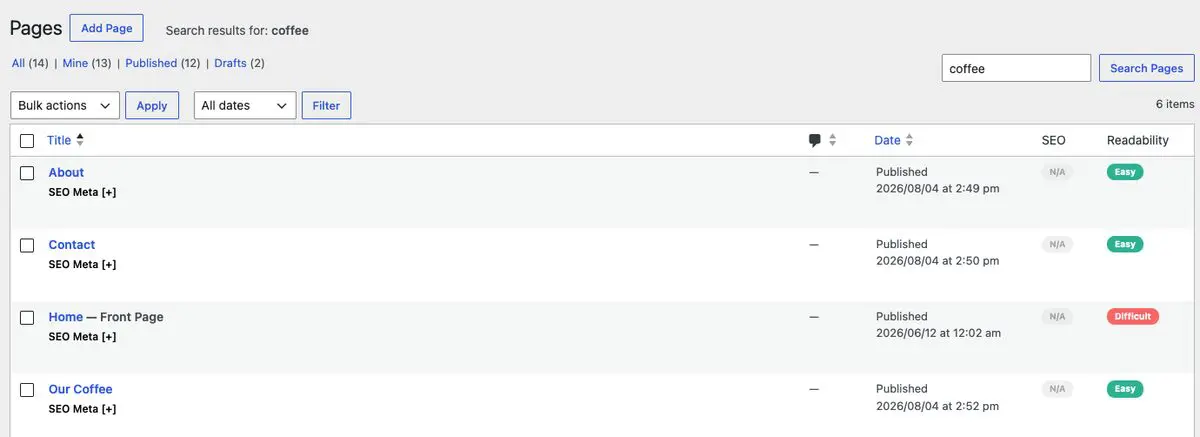
Pages or Posts?
If it is not in one list, it is almost certainly in the other.
- Pages are the fixed parts of your site: About, Contact, Services. They sit in your menu and do not have a date.
- Posts are dated entries that stack up newest-first on your news or journal page. They carry categories and tags.
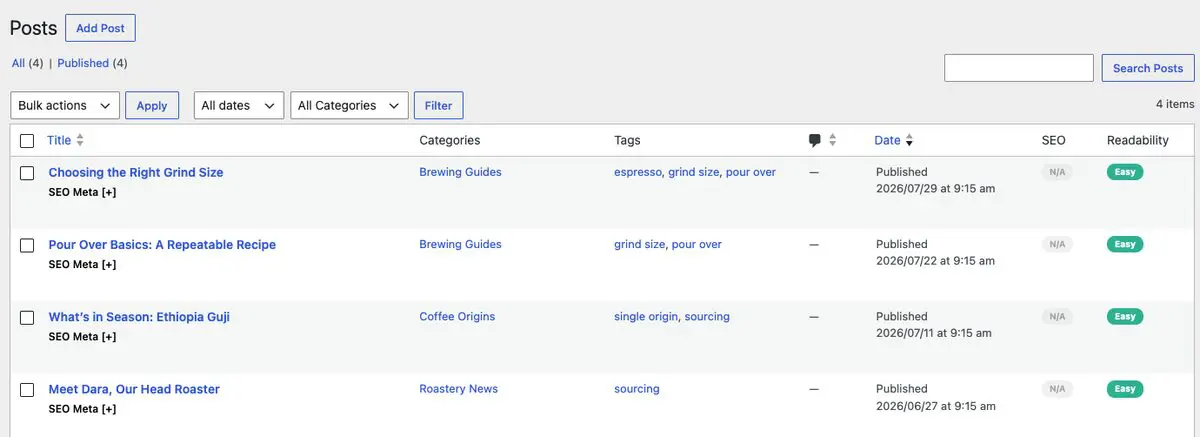
Some things are not in either list. Your header, footer and menu are edited elsewhere, and repeated blocks like a call-to-action band may be a single item reused on many pages. If you cannot find the wording you are looking for on the page itself, that is usually why. Email us and we will point you at it.
If you cannot find it at all
- Open the page on your live site and use Edit Page from the black bar. This works even when you cannot guess the name.
- Search for a distinctive phrase from the page rather than its title.
- Check the Drafts filter, in case it was never published.
- Still stuck? Send us the address of the page and the words you want changed. That is always enough for us to find it.
Related guides
Still haven’t found what you’re looking for?
Let us know and we’ll do our best to help out!