

Have questions about paid ads, campaign optimisation, or platform features? Browse our knowledge base for step-by-step guides, FAQs, and expert insights to help you succeed.
Saving, previewing, publishing and scheduling
On This Page
Your website keeps two copies of a page while you work: the one your visitors see, and the one you are editing. They only become the same page when you press the blue button, which is why nothing you do on screen is visible to anyone until you save.
You can edit a live page in peace. Opening a published page and changing it does not change what visitors see. That only happens when you click Update.
The one box that matters
Every editing screen has a Publish box in the top right corner. It holds every option to do with saving, and nothing else on the screen can put a page live.
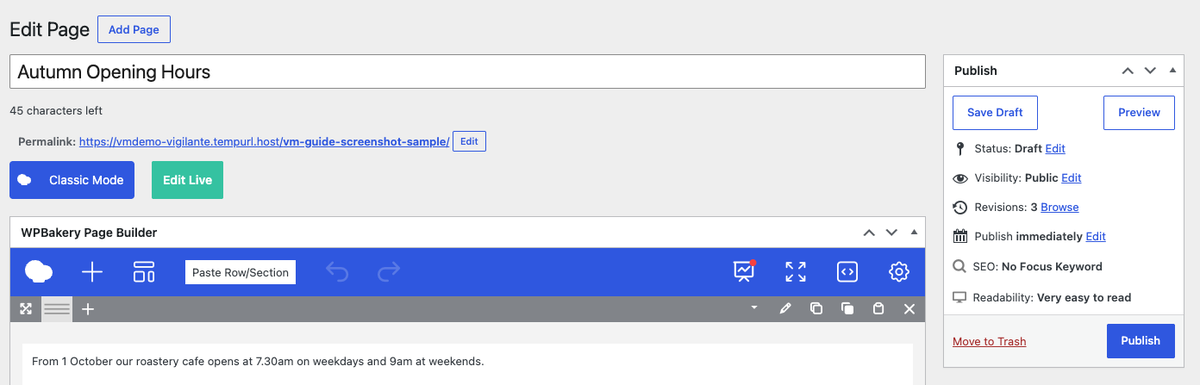
The blue button changes name, and the name tells you what will happen
| Button | What pressing it does |
|---|---|
| Save Draft | Saves your work privately. Nothing appears on the website. |
| Publish | Puts the page on your live website immediately. |
| Update | Replaces the live version of an already-published page with what you are looking at. |
| Schedule | Publishes it for you at a date and time you choose. |
Read the button before you click it. If it says Publish and you only meant to save your progress, use Save Draft instead. It is the single easiest thing to get wrong on this screen.
Checking your work before anyone else sees it
Preview shows you the real page, laid out exactly as a visitor would see it, without publishing anything.
- Click Preview, or Preview Changes on a page that is already live.
- The preview opens in a new browser tab.
- Look it over, then close that tab and return to the editing tab.
- If you are happy, click the blue button. If not, keep editing.
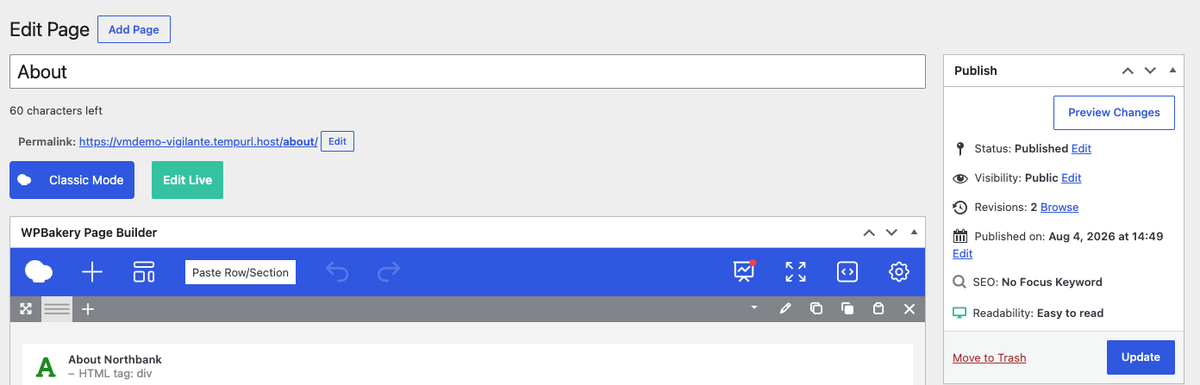
Preview is always safe. The preview link only works for people logged in to your website, so you can use it freely on a live page without anyone stumbling across a half-finished edit.
Publishing later instead of now
Useful for opening hours changes, seasonal offers, or anything that should appear on a particular morning without you having to remember.
- In the Publish box, find Publish immediately and click Edit beside it.
- Set the date and time you want.
- Click OK.
- Check the blue button now says Schedule, then click it.
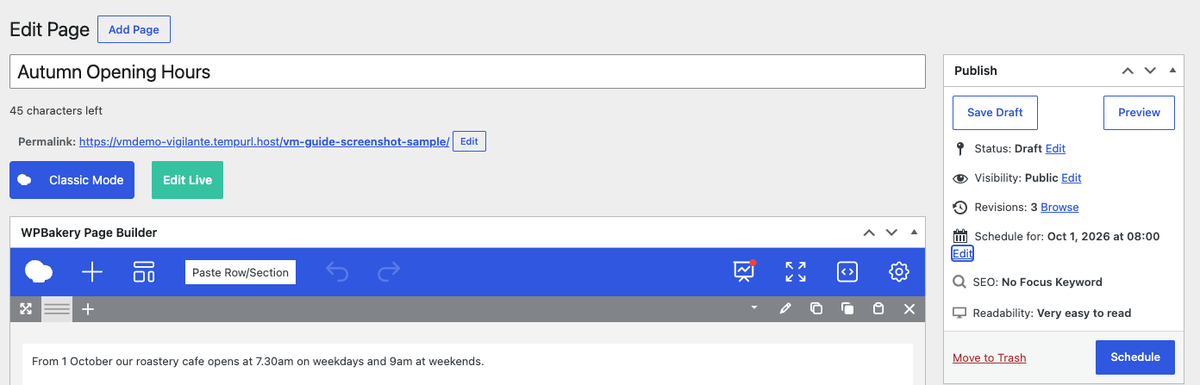
The time is your website’s time zone, not necessarily yours. If something must go live at a precise moment, schedule it a few minutes early and check the page yourself afterwards.
Unpublishing something
To take a live page off the website without deleting it, change its status back to draft.
- In the Publish box, click Edit next to Status: Published.
- Choose Draft and click OK.
- Click Update.
A page that is in your menu will leave a dead link behind. Unpublishing hides the page but does not remove it from your navigation. If the page you are unpublishing appears in a menu, tell us so we can tidy the menu at the same time.
If you are not sure whether your change saved
- Open your live page in a new tab and look at it as a visitor.
- If it still shows the old wording, go back and check the blue button.
- If you saved and it still looks old, your browser may be showing a stored copy. Reload the page.
- Still old? Your website keeps a cache of pages to load faster. See clearing your website cache.
Related guides
Still haven’t found what you’re looking for?
Let us know and we’ll do our best to help out!