

Have questions about paid ads, campaign optimisation, or platform features? Browse our knowledge base for step-by-step guides, FAQs, and expert insights to help you succeed.
Replacing an image on a page
On This Page
An image on a page is a link to a file in your Media Library, not a copy of it, so replacing the picture means pointing that one element at a different file. The old file stays in the library, and any other page using it is unaffected.
You cannot break other pages doing this. Changing the image in one element changes it in that one place. Nothing else moves.
Before you upload: get the file right
Two minutes here saves a slow page later, and it is the single most useful habit in this whole library.
| Check | Aim for |
|---|---|
| File size | Under 300 KB. Photos straight off a phone are often 5 to 8 MB, which is 20 times too big. |
| Width | Around 2000 px is plenty for a full-width image. Anything larger is wasted. |
| Format | JPG for photographs. PNG only when you need a transparent background, like a logo. |
| Filename | Something descriptive: flat-white-northbank.jpg beats IMG_4821.jpg. |
| Shape | Roughly the same shape as the image you are replacing, or the layout around it will shift. |
Shape matters more than people expect. Swapping a wide landscape photo for a tall portrait one is the most common way a tidy page suddenly looks wrong. If you only have a portrait photo and the slot is landscape, send it to us and we will crop it properly rather than letting the page stretch around it.
Replacing the image
- Open the page with Edit, as in finding the page you want.
- Find the element holding the picture. It shows a thumbnail and the words Image.
- Hover it and click the pencil on the green toolbar.

- In Image Settings, click the picture itself.
- Use Upload files for a new photo, or Media Library to pick one already on your site.
- Fill in Alt Text on the right: one plain sentence describing the picture.
- Click Select.
- Click Save changes to close the panel.
- Click Update on the page itself. The panel’s save button does not publish anything on its own.
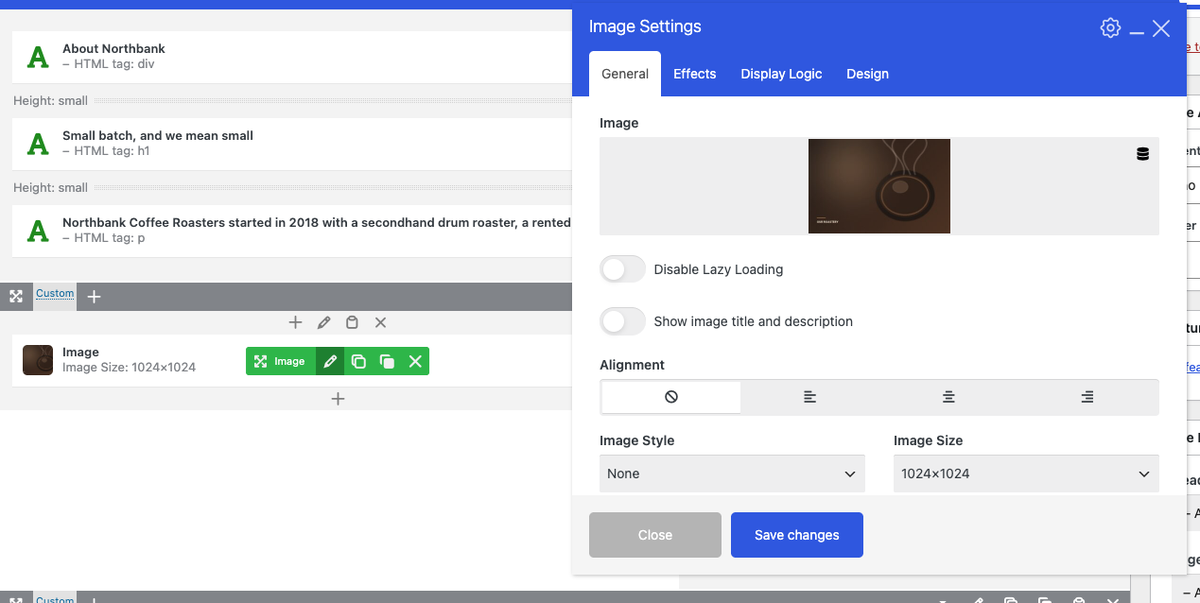
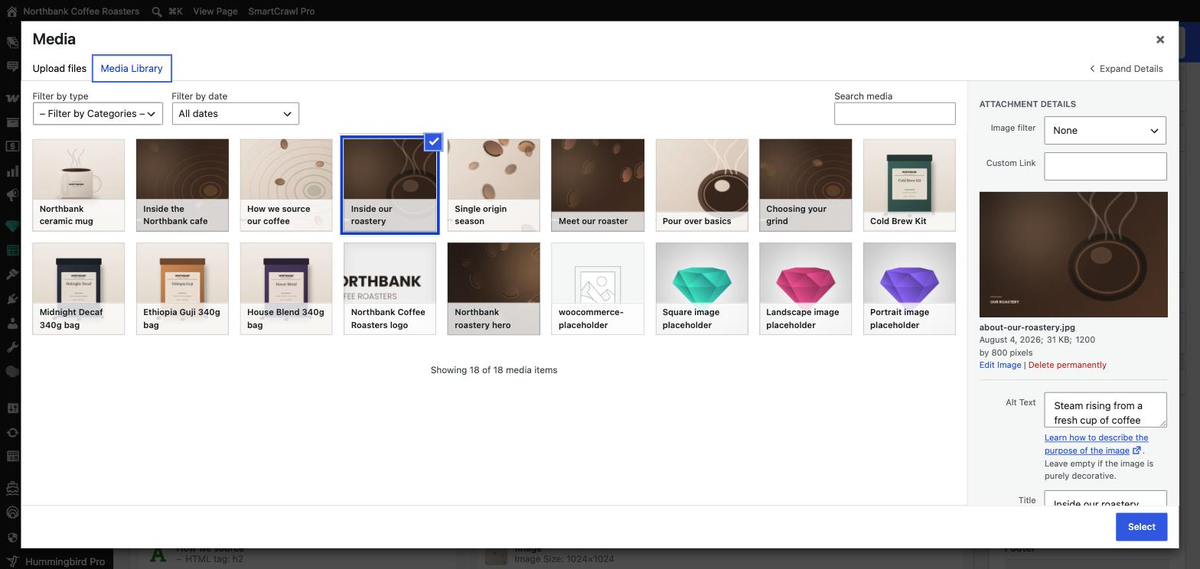
Two saves, not one. Save changes closes the element panel. Your visitors see nothing until you also click Update on the page. Forgetting the second one is the usual reason a change “did not work”.
Alt text, in one line
Alt text is what screen readers read aloud, and what shows if the image ever fails to load. Describe what is in the picture, plainly, without “image of”.
- Good: Flat white on the counter at our Northbank Way cafe
- Less good: coffee
- Not useful: IMG_4821
It is worth the ten seconds. Alt text helps people using screen readers, and it is one of the few genuinely simple things that helps how your pages are understood by search engines.
If it does not look right afterwards
- Still the old picture? Reload the page. If it persists, see clearing your website cache.
- Stretched or squashed? The new file is a different shape from the old one. Try one closer to the original proportions.
- Blurry? The file is too small. Upload a larger version rather than the one saved off a website or a messaging app.
- Page feels slow? Check the file size. Anything over a megabyte is worth replacing.
- Check it on a phone before you move on. See checking your changes on mobile.
When to email us instead
- The image is part of the background of a band rather than an element in it, so there is no thumbnail to click.
- The same picture appears on several pages and you want it changed everywhere.
- You want it cropped or straightened and would rather it was done properly.
- It is a logo. Those usually sit in the header or theme settings rather than on a page.
Related guides
Still haven’t found what you’re looking for?
Let us know and we’ll do our best to help out!