

Have questions about paid ads, campaign optimisation, or platform features? Browse our knowledge base for step-by-step guides, FAQs, and expert insights to help you succeed.
Editing images in WordPress
On This Page
WordPress has a small image editor built in: crop, rotate, flip and scale. It is genuinely useful for a quick fix when you are not at your own computer. The thing to understand before you touch it is that it edits the file, not the page, so a change here shows up everywhere that image is used. There is a restore button, which makes this much less frightening than it sounds.
Nothing here is permanent. WordPress keeps your original and offers “Restore original image” afterwards. So you can crop, look at the page, decide you hate it, and put it back. That is worth knowing before you start, because it turns this from a risk into an experiment.
Getting to the editor
- Go to Media, then Library, and click the image you want to change.
- Choose Edit Image, just below the picture.
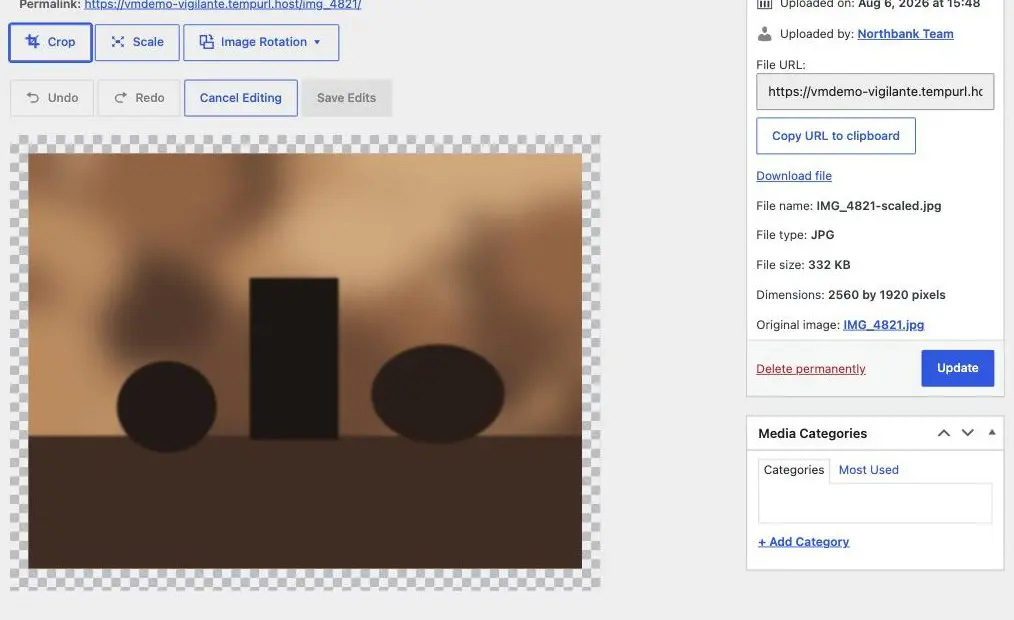
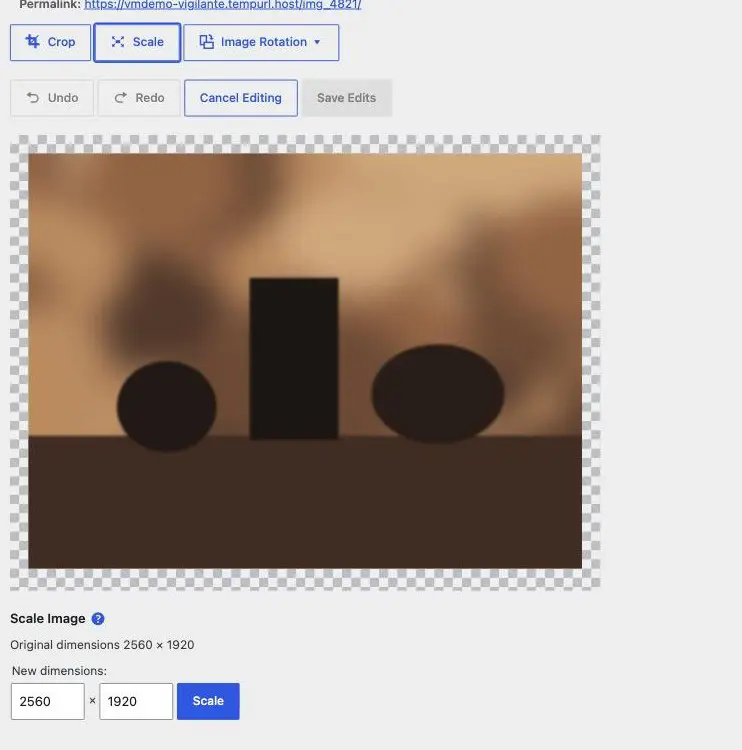
Scale: the one that earns its keep
Scaling makes the image smaller in pixels, which is the fix for an image that was uploaded far too large. Choose Scale, type a new width, and the height follows automatically to keep the proportions. Then Scale, then Save Edits.
Not sure what number to use? Preparing an image before you upload it has a table of sensible sizes.
Crop
- Choose Crop, then drag a box on the image to select the part you want to keep.
- To force a shape, type a ratio such as 16:9 or 1:1 in the aspect ratio boxes before you drag.
- Choose Crop again to apply it, then Save Edits.
Cropping is the right tool when a photo has too much sky, or when a portrait shot needs to sit in a landscape space and is currently showing somebody’s forehead.
Rotate and flip
Under Image Rotation. Rotate is for photos that came off a camera sideways. Flip is for mirroring, which you will rarely want; be careful flipping anything containing text, a logo or a vehicle, because it reads as an obvious mistake.
Your edit applies to every page using that image. This is the one thing that catches people. If the same photo appears on the home page and in a blog post, cropping it here crops it in both. If you only want it different on one page, do not edit the file; upload a second copy under a different name and use that. Replacing an image used in several places explains how to tell which situation you are in.
Undoing it
Open the image again and choose Edit Image. If you have saved an edit, there is a Restore original image option. That puts back the file you originally uploaded and discards the edited version. It does not reverse a scale you made three months ago and then edited again on top of, so if a picture matters, tell us before a big change rather than after.
What this editor will not do
It is deliberately basic. No brightness, colour, straightening, text, or removing things. For anything beyond crop, scale and rotate, either edit the picture properly on your computer and upload it as a new file, or send it to us. If you find yourself fighting this editor, that is the signal to stop and do one of those two things instead.
What we need if something fails
The filename and what you were trying to do. If an edit produced something odd, say so before you try again, because repeated saves on top of each other make it harder to get back to a clean original.
Related
Still haven’t found what you’re looking for?
Let us know and we’ll do our best to help out!