

Have questions about paid ads, campaign optimisation, or platform features? Browse our knowledge base for step-by-step guides, FAQs, and expert insights to help you succeed.
Editing text on a page
On This Page
Every page on your site is a stack of rows, each row is divided into columns, and each column holds elements, so changing a sentence means opening the one element that holds it.
How your pages are put together
Your site is built with a page builder called WPBakery. A page is not one long document. It is assembled from three nested pieces.
- A row is a horizontal band across the page. Rows stack down the page in order.
- A column is a vertical slice of a row. A row can be one wide column, or several side by side.
- An element is the content itself: a paragraph, a heading, an image, a button.
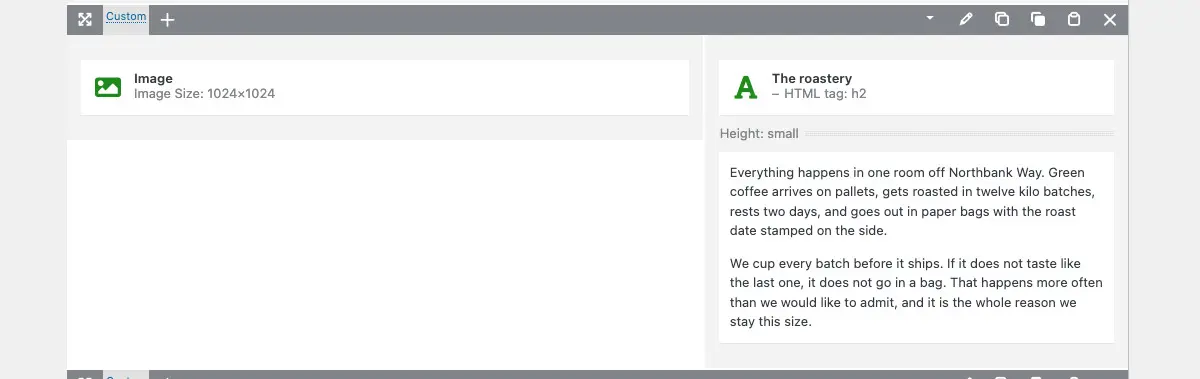
To change wording you only ever need the element. The rows and columns are the frame VM built, and you can leave them alone.
Changing the wording, step by step
- Log in to your site and click Pages in the left menu.
- Find the page you want to change and move your mouse over its title. A row of small links appears underneath it. Click Edit.
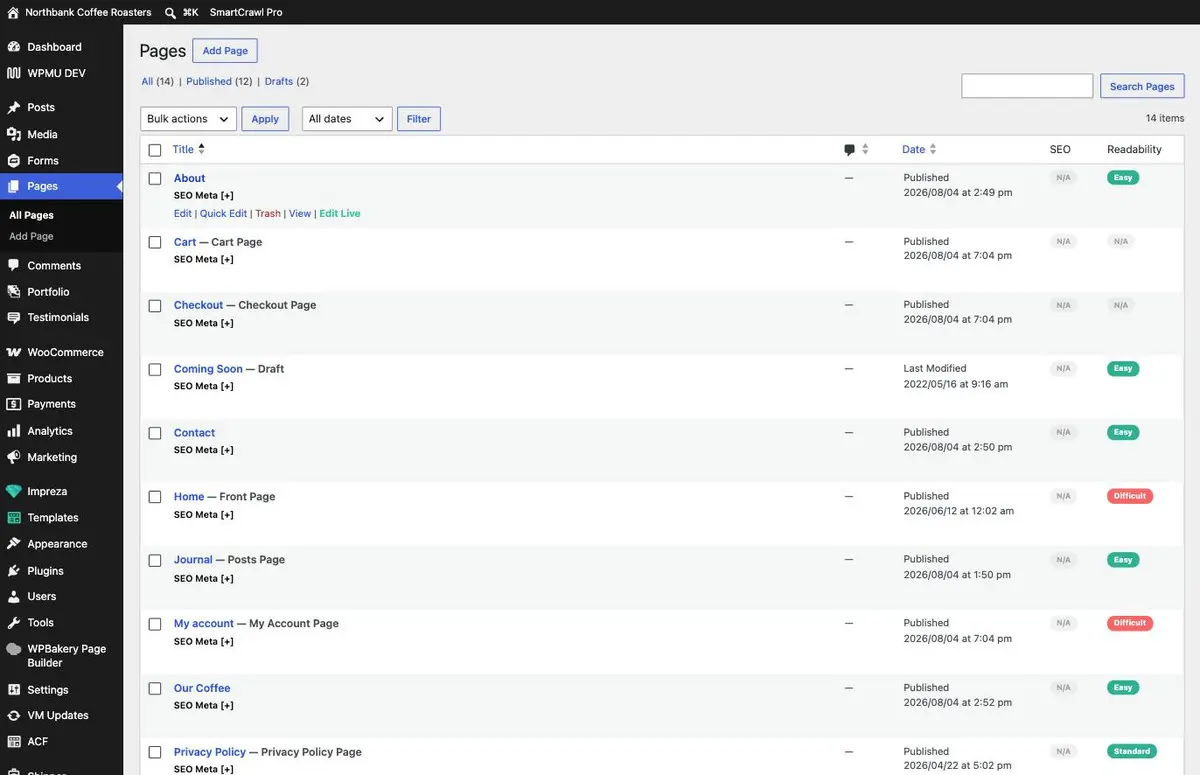
Those links only appear while the mouse is over the row. Edit Live at the end opens a different editor that shows the page as visitors see it. This guide uses Edit, which is the steadier place to start. - Wait a few seconds for the builder to load. You are now looking at the page as a list of rows rather than as a finished page.
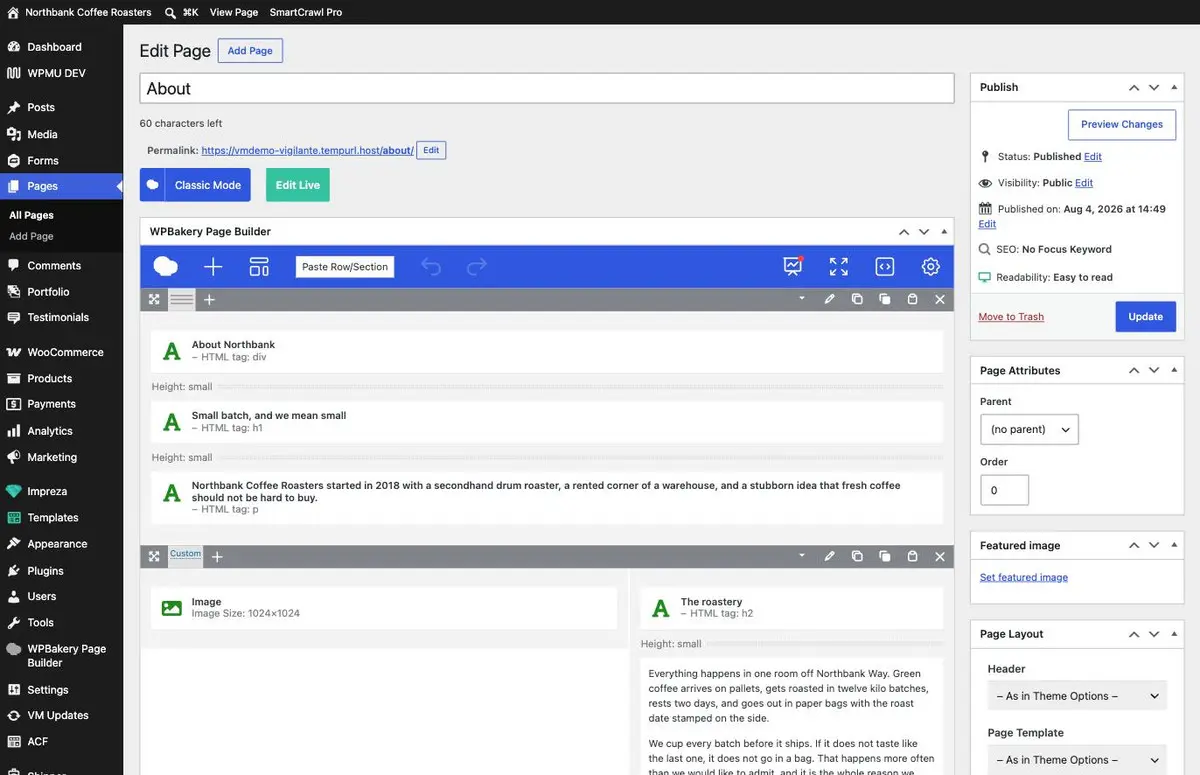
The blue bar is the builder’s own toolbar. The grey bars beneath it are rows, and each white strip inside a row is one element. The green letter A marks a text element. - Find the element holding the words you want to change, and move your mouse over it. A small green toolbar appears with the element’s name on it.
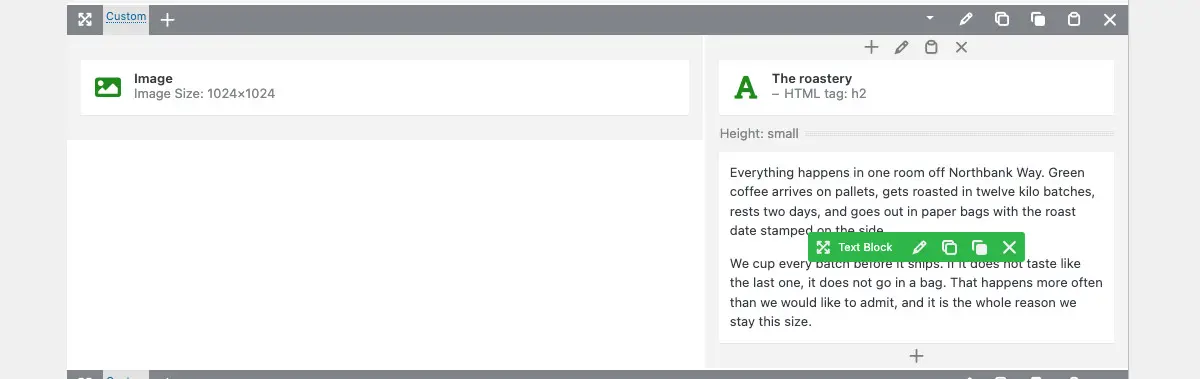
The name on the green bar tells you what you have found. The icons beside it are edit, copy, duplicate and delete, in that order. - Click the pencil icon on that green toolbar. A settings window opens with your text in it.
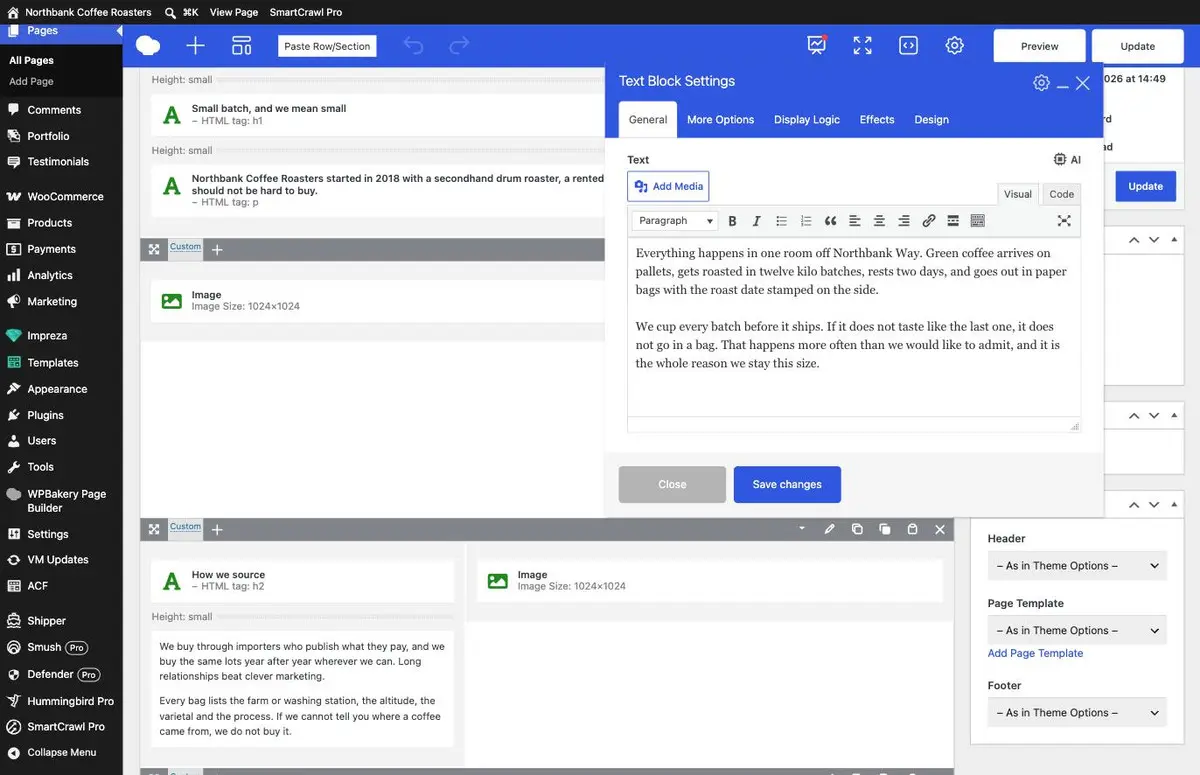
The window sits on top of the builder while it is open. The tabs along the top control spacing and appearance, so stay on General. - Click into the text and edit it the way you would in a word processor. Double-click a word to select it and type over the top, or click where you want to add something.
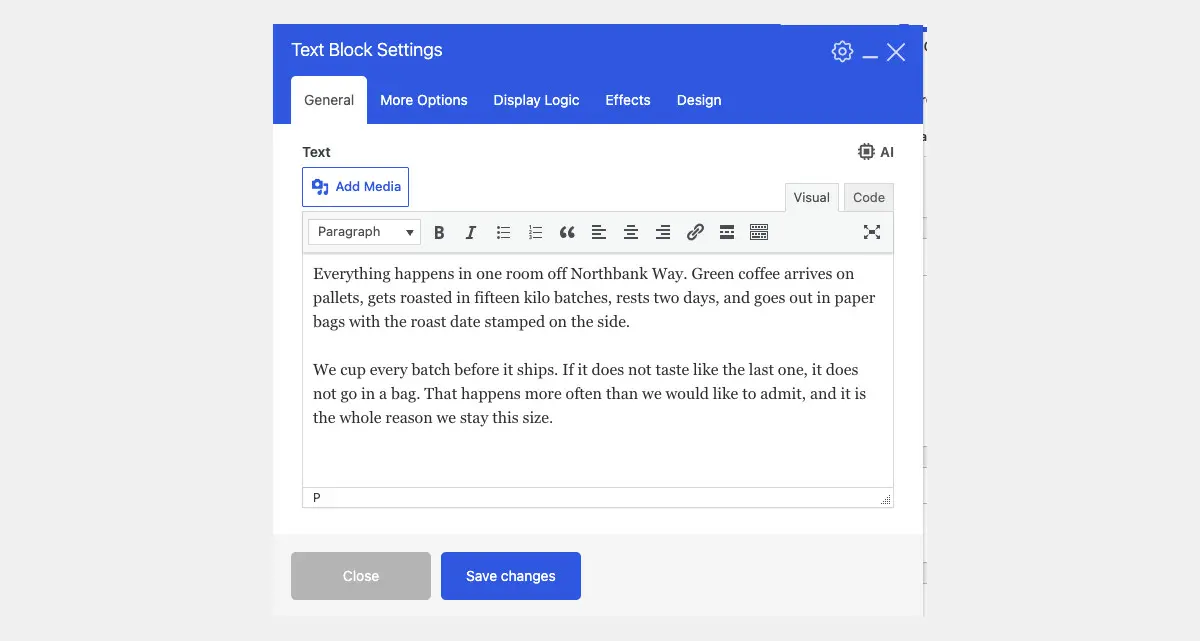
Here twelve kilo batches has become fifteen kilo batches. Press Enter only where you genuinely want a new paragraph, because each one adds space above and below. - Click Save changes. The window closes and the builder shows your new wording. Your live site has not changed yet.
- Click Update in the Publish box on the right. This is the step that puts the change on the live site.

Preview Changes above it opens the page in a new tab so you can check your work before anyone else sees it. Nothing is public until Update is clicked. - Open your website in a new tab and look at the page.
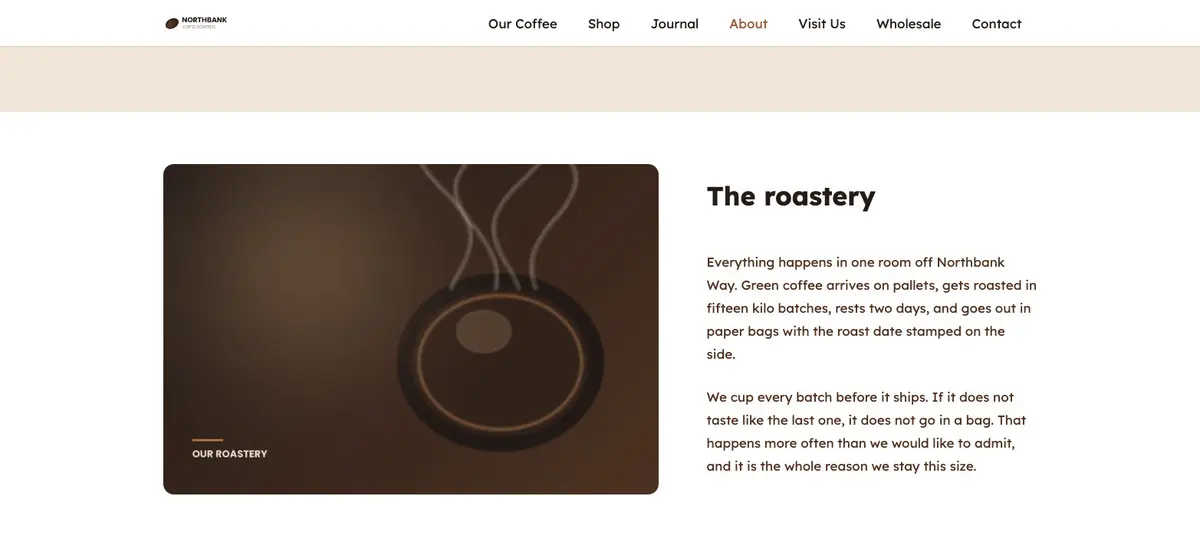
The same wording, now on the public page. If you still see the old text, hold Shift and reload, or use the cache guide linked at the bottom of this page.
Two kinds of text element
Your pages use two different elements for words, and they open a little differently. The green toolbar always tells you which one you have.
- Text Block opens the window shown above: a large box with a word-processor toolbar. It is used for paragraphs of copy.
- Text opens a window with a single-line box labelled Text right at the top. It is used for headings and short lines.
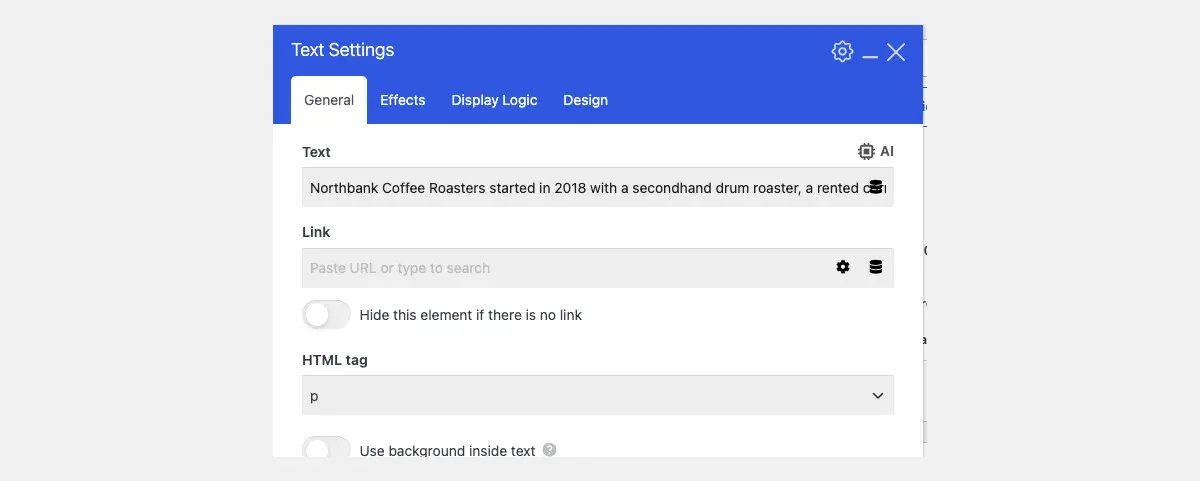
Both are saved the same way. Save changes to close the window, then Update to publish.
What not to move
Do not drag anything while you are in the builder. The grey row bars and the small four-arrow icons are handles for moving rows, columns and elements around, and one slip of the mouse can drop a whole section somewhere else on the page. Click the pencil to edit, and keep the mouse button up the rest of the time.
For the same reason, leave the copy, duplicate and cross icons beside the pencil alone. The cross deletes the element, and it does not ask you to confirm.
Undoing a change
Update can be undone. Each time you click it, WordPress keeps a copy of the version before. A Revisions line appears in the Publish box, and Browse shows you the versions side by side so you can restore the one you want.

If it goes wrong
Restore the previous version from Revisions. If the page still looks wrong after that, stop there and email VM with the page name and what you clicked. We can put it back, and it is a five-minute job for us if you tell us early.
Related guides
- Editing Images in WordPress for changing the pictures that sit beside your text.
- How to Clear Your Website Cache for when you have saved a change but the page still shows the old version.
Still haven’t found what you’re looking for?
Let us know and we’ll do our best to help out!