

Have questions about paid ads, campaign optimisation, or platform features? Browse our knowledge base for step-by-step guides, FAQs, and expert insights to help you succeed.
Scheduling a post to publish later
On This Page
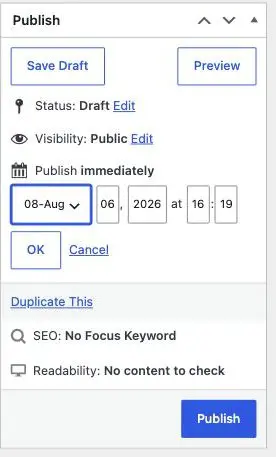
Scheduling tells WordPress to publish a post at a future date and time on its own. You write it now, set when it should go out, and close the laptop. The control is hidden in plain sight: it is the word immediately in the Publish panel, and clicking Edit beside it is the whole feature.
Your site’s clock is set to your time zone. So the time you type is the time it goes out, with no mental arithmetic and no working in a different zone. If you have ever been caught out by that on another platform, this is not that.
Scheduling a post
- Write the post as normal, including its category and featured image. A scheduled post goes out exactly as it is, so finish it properly.
- In the Publish panel, find Publish immediately and click Edit beside it.
- Set the month, day, year and time.
- Click OK. The blue button changes from Publish to Schedule.
- Click Schedule. The post now shows a status of Scheduled in your Posts list.
Changing your mind
- Different time: open the post, click Edit beside the date again, change it, then Update.
- Publish it now instead: set the date to the current time, or set Status back to Draft and then Publish.
- Cancel it: set Status to Draft and Update. The schedule is forgotten and nothing goes out.
When it is genuinely useful
- Writing several posts in one sitting and spacing them over the following weeks. This is the big one, and it is the only realistic way most businesses keep a blog going.
- Announcements tied to a date: an event, a seasonal opening, a price change.
- Publishing at a sensible hour rather than at eleven at night when you actually wrote it.
Check anything scheduled more than a week out before it fires. Scheduled posts go live with no further prompt, and the world moves: prices change, events get cancelled, a member of staff leaves. The failure here is not technical, it is a post going out that nobody has re-read. Anything scheduled a long way ahead deserves a diary note to look at it the day before.
The one technical thing worth knowing
WordPress publishes scheduled posts when somebody visits your site, not by a clock ticking on a server. On a busy site that is indistinguishable from exact. On a very quiet site, a post scheduled for 6am might not actually appear until the first visitor arrives, which could be later.
Occasionally a post gets stuck showing Missed schedule in the Posts list. That is not something you need to diagnose. Open it and press Publish to push it out, and tell us if it happens more than once, because it points at something we should fix rather than something you should work around.
Finding what is scheduled
Go to Posts. Scheduled ones appear with the date they will publish and a Scheduled label, and there is a Scheduled filter at the top of the list once you have any. Worth a glance before you write something new, so you do not double up.
What we need if something fails
The post title and the time it should have gone out. If you see “Missed schedule”, say so in those words, because it tells us exactly where to look.
Related
Still haven’t found what you’re looking for?
Let us know and we’ll do our best to help out!