

Have questions about paid ads, campaign optimisation, or platform features? Browse our knowledge base for step-by-step guides, FAQs, and expert insights to help you succeed.
Editing or updating an existing post
On This Page
Editing a post you have already published uses the same screen you wrote it on. There is only one meaningful difference: the button says Update instead of Publish, and the moment you press it the change is live. No draft stage, no approval, no undo prompt. That is worth knowing before you start rather than after.
Small corrections are always fine. Typos, a wrong date, a price that has changed, a broken link. Fix them and press Update. Nobody is notified, nothing is re-sent, and search engines simply pick up the new version next time they look. Do not agonise over a typo fix.
Finding the post
- Go to Posts in the left-hand menu.
- Click the title of the one you want. If you have a lot, use the search box at the top right, or filter by category or month.
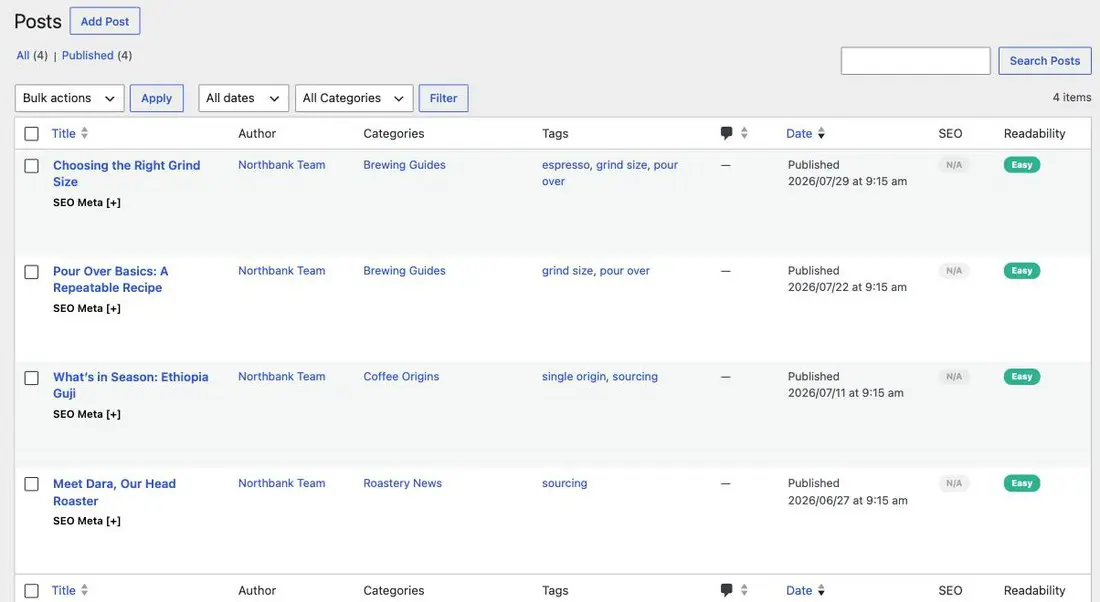
Quick Edit, for when you are not touching the writing
Quick Edit opens a small panel in the list itself, without loading the full editor. It gives you the title, the web address, the date, the categories, the tags and the status. It does not give you the body text, the featured image or the excerpt.
It is the right tool for fixing a category, correcting a date, or changing a status. It is faster and it cannot accidentally mangle your text, because it never touches it.
Editing the post properly
- Make your changes in the big editing box, exactly as when you wrote it.
- Preview Changes in the Publish panel shows you the result before anyone else sees it. Use it if the change is more than a word or two.
- Press Update. Live immediately.
Be careful changing the title of a published post. The web address does not follow the title, so the post keeps its old address, and anyone who shared or bookmarked the old wording still sees it. Rewriting a headline is fine. If you genuinely need the address changed too, tell us: that needs a redirect setting up at the same time, or the old link starts returning a not-found page.
Going back to a previous version
WordPress keeps a history of every save. Scroll below the editing box to find the revisions list, or look for Revisions in the Publish panel, then compare two versions side by side and restore the one you want.
This is the safety net that makes editing low-risk, and it is the reason we would rather you tried and told us than avoided touching anything. Undoing a mistake: revisions and the trash covers it in full.
Unpublishing something
Sometimes the answer is not an edit. In the Publish panel, click Edit beside Status and choose Draft, then Update. The post disappears from your site immediately but is not deleted, so you can fix it calmly and publish again.
Use that rather than Trash when something has gone out with a genuine error in it. Trash is for things that should never have existed.
A published post with a big rewrite coming
If you are about to substantially rewrite a post that already gets traffic, tell us first. There is usually a better route than editing in place: sometimes the old version is worth keeping and pointing at the new one, and occasionally a rewrite is really a new post. It is a two-minute conversation that avoids losing whatever the existing page has earned.
If it does not go to plan
- Your change is not showing on the site. Give it a minute and refresh. If it is still missing, check you pressed Update rather than leaving the tab, and that you were editing the post you think you were.
- The formatting broke while editing. Usually pasted text. Restore the previous revision and paste again with Cmd+Shift+V or Ctrl+Shift+V.
- Somebody else is editing it. WordPress will tell you and offer to take over. Take over only if you know the other person has finished.
What we need if something fails
The post title, what you changed, and roughly when. If a revision needs restoring and you are not sure which, we can see the full history and put it back.
Related
Still haven’t found what you’re looking for?
Let us know and we’ll do our best to help out!