

Have questions about paid ads, campaign optimisation, or platform features? Browse our knowledge base for step-by-step guides, FAQs, and expert insights to help you succeed.
Logging in to your website
On This Page
Your website has a public side that anyone can visit and a private side where the content gets changed, and you reach the private side by adding /wp-admin to the end of your web address.
Where to go
- Open your browser and click into the address bar at the top.
- Type your website address followed by /wp-admin, then press Enter. If your site is yourbusiness.com, you are going to yourbusiness.com/wp-admin.
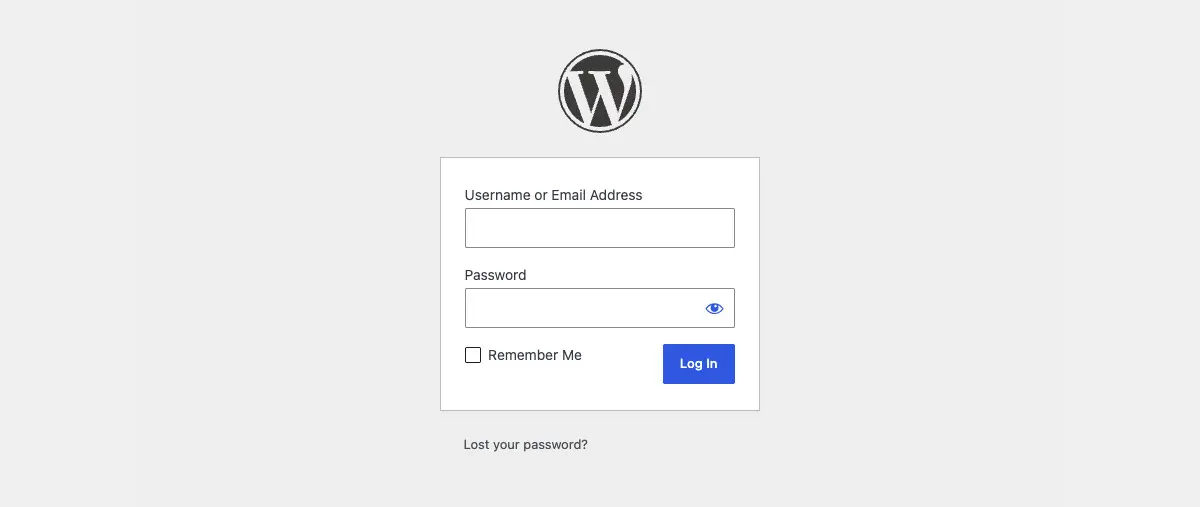
Bookmark this screen the first time you reach it. The address never changes, so you will not have to look it up again.
Nothing you do at this screen can damage your site. Typing the wrong password breaks nothing. The worst that happens is that you get asked to try again.
What to enter
- In Username or Email Address, type the username VM set up for you. The email address on your account works here too, so use whichever one you remember.
- In Password, type your password. Click the eye icon at the right of the field to check what you have typed before you send it.
- Click Log In.
Passwords are case sensitive. Check that Caps Lock is off, and watch for a stray space on the end if you pasted the password out of an email.
What Remember Me does
The Remember Me checkbox decides how long you stay signed in. Leave it unticked and WordPress signs you out after about two days. Tick it and you stay signed in for about two weeks, so you land on your dashboard instead of the login screen.

Only tick Remember Me on a device that is yours. On a shared computer behind the counter, the next person to open the browser lands in your dashboard with all of your access.
Where you land
A successful login takes you to the Dashboard. Think of it as the back office of your website rather than the website itself. Visitors never see this.
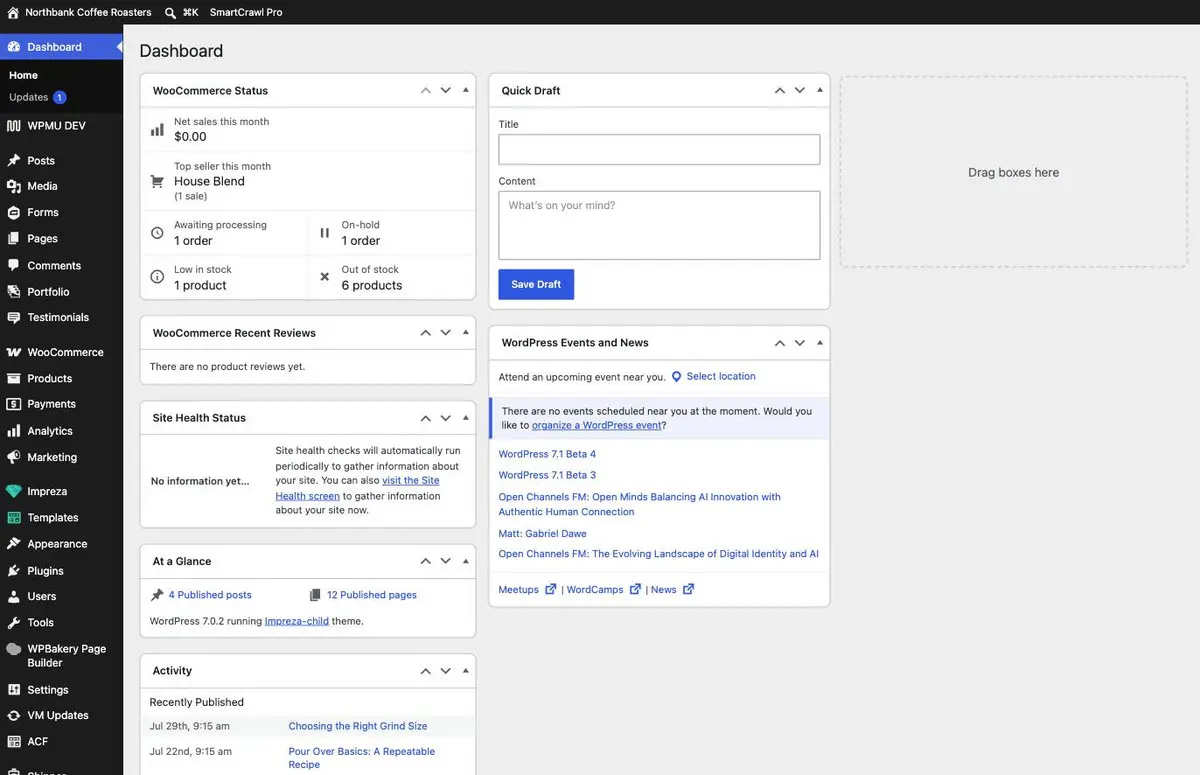
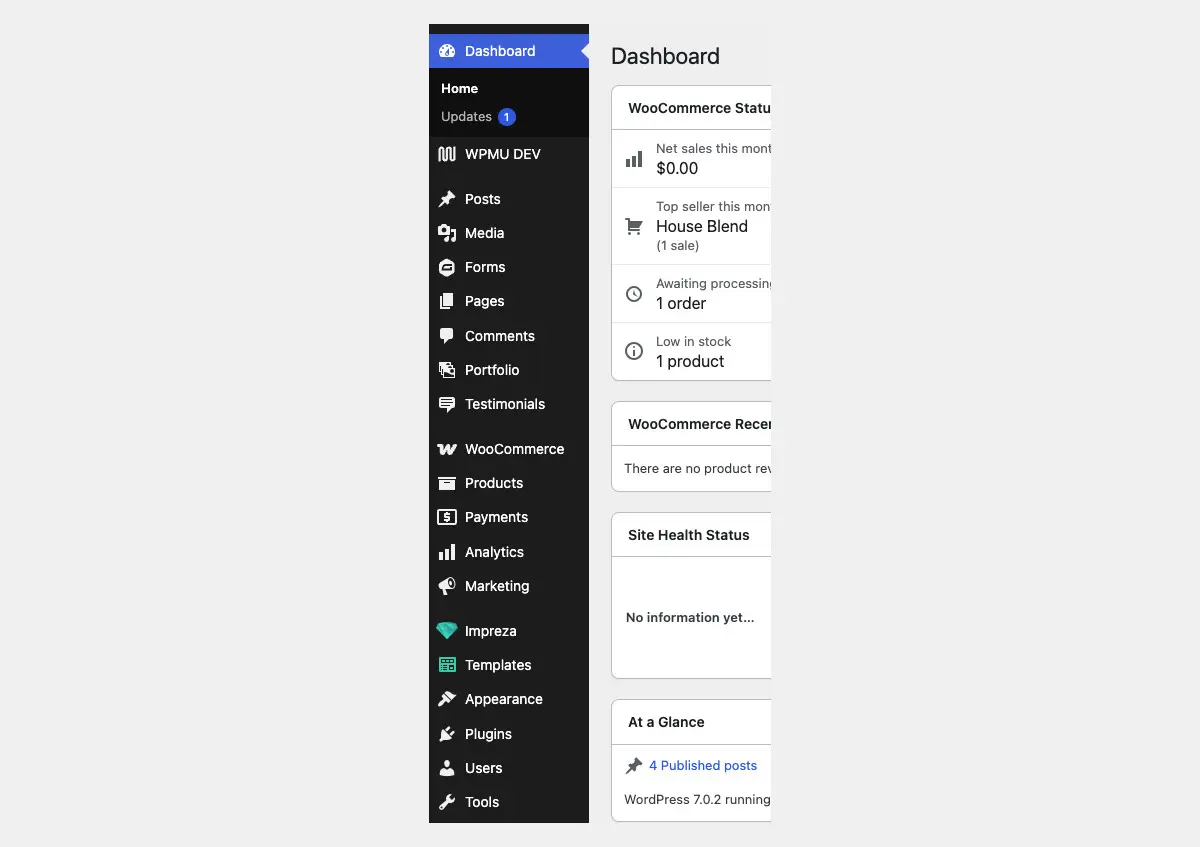
Nearly everything you will ever need sits in three items in that menu.
If you have forgotten your password
You can reset it yourself in about two minutes. VM cannot look your password up, because WordPress never stores it in a readable form, so resetting it is faster than asking us.
- On the login screen, click Lost your password? below the white box.

The link sits outside the box and is grey rather than blue, which is why people miss it. - Type your username or the email address on your account, then click Get New Password.
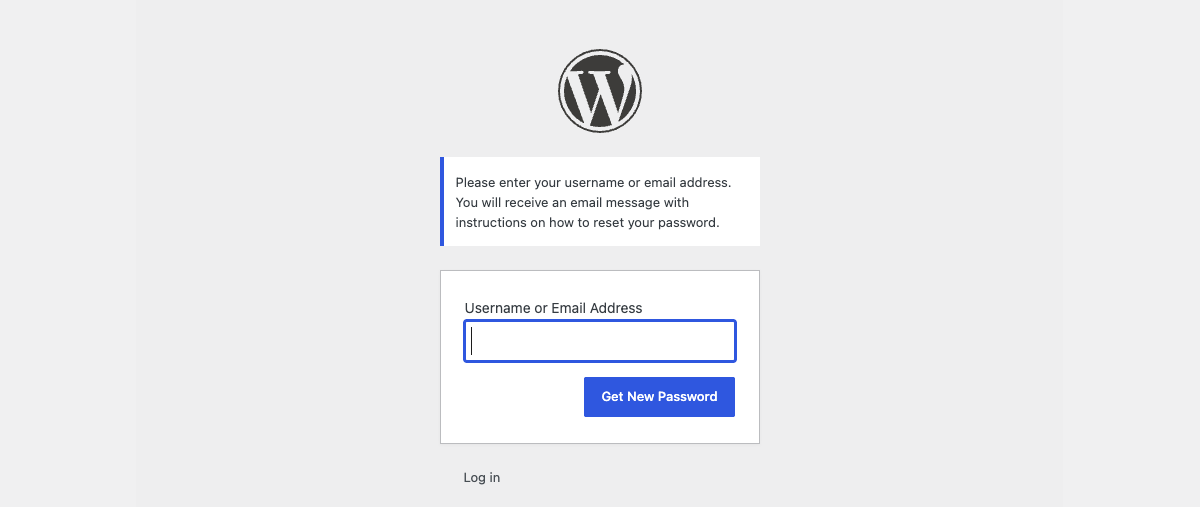
Either one works. If you are unsure which email address is on the account, try the one VM emails you at. - WordPress confirms that it has sent the email.

This message means your request went through. It appears whether or not the username you typed exists, so it is not proof that an email is on its way. - Open the email from your own website. The subject line starts with your site name and includes the words Password Reset.
- Click the link in that email. It opens a screen where you set a new password, with a strong one already suggested for you.
- Keep the suggested password, or clear the field and type your own, then click Save Password.
- Click Log in and sign in with the new password.
Asking for a reset link does not lock you out. Your existing password keeps working right up until you save a new one, so you can request a link and ignore it if the old password comes back to you.
Check your junk folder before you request a second link. The email is sent by your website rather than by a person, so mail filters often move it. Wait five minutes, then look in Junk or Spam.
Two things are worth knowing about the link itself. A reset link stops working after 24 hours, so if yours is older than that, start again from Lost your password?. And requesting a new link cancels the previous one, so always click the most recent email.
When to email VM instead
Some login problems cannot be fixed from the login screen. Email us rather than trying more things if any of these apply.
- The reset email has not arrived after 15 minutes and it is not in Junk or Spam.
- You see a message saying that login has been temporarily disabled, or that there have been too many failed attempts.
- You do not know which email address is on your account, or you no longer have access to that inbox.
- The login screen will not load at all, or the whole site is showing an error.
- You get in successfully but the menu items you normally use have disappeared.
- You think somebody else has used your login.
Tell us the website address, the username or email address you were using, and the exact wording of anything on screen. A screenshot answers all three at once. Never send us your password. We do not need it, and we will never ask you for it.
Related guides
- How to Reset your WordPress Password walks through the reset screens one at a time.
- How to Grant Admin Access to your WordPress Site covers giving VM or a new staff member their own login.
Still haven’t found what you’re looking for?
Let us know and we’ll do our best to help out!