

Have questions about paid ads, campaign optimisation, or platform features? Browse our knowledge base for step-by-step guides, FAQs, and expert insights to help you succeed.
Resetting your password
On This Page
Nobody can look up your password, not even us, because WordPress only ever stores a scrambled version of it. Resetting it means proving you own the email address on your account, which is why the reset link always arrives in your inbox rather than being shown on screen.
You cannot lock yourself out for good. As long as you can read the email on your account, you can always get back in. Nothing about your website changes when you reset a password.
If you cannot get in
Use this when you have forgotten your password, or a saved one has stopped working.
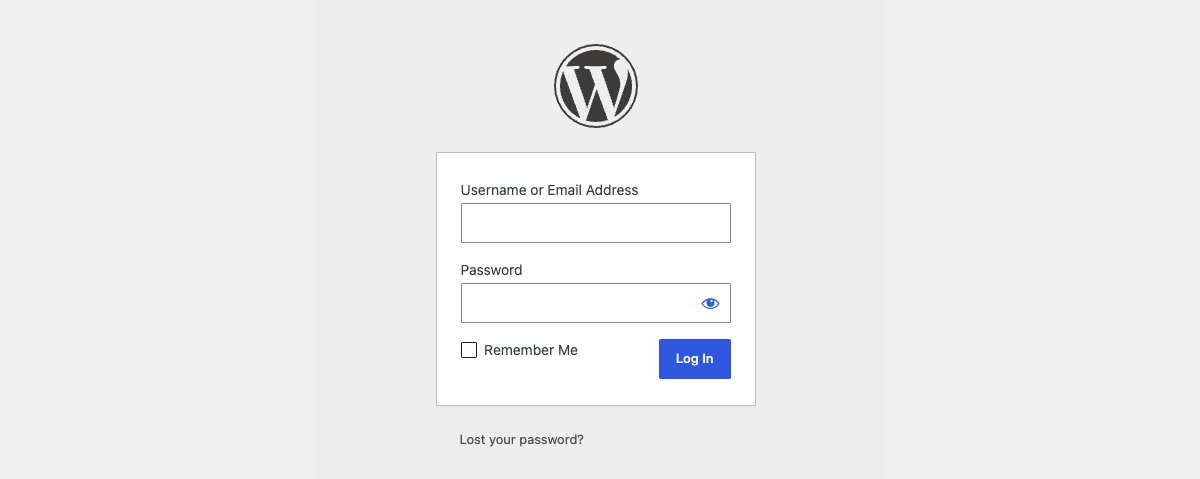
- Go to your login page, which is your website address followed by /wp-admin.
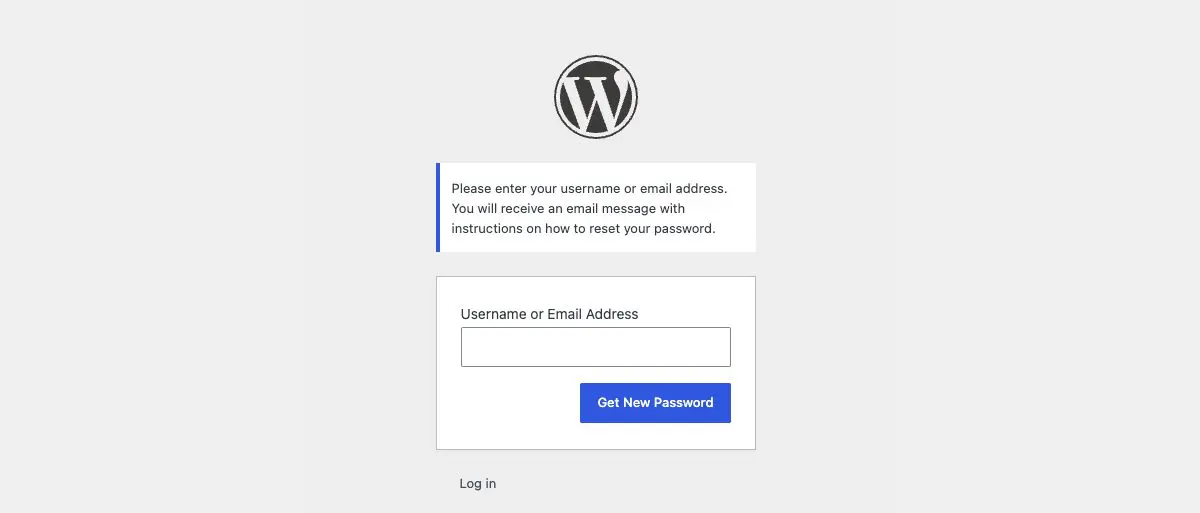
- Under the login box, click Lost your password?
- Type your username or the email address on your account and click Get New Password.
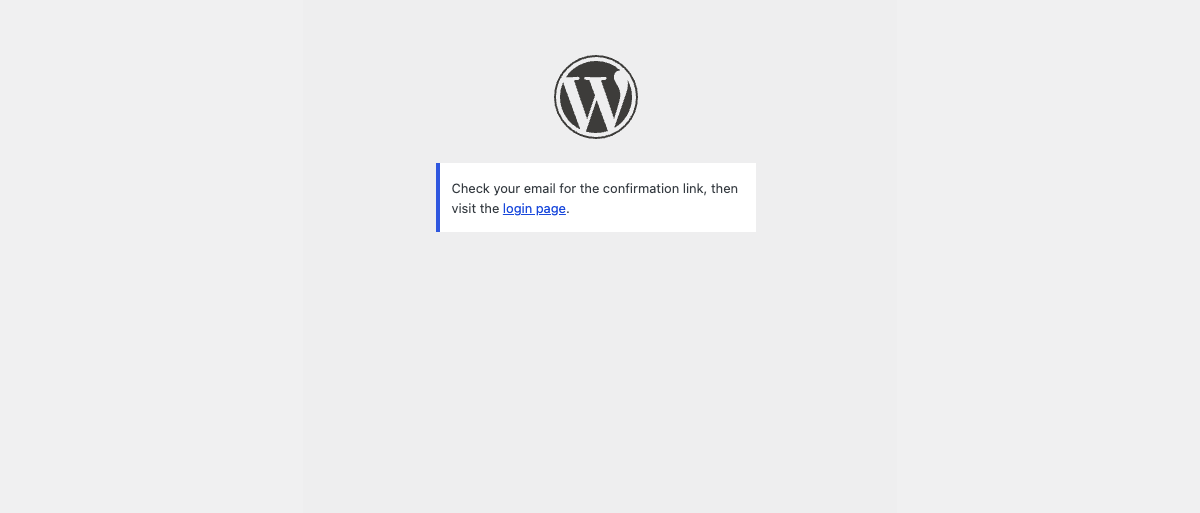
- Open the email titled Password Reset and click the link inside it.
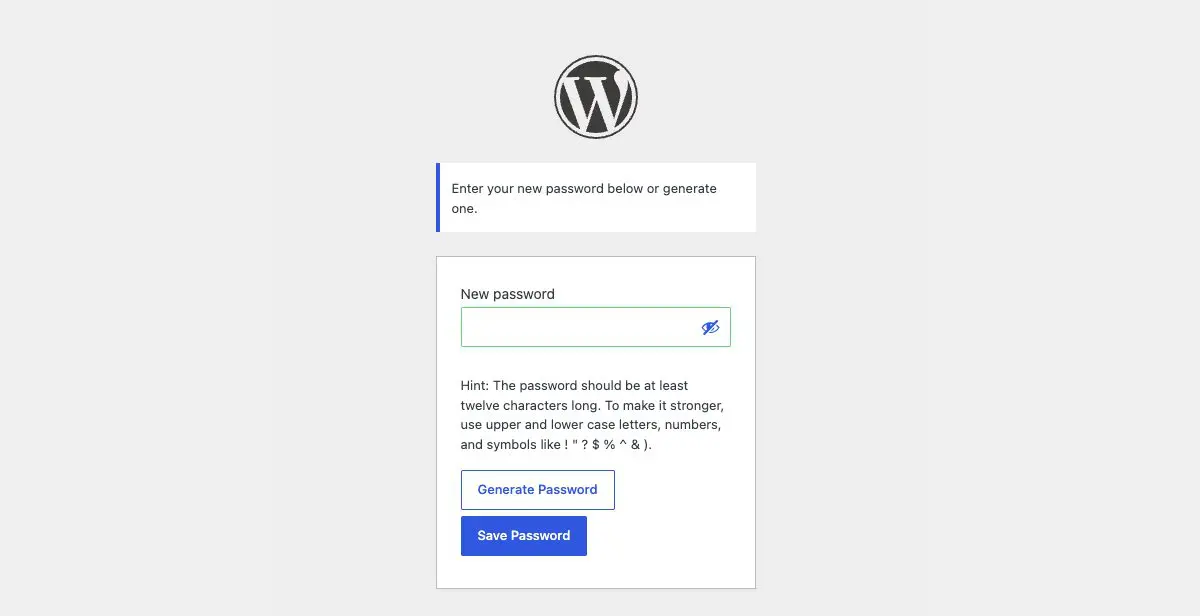
- Type a new password, or click Generate Password to have one made for you, then click Save Password.
- Click Log in and sign in with the new password.
The link only works once, and not for long. Reset links expire after 24 hours and stop working the moment you use one. If you request two resets, only the newest link works, so use the most recent email. Requesting another one is free.
If you are already logged in
Changing a password you still know is quicker, and it does not involve email at all.
- In the black bar at the top of any admin screen, or in the left menu under Users, open Profile.
- Scroll down to Account Management.
- Click Set New Password.
- Type your own password over the suggested one, or keep the suggestion.
- Scroll to the bottom and click Update Profile.

If the reset email does not arrive
Work through these in order. The first two explain most cases.
- Check your spam or junk folder. Reset emails come from your own website, which is a sender your mail provider has probably not seen before.
- Check you used the right address. The reset only goes to the email address stored on the account. If you have changed email provider since the site was built, it may still be pointing at the old one.
- Wait five minutes and look again. Mail providers sometimes hold the first message from a new sender.
- Ask another administrator. Anyone with an administrator account can set a new password for you from Users, without needing your old one.
- Email VM. If none of the above works, the site may not be sending mail at all, which is worth us knowing about because it affects your contact forms too.
Do not send a password by email or chat. If you need to give someone access, add them their own account instead so they choose their own password, and so removing their access later does not mean changing yours.
Choosing a password worth having
WordPress rates your password as you type. Aim for the Strong rating, and let the browser or a password manager remember it rather than trying to memorise it. A long phrase you can picture beats a short jumble of symbols, and it is far easier to type on a phone.
Reusing a password is the real risk, not forgetting one. A password used on your website and nowhere else cannot be exposed by somebody else’s data breach. Forgetting it costs you two minutes and this page.
When to email us instead
Get in touch if the reset email never arrives after the checks above, if the login page will not load at all, or if you were not expecting a password reset email and received one anyway. That last one is worth telling us about promptly.
Related guides
Still haven’t found what you’re looking for?
Let us know and we’ll do our best to help out!