

Have questions about paid ads, campaign optimisation, or platform features? Browse our knowledge base for step-by-step guides, FAQs, and expert insights to help you succeed.
A tour of your WordPress dashboard
On This Page
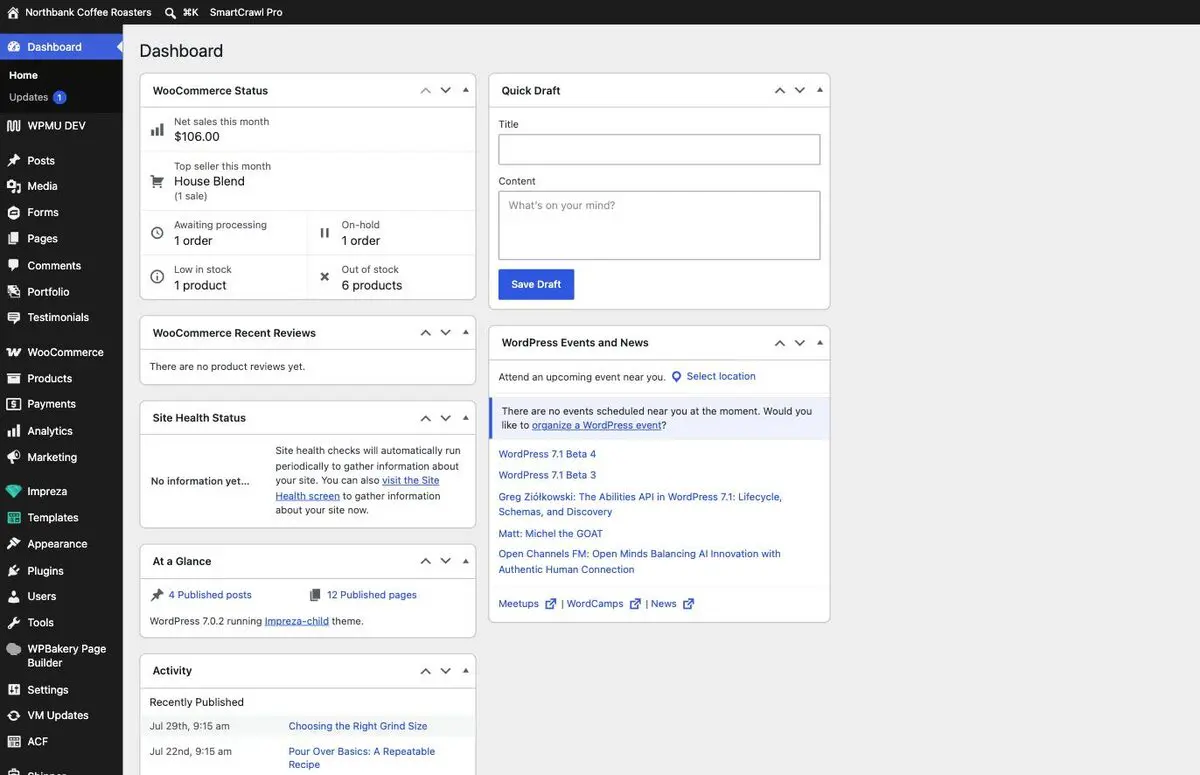
The dashboard is not your website. It is the control room behind it, and almost everything you will ever want to change is reached from the single menu down the left-hand side.
Looking around changes nothing. Opening screens, clicking through menus and reading settings is completely safe. Nothing you see here is live until you deliberately save something.
What you are looking at
When you log in you land on the dashboard home screen. There are three parts worth knowing.
- The menu on the left is how you get everywhere. Hover any item to see what sits underneath it.
- The black bar along the top is your shortcut bar. It appears on your public website too, so you can jump between the two.
- The panels in the middle are summaries. They are useful at a glance and safe to ignore.
Where each thing lives
This is the part worth bookmarking. If you only remember one thing from this guide, make it this table.
| What you want to change | Where to go |
|---|---|
| Wording on a normal page, like About or Contact | Pages |
| A news item, article or blog entry | Posts |
| An image, PDF or any other file | Media |
| A contact or enquiry form, and the entries people have sent | Forms |
| Products, orders, stock and coupons | Products and WooCommerce |
| Who can log in to your website | Users |
| Your own password and display name | Users › Profile |
Your menu will have items this one does not. Each plugin adds its own entry, so the menu grows over the life of a site. The items above are the ones you will actually use. If you cannot find something, use the table rather than hunting.
Getting to your live website and back
The dashboard and your public website are two views of the same thing, and you will switch between them constantly while making changes.
- Hover your site name at the top left of the black bar.
- Click Visit Site.
- To come back, use the same black bar, which is still there while you are logged in.

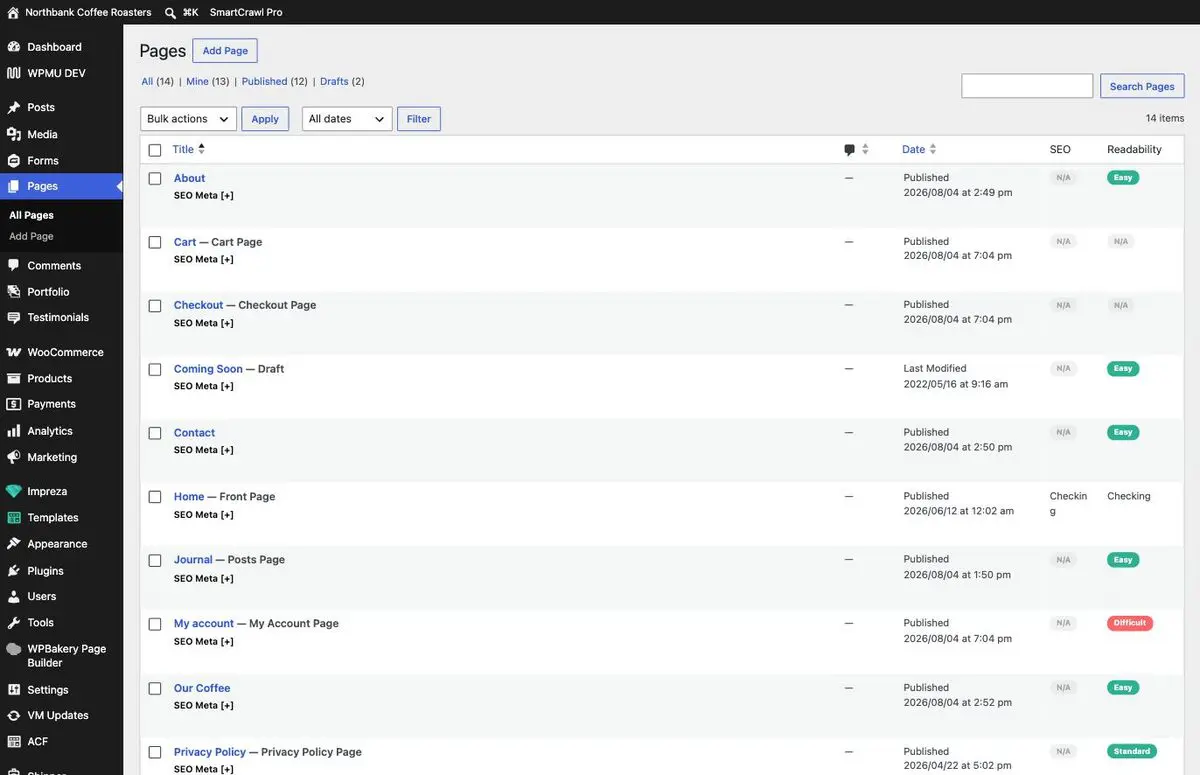
List screens all work the same way
Pages, Posts, Products and Forms all use the same layout, so learning one teaches you all of them.
- The table lists everything of that type.
- The search box at the top right searches only that list.
- The links above the table (All, Published, Drafts) filter it.
- Hovering any row reveals the actions you can take on it.
The Media Library
Media is a single shared pool of files. An image you uploaded for one page is available to every other page, and deleting it removes it everywhere.
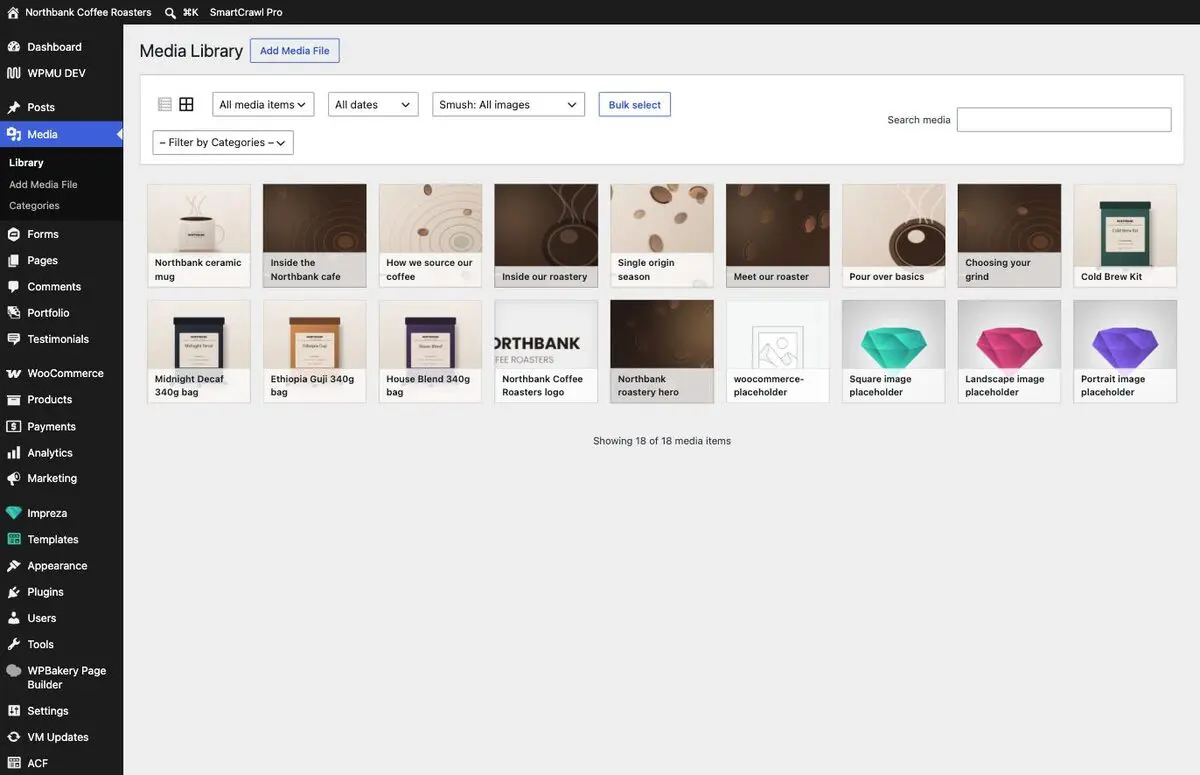
Deleting from Media is not undoable. Unlike a page, a deleted file does not go to a Trash you can fish it back out of. If you are not certain a file is unused, leave it alone. An unused file costs you nothing.
The three things worth remembering
- Nothing is live until you save. Every editing screen has its own save button, and until you press it your visitors see the old version.
- Pages and Posts are different things. Pages are the fixed parts of your site. Posts are dated entries that appear newest-first on your news or journal page.
- If a screen looks unfamiliar, stop. The screens in this library are the ones meant for you. Anything else is worth an email to us first.
Related guides
Still haven’t found what you’re looking for?
Let us know and we’ll do our best to help out!