

Have questions about paid ads, campaign optimisation, or platform features? Browse our knowledge base for step-by-step guides, FAQs, and expert insights to help you succeed.
Preparing an image before you upload it
On This Page
Three numbers decide whether an image helps or hurts: its dimensions in pixels, its file size in kilobytes, and its format. A photo straight off a phone is usually far too big on the first two, and your website will accept it without complaint. That is the whole problem: nothing warns you, the page just gets slower.
We already compress your images automatically. Every VM site runs an optimiser that squeezes each upload and serves modern formats where the browser supports them. So you do not need to agonise over this. What the optimiser cannot do is guess that you meant to upload a picture a quarter of the size, which is the one thing worth getting right yourself.
How big should it actually be?
Wider than it will ever be displayed is wasted. Use the longest edge as your guide:
| Where it goes | Longest edge | Aim for under |
|---|---|---|
| Full-width banner across the top of a page | 2000 px | 400 KB |
| A normal image inside the text of a page | 1200 px | 250 KB |
| A team photo, product shot or card image | 800 px | 150 KB |
| A logo or icon | as drawn | 50 KB |
Which format
- JPEG for photographs. Anything with people, places, food or products.
- PNG for logos, icons, diagrams and screenshots, and for anything that needs a transparent background. PNG keeps edges and text crisp where JPEG smears them.
- Do not upload HEIC, which is what newer iPhones save by default. WordPress cannot read it. In your iPhone settings, Camera then Formats, choose Most Compatible, or email the photo to yourself first and it converts on the way.
- Do not upload a PDF as an image. If you want a document on the site, see uploading a PDF and linking to it.
How to check what you have
On a Mac, right-click the file and choose Get Info. On Windows, right-click, Properties, then Details. You are looking for two lines: the dimensions and the size. If it says something like 4032 by 3024 and 5.6 MB, it is a phone photo and it wants resizing.
What WordPress does if you upload it anyway
It accepts it, then quietly makes a set of smaller copies to serve to visitors, and caps the largest at 2560 pixels wide. So the page will not be as slow as the original file suggests. But your 5 MB original is still sitting on the server, still in your backups, and the copy being served is bigger than it needed to be.
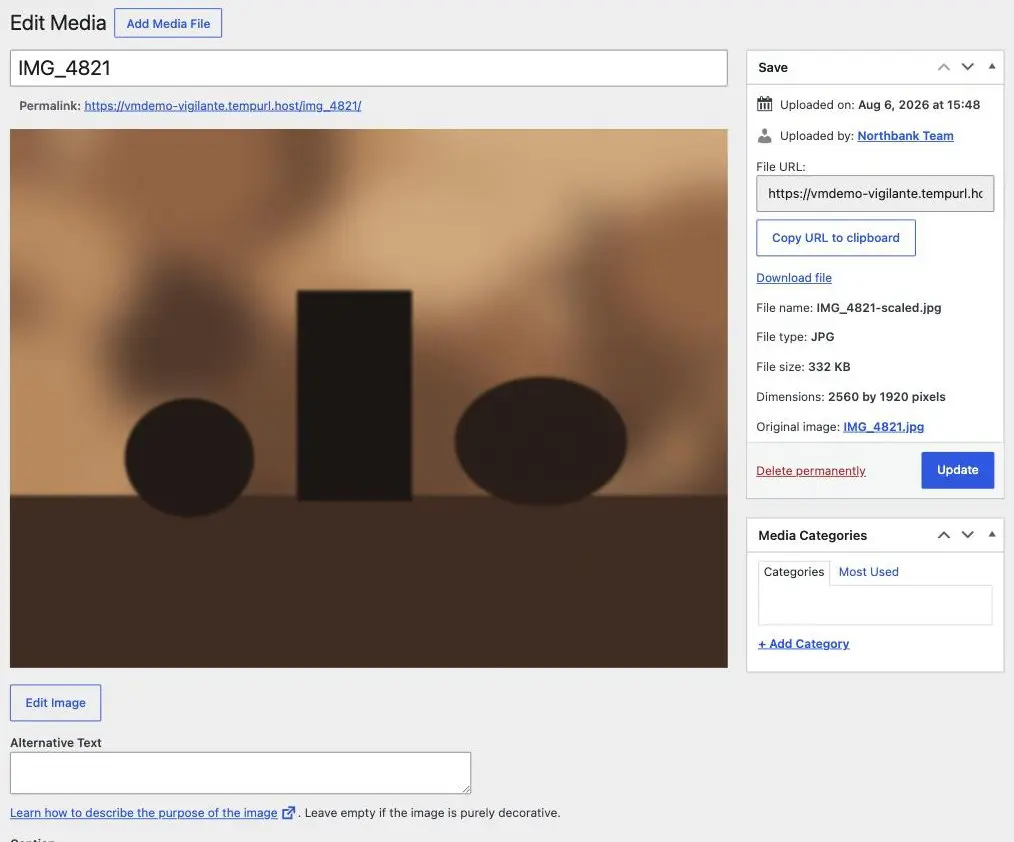
You cannot fix the filename later. Dimensions you can change after the fact using the built-in image editor. The filename is baked in the moment you upload, and it is worth thirty seconds of thought first because it affects how the image gets found. Alt text and filenames covers what to call things.
The two-minute version
- Rename the file to describe what it shows, in lowercase with hyphens. Not IMG_4821.
- Resize the longest edge to the number in the table above. Preview on a Mac (Tools, then Adjust Size) and Photos on Windows both do this without installing anything.
- Check the size. If it is still over about 500 KB for a photo, save it again at a slightly lower quality.
- Upload it, and write the alt text while you are there.
When to email us instead
Send us the original files if you have a batch to do, if the images need cropping to a consistent shape, or if you have a logo in the wrong format and no idea what to do with it. Batch resizing is genuinely faster for us than explaining it, and we would rather have your good originals than your compressed ones.
Related
Still haven’t found what you’re looking for?
Let us know and we’ll do our best to help out!