

Have questions about paid ads, campaign optimisation, or platform features? Browse our knowledge base for step-by-step guides, FAQs, and expert insights to help you succeed.
Uploading a PDF and linking to it
On This Page
A PDF on your website is just a file sitting in the Media Library with an address of its own. Putting one online is therefore two steps: upload it, then link to it. The part people miss is that the link is public. Anyone who has it can open the file, whether or not they came from your website.
Uploading a PDF publishes it. There is no private area. The file is readable by anyone with the address, Google can index it, and it stays reachable even after you remove the link from your page. So never upload anything with client details, staff information, pricing you did not mean to publish, or an internal document that happens to be handy. If it should not be on the open web, do not put it in the Media Library. Ask us and we will find another way.
Step one: upload it
- Name the file properly first. Lowercase, hyphens, no spaces, and describe what it is.
northbank-wholesale-price-list.pdf, notdoc1 (final).pdf. You cannot rename it afterwards without breaking the link. - Go to Media, then Add Media File, and drop the file in.
- Once it has finished, click it to open its details.
Step two: copy its address
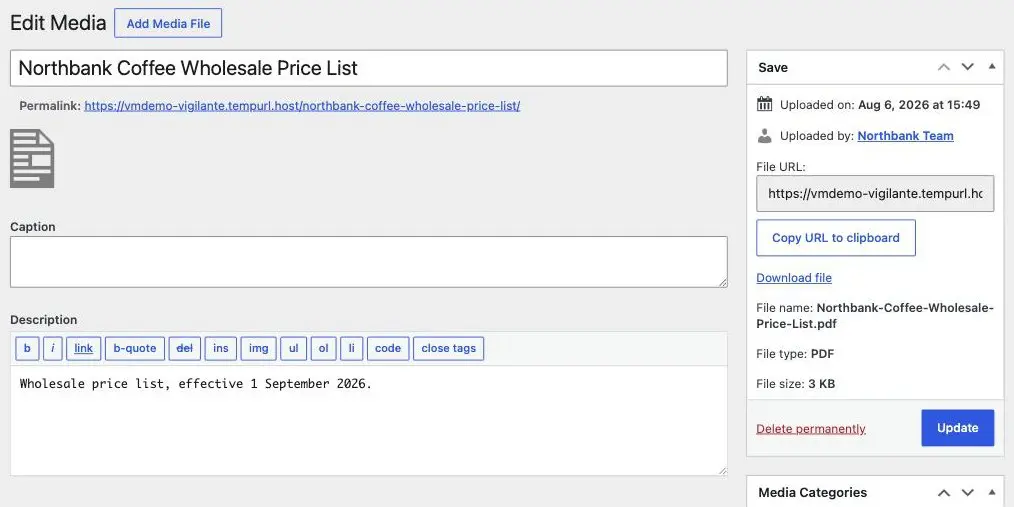
Step three: link to it
Two ways, depending on how prominent it should be.
As a link inside your text. Select the words you want to be clickable, use the link tool, and paste the address. Our guide to editing text on a page covers the mechanics.
As a button. Better for something you want people to actually find, like a menu or a price list. Editing a button and its link covers it; paste the PDF address where the button’s link goes.
Either way, write the link so it says what it is. “Download our wholesale price list (PDF, 2 pages)” is far better than “click here”, both for people deciding whether to bother and for anyone using a screen reader.
Set it to open in a new tab. Both the link tool and the button settings have that option. A PDF opening in the same tab takes the visitor away from your site, and on a phone it can feel like the website has vanished. This is the one setting worth remembering here.
Replacing a PDF later
This is where price lists and menus go wrong. Uploading a new version does not replace the old one; you end up with two files and the old address still serving the old document.
- Upload the new PDF, ideally with the version in the name, such as
...-price-list-2027.pdf. - Update every link and button that pointed at the old one.
- Tell us the old file is superseded and we will remove it, so nobody is reading last year’s prices from a link they bookmarked.
Should it be a PDF at all?
Often not, and this is worth thirty seconds of thought. A PDF is a good fit for something genuinely meant to be printed or kept: a spec sheet, a form to fill in by hand, a formal price list.
It is a poor fit for information people just need to read. PDFs are awkward on phones, slow to open, invisible to your site’s own search, and much weaker in Google than a normal page. If you are about to upload a two-page PDF describing your services, a page would do the job better. Ask us and we will tell you honestly which one this is.
If it does not go to plan
- The upload is rejected. Usually the file type. If it is not really a PDF, or it is a Pages or Publisher document, convert it first.
- The link downloads instead of opening. Normal on some browsers and phones. Nothing is wrong.
- People are seeing an old version. Almost always a link still pointing at the old file. Check the address the button uses.
- The PDF opens as a page of gibberish. The file was damaged on the way up. Upload it again.
What we need if something fails
The page address, and the name of the PDF. If you are unsure whether something should be published at all, ask before uploading rather than after.
Related
Still haven’t found what you’re looking for?
Let us know and we’ll do our best to help out!