

Have questions about paid ads, campaign optimisation, or platform features? Browse our knowledge base for step-by-step guides, FAQs, and expert insights to help you succeed.
Undoing a mistake: revisions and the Trash
On This Page
Your website keeps a copy of a page every time you save it, and keeps deleted pages for 30 days, so almost everything you might do by accident can be undone from inside WordPress without anyone needing to restore a backup.
Start here rather than panicking. Overwrote the wrong wording? Use Revisions. Deleted the wrong page? Use the Trash. Neither needs us, and neither costs you anything to try.
Undoing a change to a page’s content
Every save keeps the previous version. You can look at any of them side by side with the current one and put one back.
- Open the page for editing.
- In the Publish box, find Revisions and click Browse.
- Drag the slider at the top to move back through earlier saves.
- Read the two columns: red on the left is text that was removed, green on the right is what replaced it.
- When you find the version you want, click Restore This Revision.
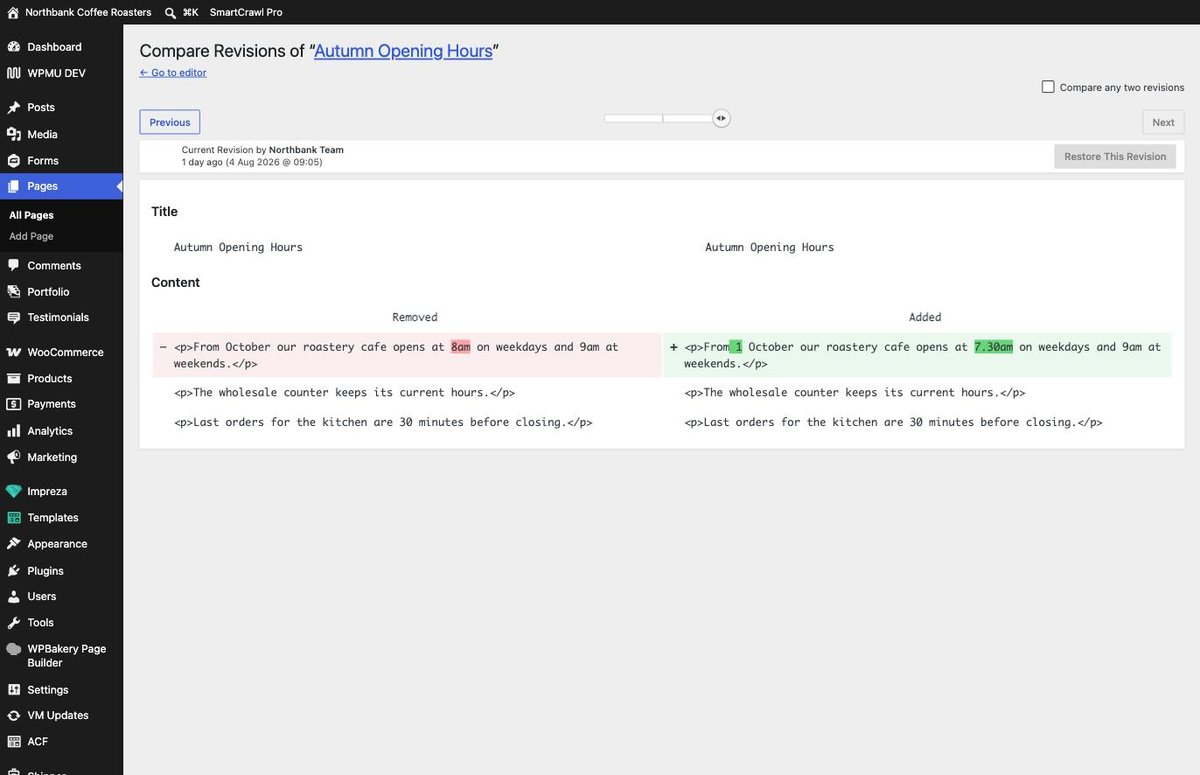
Restoring is itself undoable. Putting an old version back is just another save, so the version you restored away from is still in the list if you change your mind.
If there is no Revisions line, the page has only ever been saved once. Revisions start accumulating from the second save onwards, so a page nobody has edited since it was built will not have any.
Getting back a page you deleted
Deleting a page in WordPress moves it to the Trash rather than destroying it. It stays there for 30 days.
If you have only just done it and have not left the screen, the quickest fix is the Undo link in the green notice.

Otherwise, go and fetch it:
- Go to Pages (or Posts).
- Click Trash in the row of links above the table. It only appears when there is something in it.
- Hover the row you want and click Restore.
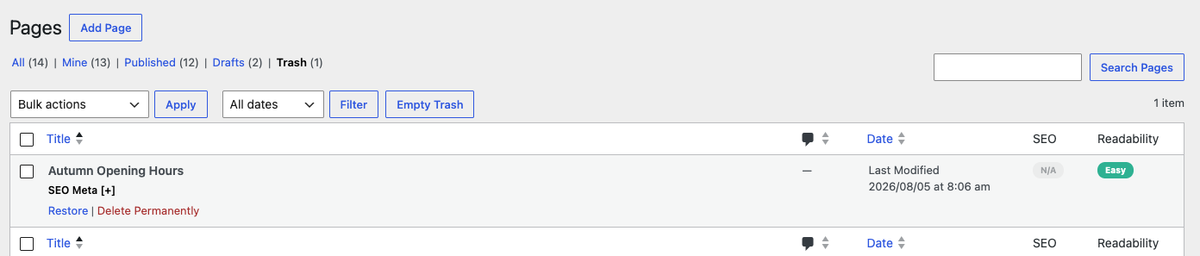

A restored page comes back as a draft. That is deliberate, so you can check it before visitors see it, but it does mean you have to publish it again. If it was in your menu before, check the menu still points at it.
What cannot be undone this way
Two things behave differently, and both are worth knowing before rather than after.
Deleting a file from the Media Library is permanent. There is no Trash for media. The file disappears from every page that used it, and the only way back is a backup restore. If you are not certain a file is unused, leave it. An unused file costs you nothing.
Empty Trash really does empty it. The button sits above the Trash list and skips the 30-day grace period. There is almost never a reason to press it, since WordPress clears old items by itself.
When to email us instead
Get in touch rather than experimenting if:
- the change you want to undo was to your menu, header or footer, because those are not pages and have no revision history;
- something looks wrong across several pages at once, which usually means a shared block was edited;
- a page has gone and is not in the Trash;
- you need something from more than 30 days ago. We keep backups going further back than the Trash does.
Tell us what you were doing and roughly when. We can go back to a backup, but knowing the time narrows it down and gets your page back faster.
Related guides
Still haven’t found what you’re looking for?
Let us know and we’ll do our best to help out!