

Have questions about paid ads, campaign optimisation, or platform features? Browse our knowledge base for step-by-step guides, FAQs, and expert insights to help you succeed.
Creating a new page
On This Page
On your site the design lives in the page, not in a separate template. So the fastest way to a new page that matches the rest of your site is not to start from nothing: it is to copy the page that already looks closest to what you want, then change the words in the copy.
A copy brings the whole design with it. Spacing, column widths, heading sizes, button styles and the way it reshuffles on a phone all come along, already correct, because somebody set them up once on the original.
First, pick the right page to copy
Spend a moment on this. Copying a close match makes the rest of the job trivial, and copying a poor match makes it fiddly.
| If the new page is | Copy |
|---|---|
| Another service or product page | An existing service page, not the home page |
| A page of text with a heading | Your About page |
| A page with a form on it | Your Contact page |
| A landing page for a campaign | Ask us. These usually need to be different on purpose. |
| A blog post | Nothing here. Posts work differently, and there is a separate guide. |
Making the copy
- Go to Pages in the left menu.
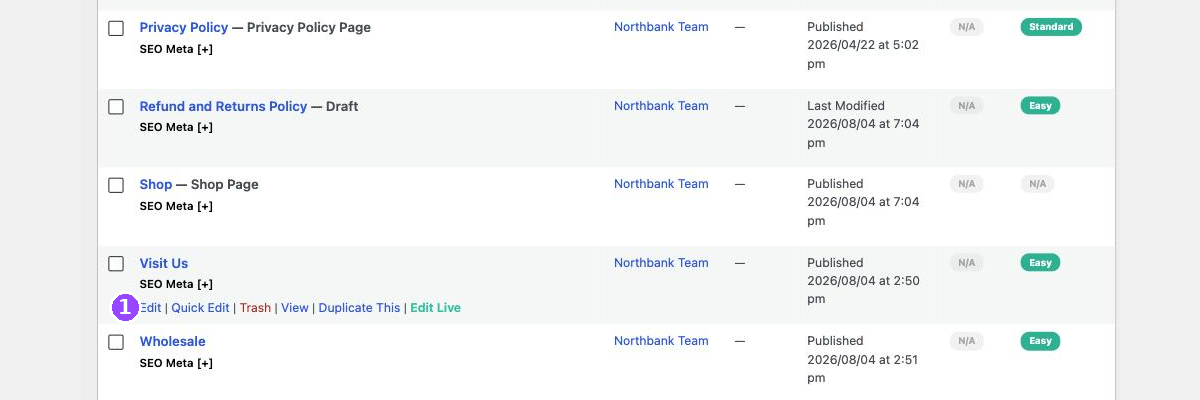
- Hover the page you want to copy, so its row of small links appears.
- Click Duplicate This.
The list reloads with a second copy of that page, sitting next to the original and marked Draft.
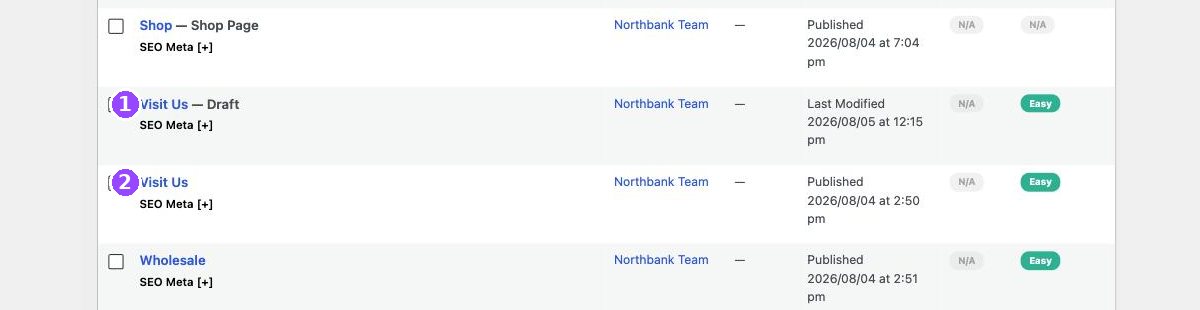
A draft is invisible to visitors. You can take as long as you like over it, save it half finished, and come back tomorrow. Nobody sees it until you press Publish.
Renaming it, including the address
Open the draft. Change the title to whatever the new page is called. Then look at the Permalink line underneath, because it will not have changed with it.
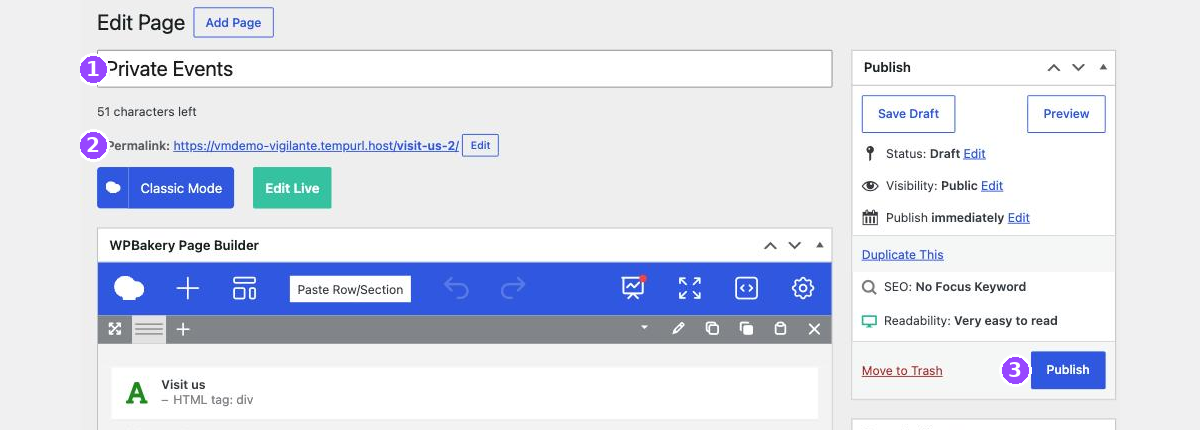
A copy of your Visit Us page arrives with an address ending in visit-us-2, and it keeps that address forever unless you fix it. Click Edit next to the permalink, type something that matches the new title, and click OK.
This is the step everybody forgets. A page called Private Events that lives at yoursite.com/visit-us-2/ looks careless in a browser tab, in a link you paste into an email, and in Google. It is thirty seconds to fix now and a redirect job later.
Replacing the content
Now work through the copy section by section, changing the words and pictures. Delete the sections you do not need using the X at the right hand end of each one, and duplicate a section if you need another like it.
- Change the wording in each section you are keeping.
- Delete the sections that do not belong on the new page.
- Click Save Draft as you go.
- Click Preview to see it as a visitor would.
- When it is right, click Publish.
Check nothing from the original was left behind. The commonest slip is a heading, a phone number or a button that still says something from the page you copied. Read the whole preview once from top to bottom before publishing.
Two things to do after publishing
A published page is not yet a page anybody can find. It has no link pointing at it.
- Add it to a menu if visitors should be able to browse to it. There is a separate guide for that.
- Check the SEO fields at the bottom of the editor. A copy inherits the original’s search title and description, so two of your pages will be claiming to be the same thing until you change them.
If you do not see Duplicate This
Not every site has it. If your row of links stops at Edit Live, you can still start a page from scratch:
- Go to Pages, then Add Page.
- Give it a title.
- Leave everything in the Page Layout box on the right set to As in Theme Options.
- Build it up by copying sections from another page and pasting them in.
Leave the Page Layout box alone and your page inherits the site design. Header, footer and page template all say As in Theme Options, which means “the same as everything else”. That is almost always what you want, and it is why a new blank page still looks like your site.
When to email us instead
- The new page needs a layout that does not exist anywhere on the site.
- You want it to have no header, or a different one.
- It needs to be a child of another page, sitting under it in the address.
- You have duplicated a page and cannot get rid of the old address.
- You want the page live but hidden from search engines.
Related guides
Still haven’t found what you’re looking for?
Let us know and we’ll do our best to help out!