

Have questions about paid ads, campaign optimisation, or platform features? Browse our knowledge base for step-by-step guides, FAQs, and expert insights to help you succeed.
Adding a new section by duplicating an existing one
On This Page
The safest way to add a new section to a page is not to build one. It is to copy a section that already works and change the words in the copy. The spacing, the colours, the column widths and the mobile behaviour all come along for free, because they were set up once and you are reusing them.
This is the single most useful trick in the builder. Nearly every “can you add another one of these” request is a thirty second job once you know where the copy icon is. Building a matching section from scratch is fiddly and rarely comes out quite right.
Finding the copy icon
Open the page in the builder. Move your mouse over the section you want to copy and a grey control bar appears along the top of it, with a group of small icons at the right hand end.
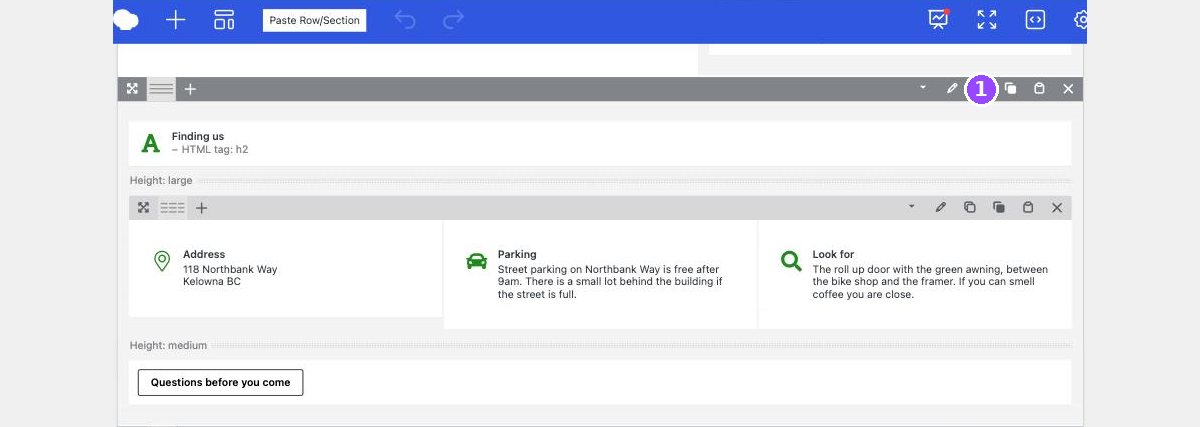
Reading that group from left to right: a small arrow that folds the section up out of the way, a pencil that opens its settings, then the copy icon, then a second copy icon, then a clipboard, then an X that deletes it.
| Icon | What it does |
|---|---|
| Small arrow | Folds the section up so you can see past it. Changes nothing on the page. |
| Pencil | Opens the section’s own settings: background, spacing, and so on. |
| First copy icon | Duplicates the section right here. This is the one you want. |
| Second copy icon | Copies it to the clipboard so you can paste it into a different page. |
| Clipboard | Pastes whatever was last copied to the clipboard. |
| X | Deletes the section. |
The two copy icons sit next to each other and look almost the same. If you click and nothing appears to happen, you probably hit the second one, which copies quietly to the clipboard. Nothing is broken. Click the first one instead.
Making the copy
- Hover the section you want to copy, so its grey bar appears.
- Click the first copy icon.
- An identical section appears directly underneath.
- Edit the words in the new lower one, leaving the original alone.
- Click Update.
- Click View Page and read the result on the live page.
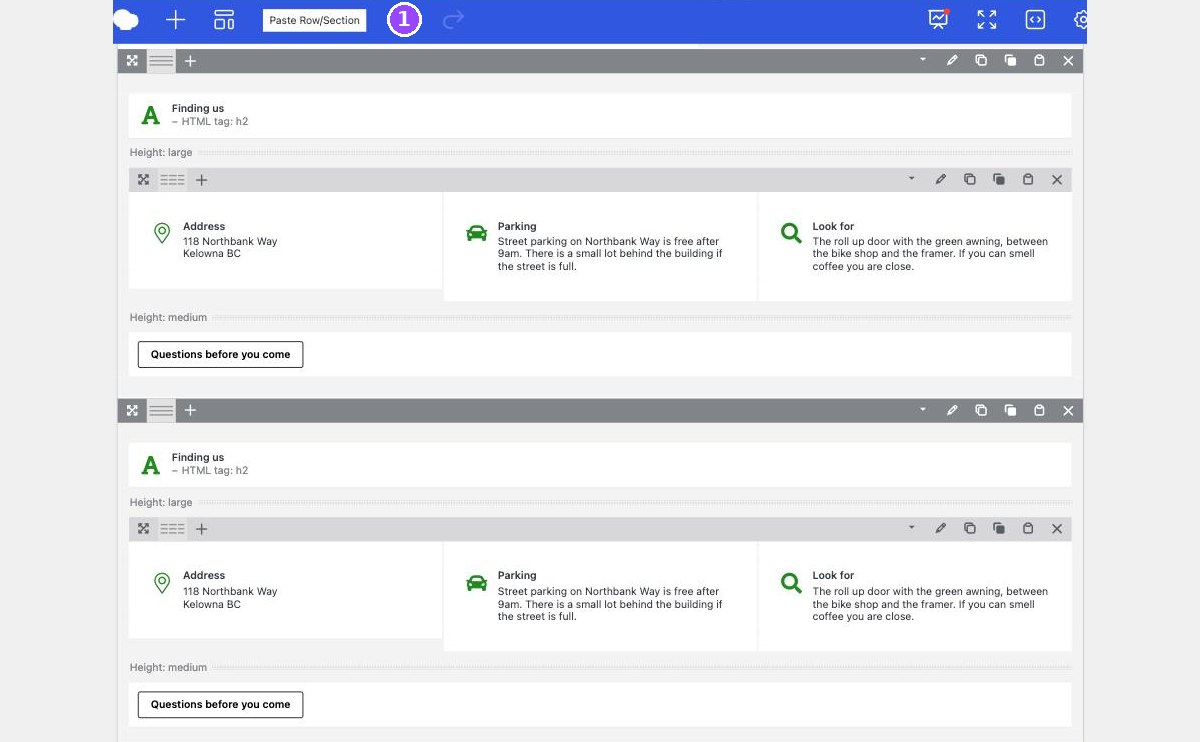
Work on the lower copy, not the upper one. They are identical, so it makes no difference to the page which one you edit. It makes a difference to you: if you lose track halfway through, “the one underneath is the new one” is a rule you can rely on.
If it went in the wrong place
The copy always lands immediately below the original. To move it somewhere else, use the crossed arrows at the far left of its grey bar to drag it up or down the page.
Drag slowly. The builder shifts the surrounding sections around as you move, and it is easy to drop a section inside another one rather than between two of them. If the result looks wrong, undo and try again.
If you duplicated the wrong thing
The undo arrow in the blue toolbar at the top of the builder reverses your last action, and you can click it more than once to walk further back. It is marked in the second picture above.
Undo only works before you click Update. Once you have saved, undo will not help you, but a revision will. There is a separate guide on getting an earlier version back.
Rows inside sections work the same way
A section can hold rows, and a row can hold columns. Every one of them has its own grey bar with the same icons in the same order, so once you can duplicate a section you can duplicate a single row of columns inside it too. Hover a little more precisely and check which bar has appeared before you click.
When to email us instead
- You want a section with a layout that does not exist anywhere on the site yet.
- The copy looks right on a computer but wrong on a phone.
- You want the same new section on several pages, which is usually better done as a shared block.
- You duplicated something, saved it, and cannot get back to how it was.
Related guides
Still haven’t found what you’re looking for?
Let us know and we’ll do our best to help out!