

Have questions about paid ads, campaign optimisation, or platform features? Browse our knowledge base for step-by-step guides, FAQs, and expert insights to help you succeed.
How to Add a User to a Facebook Page and Ad Account (Meta Business Suite)
On This Page
The quickest and safest way to give us access to your Facebook Page and ad account is to add Vigilante Marketing as a partner in your Meta business portfolio. You enter our business ID once, tick the Page and ad account you want us to work on, and you are done. We then manage which of our team can see them at our end, so you never have to add or remove individual staff as people change on our side.
You never give anyone your password. Partner access is a link between your business portfolio and ours. You choose exactly which Page, ad account or Instagram account we can touch, you can see it listed at any time, and you can withdraw it in about fifteen seconds without affecting anything else.
Before you start
You need Full control of the business portfolio yourself. If you only have partial access you will not see the buttons below, and no amount of clicking will produce them. If you are not sure which you have, open business.facebook.com/settings and find your own name under Users → People; your access level is listed beside it.
You will also need our business ID, which we will provide to you..
If nobody at your company has Full control, stop here and email us. This happens more often than you would think, usually when the person who originally set the account up has left. It is fixable, but it goes through Meta’s recovery process rather than through any of these screens, and it takes a while.
Giving VM partner access
- Go to business.facebook.com/settings. If you land in the main Business Suite view instead, click the Settings cog at the bottom of the left sidebar. If you look after more than one business, pick the one that owns your Page.
- In the left sidebar, under Users, click Partners. Then click the blue Add button at the top right and choose Give a partner access to your assets.
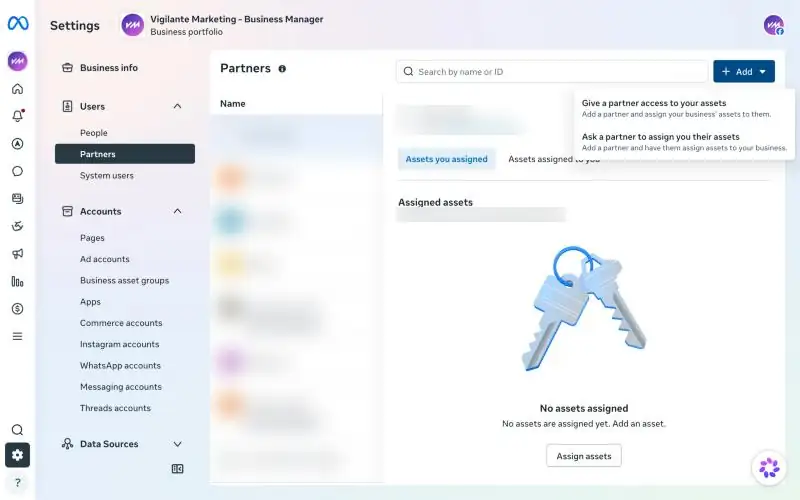
Choose the first option. The second one, “Ask a partner to assign you their assets”, works the other way round. - Enter our business ID, that we provided, and click Next. Facebook will show the name Vigilante Marketing so you can check it is us before going any further.
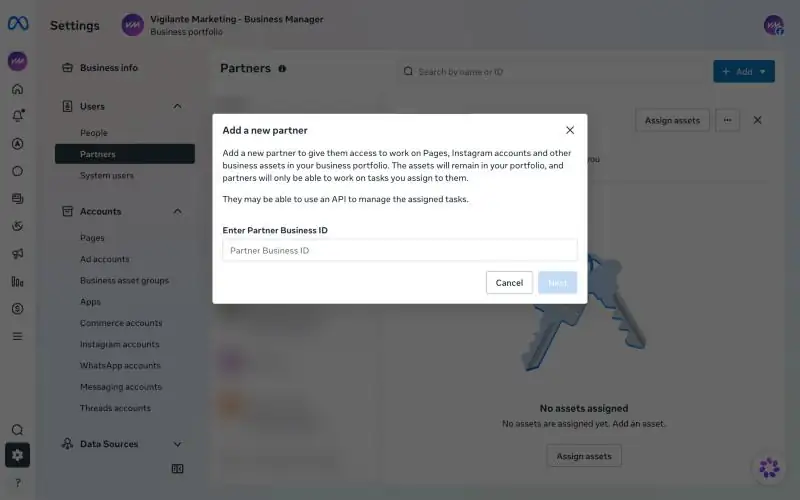
Paste the number exactly. A business ID is not the same as a Page ID or ad account ID. - Now pick what we can access. Under Select asset type, start with Facebook Pages, tick your Page, then switch on full control under Assign permissions on the right.
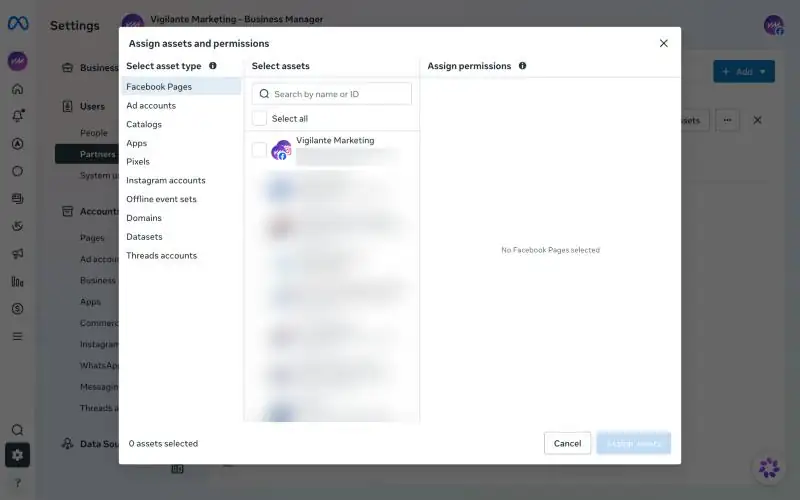
Asset types on the left, your assets in the middle, permissions on the right. - Do not stop at the Page. Without closing the window, work down the asset types on the left and repeat the same thing for each of these:
- Ad accounts: tick your ad account and switch on Manage ad accounts. Without this we cannot run, edit or report on your ads.
- Pixels and Datasets: tick your pixel and dataset. These are what track enquiries and sales from your website, and without them we cannot set up conversion tracking or build audiences. Meta now files some pixels under Datasets, so check both lists.
- Instagram accounts: tick your Instagram account if we are posting or advertising there.
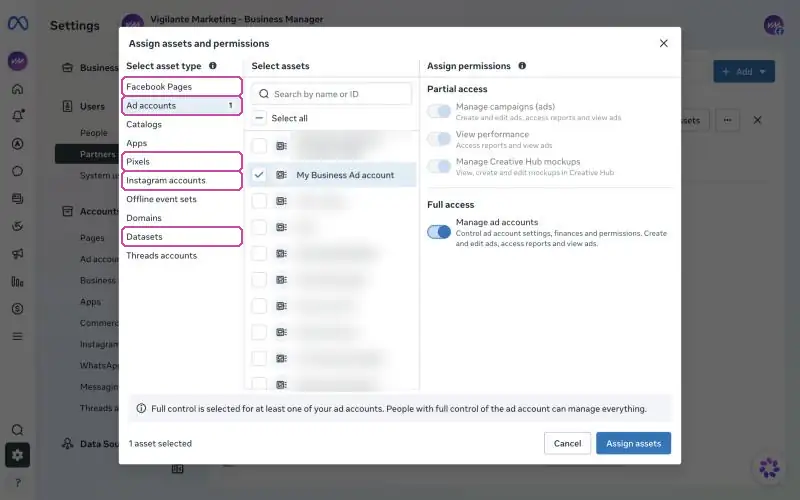
Each highlighted type needs its own tick. A number appears beside a type once you have ticked something in it, so before moving on, check every highlighted type shows one. - Click Assign assets. That is it. The assets appear at our end straight away, and we will confirm with you once we can see them.
The most common mistake is sharing only the Page. Posting will work, but ads, tracking and reporting will not, and nothing on your screen will tell you anything is missing. If you are not sure whether you have a pixel or dataset, tick everything listed under those two types and we will sort out which is which.
Adding something later? Go back to Users → Partners, click Vigilante Marketing in the list, then Assign assets. The same screen also shows everything we currently have access to under Assets you assigned.
If we sent you a request instead
Sometimes it is quicker for us to request access than for you to grant it, in which case you will have a request waiting rather than anything to send.
- Open Business settings and click Requests in the left sidebar.
- Stay on the Needs review tab.
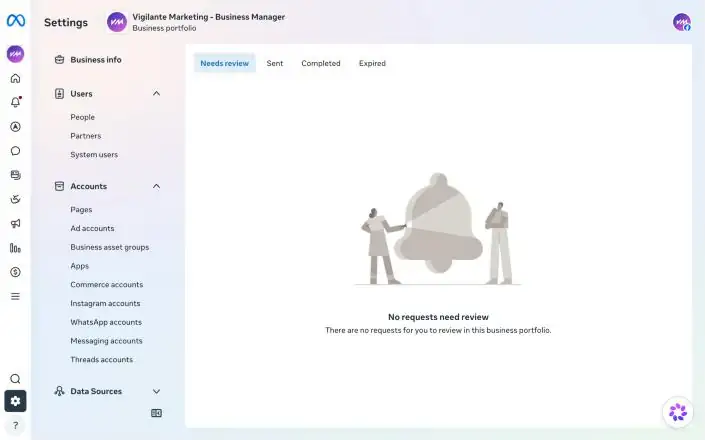
If the tab is empty, the request has either expired or gone to a different business portfolio. - Check the business name shown is Vigilante Marketing, and that the assets listed are the ones you expect.
- Click Approve.
Read what a request actually asks for. There is a real difference between granting partner access to your Page and transferring ownership of it. Access can be withdrawn whenever you like. Ownership means the Page belongs to somebody else, and getting it back is a formal dispute with Meta rather than a setting. We will only ever ask for access. If a request mentions transferring ownership, do not approve it, and send it to us so we can look at it.
Adding a person instead
Partner access is right for an agency. For your own staff, or a freelancer working on their own, add them as a person. It works in two layers: first you add them to the business portfolio, then you assign them the specific assets. Doing only the first step adds somebody who can see nothing.
- In Settings, under Users, click People, then Invite people.
- Enter their email address and choose an access level (see below).
- Assign the assets: Pages, Ad accounts, Instagram accounts and so on, ticking each one and switching on the tasks they need. Do not skip this.
- Send the invitation. Their row will change from Pending to active once they accept.
| Level | What it allows, and when to use it |
|---|---|
| Full control | Everything: settings, other people’s access, ad accounts, Pages and billing. Right for a business partner or director. |
| Partial access | Only the specific tasks you switch on, asset by asset. Right for a staff member who posts but should not see billing, and for a freelancer working on one campaign. |
You can change somebody’s level later without removing and re-inviting them, so starting narrow and widening it is a perfectly reasonable way to work.
Removing access
Worth doing the same week somebody leaves, since Facebook access is easy to forget about and outlives most other accounts.
- A partner, including us: go to Settings → Users → Partners, click the partner’s name, open the ··· menu beside Assign assets and remove them. Every asset they had is withdrawn in one go.
- A person: go to Settings → Users → People, find them (the Last active column is a good way to spot accounts nobody is using), open the menu at the end of their row and remove them from the business portfolio.
Two things that will stop you. A business portfolio must always keep at least one person with Full control, so add the replacement before removing the last one. And if you were made an admin within the last seven days, Facebook will not let you remove or demote another admin until that week is up. Both are deliberate, and neither is something you have done wrong.
When to email us instead
Send us the business portfolio name and what you were trying to do, and we will take it from there. Worth a message rather than an hour of clicking:
- Nobody at your company has Full control any more.
- Your Page is owned by a business portfolio you do not recognise, often a previous agency’s.
- You have added us as a partner and we still cannot see the account. This is nearly always a missing asset, usually the ad account, pixel or dataset, and we can check it from our end in a minute.
- A request is asking to transfer ownership of anything.
Related guides
Still haven’t found what you’re looking for?
Let us know and we’ll do our best to help out!