

Have questions about paid ads, campaign optimisation, or platform features? Browse our knowledge base for step-by-step guides, FAQs, and expert insights to help you succeed.
Adding a form to a page on your site
On This Page
Building a form and putting it on a page are two separate jobs. A form exists on its own under Forms, and it does not appear anywhere until you place it on a page. The thing you place is a short piece of text called a shortcode, which looks like . Think of it as a marker saying “put form number 1 here”. You do not need to understand it, only to paste it in the right place.
One form can go on as many pages as you like. It stays a single form with one set of entries and one notification, so there is nothing to keep in sync. Change the form once and every page updates.
The easy way: let Gravity Forms do it
Gravity Forms can insert the form for you, which saves handling the shortcode at all.
- Go to Forms and click the form’s name.
- Click Embed at the top right.
- Under Add to Existing Content, leave Page selected, choose your page from Select a Page, and click Insert Form.
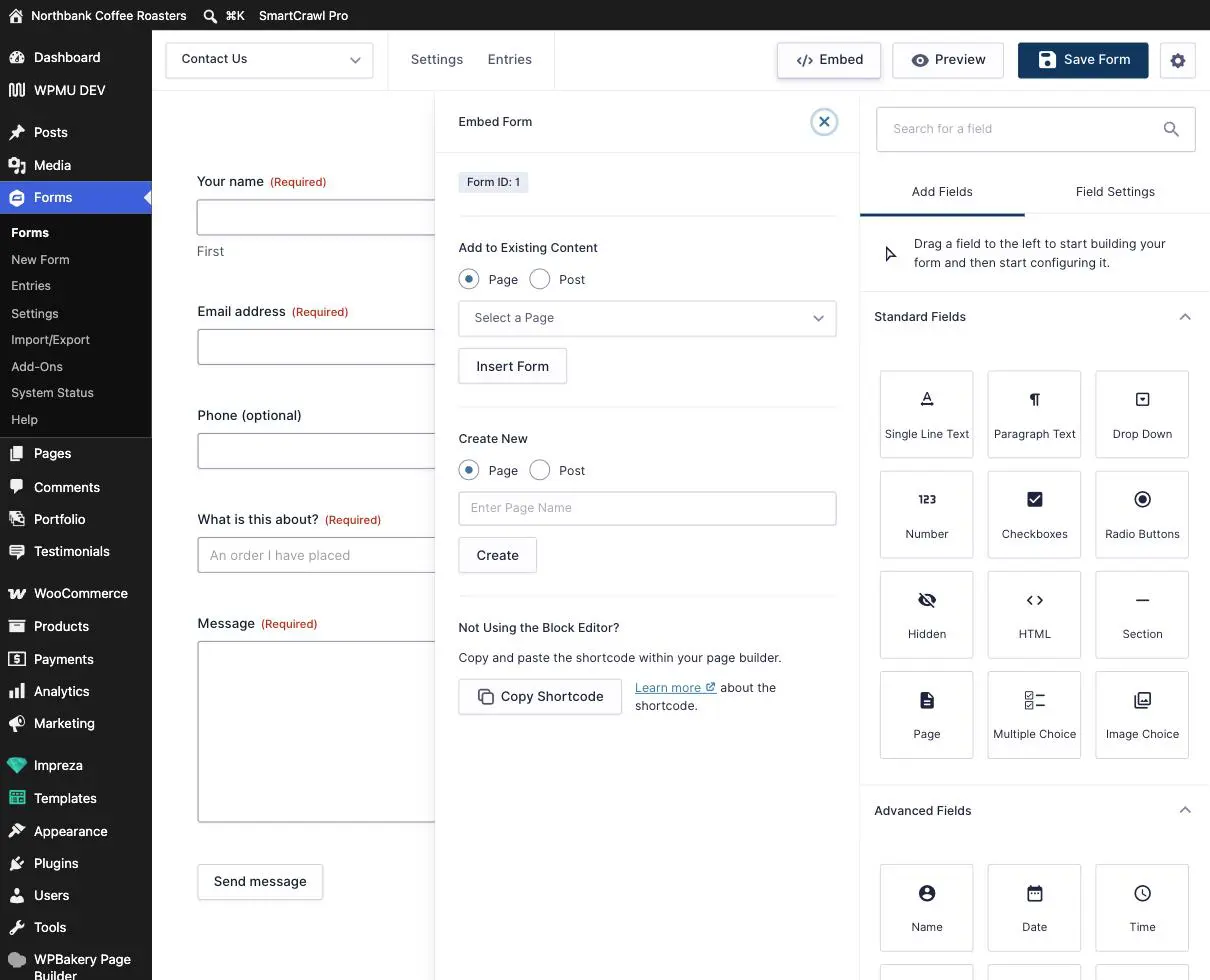
On your site, use Copy Shortcode rather than Insert Form. Your pages are built with a page builder rather than the standard WordPress editor, so Insert Form can drop the shortcode somewhere unexpected in the layout. Copying the shortcode and pasting it yourself puts the form exactly where you want it. The panel says as much under “Not Using the Block Editor?”.
Placing it on the page
- In the Embed panel, click Copy Shortcode.
- Open the page you want the form on and edit it in the builder, the same way you would to change any text. See Editing text on a page if you need a refresher.
- Find the text element where the form should go, or add a new one in the right spot.
- Paste the shortcode in on a line of its own, with nothing else around it.
- Update the page.
- View the page as a visitor and check the form appears and looks right.
- Submit it once, for real. Then check the entry arrived under Forms then Entries, and that the email came through.
Put the shortcode on its own line. Wrapped in a sentence or squeezed alongside other text, it sometimes does not run and the visitor sees the raw
Oops! We could not locate your form.
If you see the shortcode text instead of a form
This is the usual first-attempt problem and it is easy to fix. It means the page printed the marker rather than acting on it. Check, in this order:
- The shortcode is on its own line.
- The square brackets are both there and it has not been cut off mid-paste.
- It has not been pasted into a heading element, which sometimes will not run it. Use a text element.
- The whole thing has not been turned into a link or code-formatted by an editor being helpful.
If it still shows as text, send us the page address and we will place it.
What the bits mean
| Part | What it does |
|---|---|
id="1" |
Which form. The number is shown as Form ID at the top of the Embed panel, and in the ID column on the Forms list. |
title="false" |
Hides the form’s own title. Usually right, because your page already has a heading and you do not want two. |
description="false" |
Hides the form’s description, if it has one. |
ajax="true" |
Submits without reloading the whole page. Nicer for the visitor, and we usually set this for you. |
Making a new page for a form
The Create New section of the Embed panel will make a page and put the form on it in one go. It works, but the page it creates is a blank WordPress page with none of your site’s design applied, so it will look out of place.
Better: create the page the way you normally would, by duplicating an existing one so it inherits your layout, then paste the shortcode in. Creating a new page covers that, and remember to add it to your menu afterwards if people need to find it.
Removing a form from a page
Delete the shortcode from the page and update. That takes the form off that page and nothing else: the form still exists, and every entry it has ever collected is untouched under Forms then Entries. Deleting the shortcode never deletes data.
When to email us instead
- The form appears but looks wrong: cramped, overflowing on mobile, or the wrong fonts and colours. That is styling and it is our job.
- You want the form in a popup, a sidebar, or the footer on every page.
- You want it side by side with something else, like a map or opening hours.
- You pasted the shortcode and got the raw text, and the checks above did not fix it.
- The form needs to go on a page that also takes payments.
Related guides
Still haven’t found what you’re looking for?
Let us know and we’ll do our best to help out!