

Have questions about paid ads, campaign optimisation, or platform features? Browse our knowledge base for step-by-step guides, FAQs, and expert insights to help you succeed.
Add Vigilante Marketing to your Mailchimp account
On This Page
Mailchimp lets you add other people to your account as users, each with a role that decides what they can do. You invite us by email address, we accept, and we get in with our own login. You stay the account owner, you can see exactly who has access on one screen, and you can remove us whenever you like. At no point does anyone need your password.
This is the right way round. If anybody, us included, ever asks you to email your Mailchimp password, treat it as a mistake and check with us. Adding a user exists precisely so that is never necessary.
What you will need
- A Mailchimp login that is either the account owner or an Admin. Other roles cannot add people.
- A paid Mailchimp plan. On the free plan the account is limited to one user and the invite button is switched off. See the note at the end if that is you.
- Our address: [email protected].
Steps
- Log in to Mailchimp.
- Click your profile icon in the top right corner, then choose Account & billing.
- Open the Settings menu and choose Users.
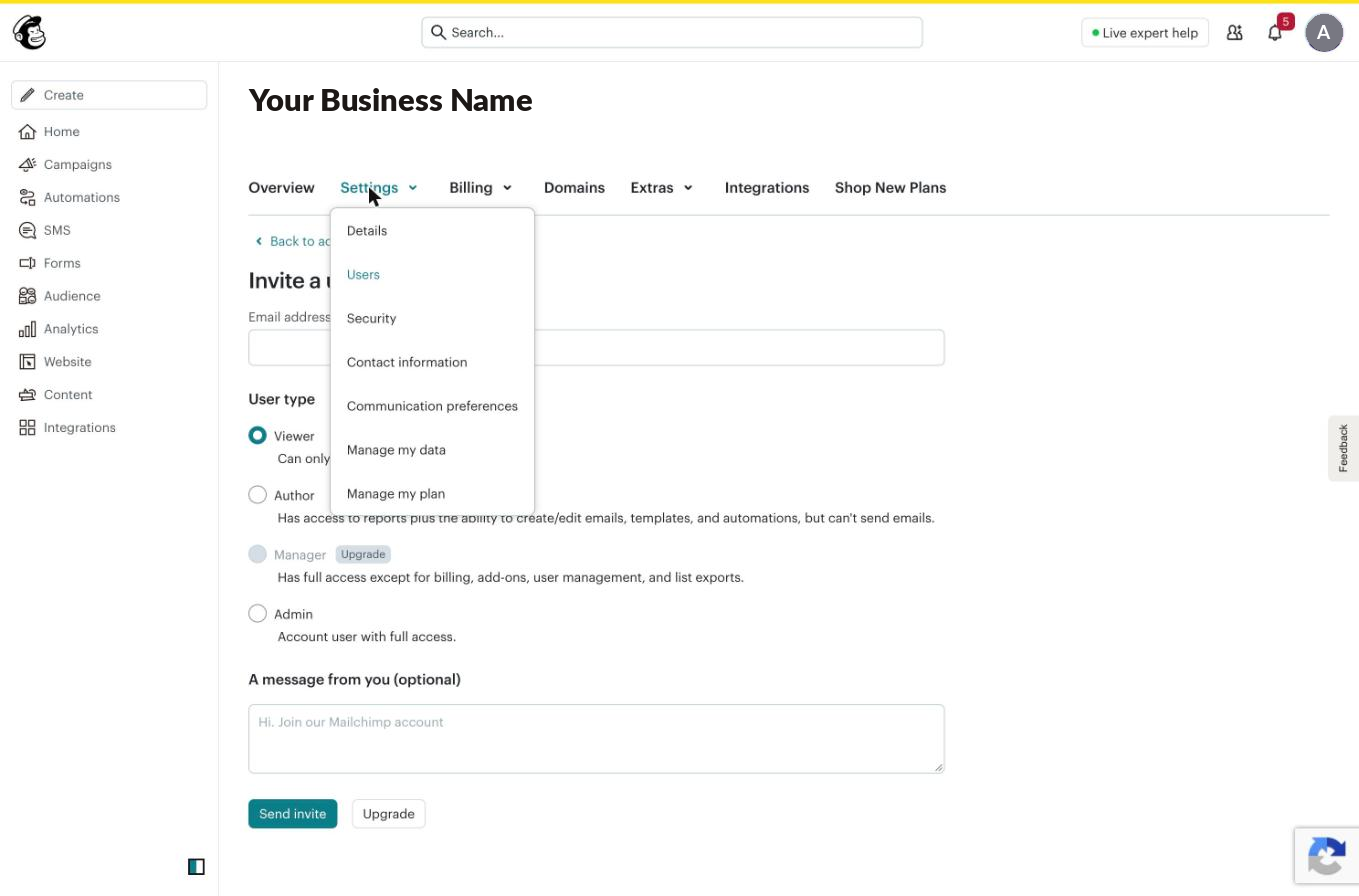
Users sits under Settings, not under Billing or Extras. - You will see everyone who currently has access, along with their role. Click Invite a user.
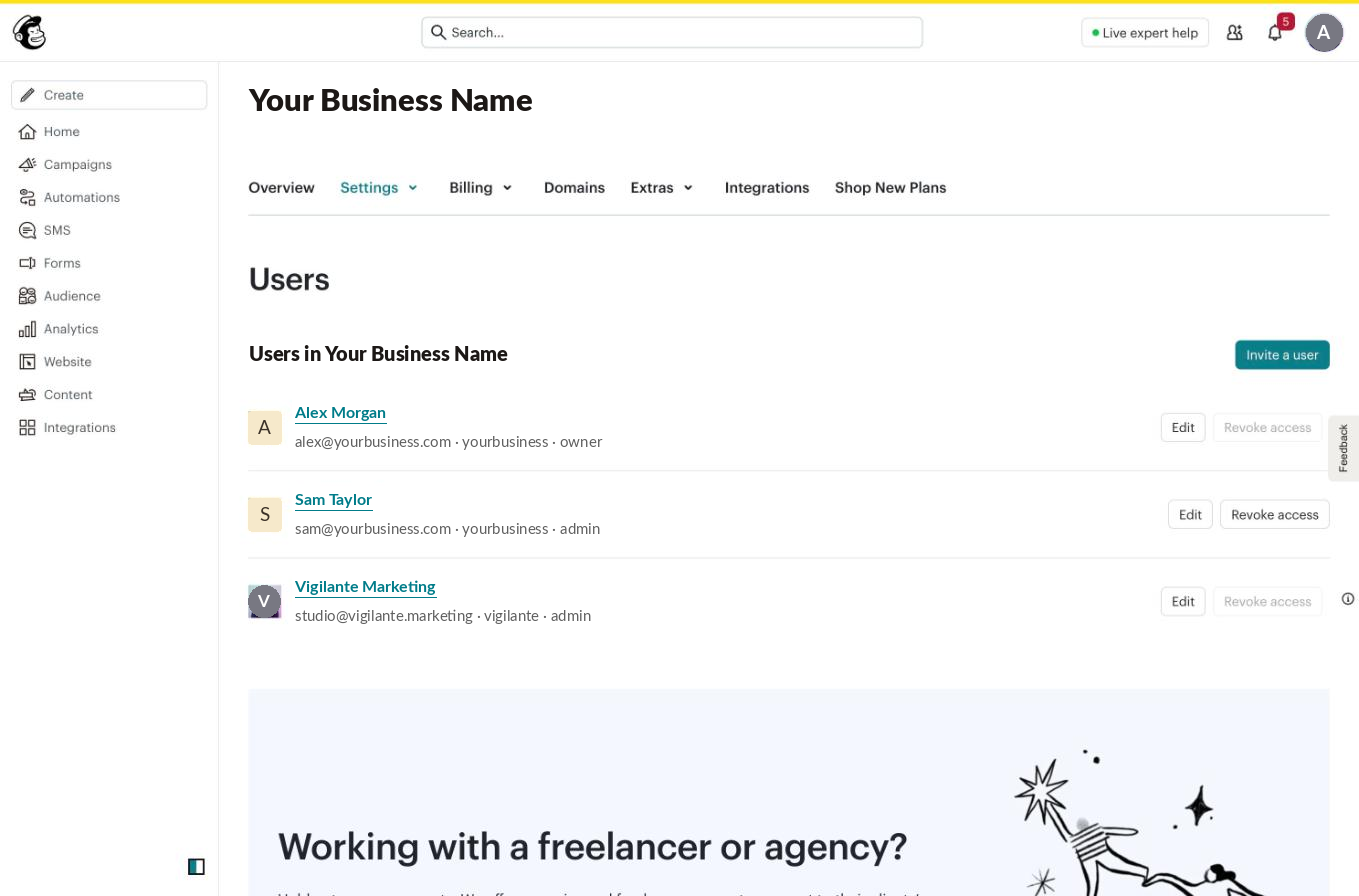
This screen is also where you remove somebody later. - Enter [email protected] in the email address field. Use exactly that address, not a personal one belonging to whoever you have been emailing, or the invitation will land in the wrong place.
- Choose the user type. See the next section for which one to pick.
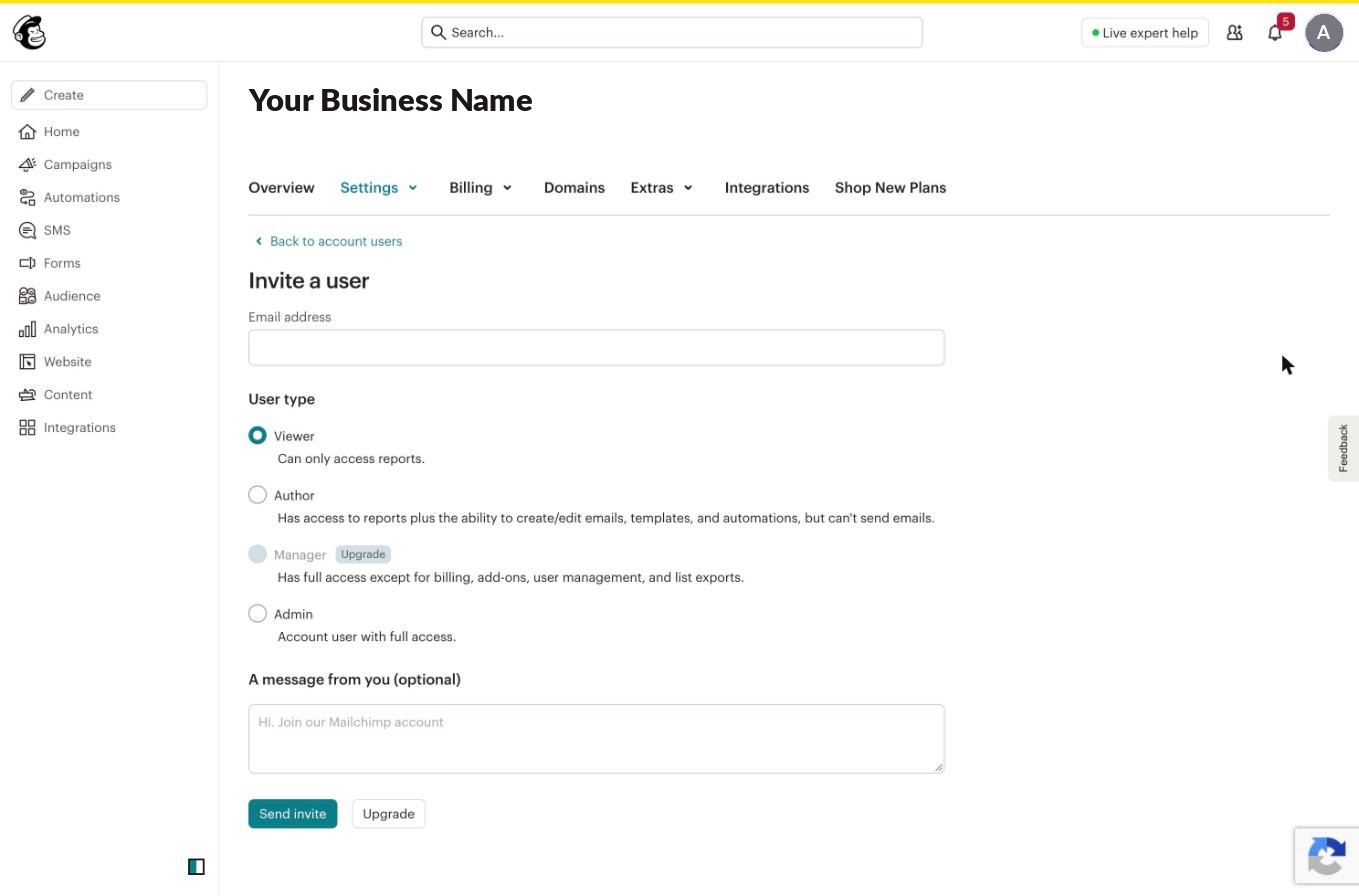
Manager is greyed out unless your plan includes it. Most accounts choose between Author and Admin. - Add a short message if you like, then click Send invite. Mailchimp emails us the invitation. Once we accept it, we will confirm with you.
Which role to choose
Mailchimp offers four, and the wording on screen is not always obvious about what it means in practice.
- Viewer can only look at reports. Not enough for us to do anything useful.
- Author can create and edit emails, templates and automations, but cannot send. Choose this if you want us building and editing campaigns while your team keeps final control over what actually goes out.
- Manager is everything except billing, add-ons, user management and list exports. It is a sensible middle ground, but it is only offered on higher plans and is greyed out on most accounts.
- Admin has full access, including sending. Choose this if you want us to run campaigns end to end.
If you are not sure, Author is the safer starting point. It lets us do the work and get everything ready for you, and it removes any possibility of something being sent to your list before you have seen it. You can upgrade us to Admin later in two clicks if it turns out to be a nuisance.
Author cannot send, and that includes test sends. It is the right choice for most people, but if we are running your campaigns to a schedule it will mean coming back to you for every send. If that sounds like it will get tiresome, pick Admin from the start.
If you are on the free plan
Free Mailchimp accounts are limited to a single user. The Invite a user button is visible but switched off, and you will see Upgrade To Add More Seats instead. There is no way around this on a free plan.
Tell us if you hit this. There is a second route, Mailchimp’s connected accounts feature for agencies, which does not use up a seat on your plan. It is worth a conversation before you upgrade purely to give us access.
If it does not go to plan
- You cannot see Users under Settings. You are probably signed in with a role below Admin, or to a personal Mailchimp account rather than the business one. People often have two without realising.
- The invitation never arrives. Check the address you typed. A single typo sends it into the void with no error. It is also worth asking us to check spam.
- The invite expires. Mailchimp invitations do time out. If we have been slow to accept, just send it again.
- Manager is greyed out. That is your plan, not a mistake. Choose Author or Admin instead.
Removing our access later
Same screen. Find us in the list and choose Revoke access. Nothing in your account changes and no campaigns or audiences are affected; we simply lose the ability to log in. You never need our permission and you do not need to explain why.
What we need if something fails
Which step you reached and what the screen said. If the invite button was greyed out, tell us which plan you are on, because that decides whether adding a user is possible at all.
Related
Still haven’t found what you’re looking for?
Let us know and we’ll do our best to help out!