

Have questions about paid ads, campaign optimisation, or platform features? Browse our knowledge base for step-by-step guides, FAQs, and expert insights to help you succeed.
Changing the Card Your Subscription Is Billed To
On This Page
You can update the card a subscription is billed to from your own account, without sending card details to anyone by email or over the phone. The control sits on the subscription itself, not on the list of subscriptions, which is why it is easy to miss.
Never email or text your card number. Not to the business, not to anyone. A legitimate business will always point you at a page like this one instead, and anyone who asks you to send card details in a message should be treated with suspicion.
When you need to do this
- Your card expired, or the bank sent a replacement.
- The card was lost, stolen or cancelled.
- You want the payment to come from a different card or account.
- A payment failed and you were emailed about it.
Updating it
- Log in and go to Subscriptions in your account menu.
- Click View on the subscription you want to change.
- In the Actions row, choose Change payment method, which on some sites is labelled Add payment.
- You will land on a payment page showing the amount and the next payment date.
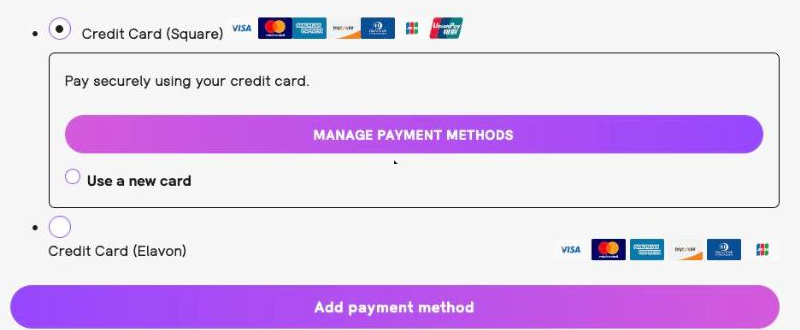
- Either pick a card you have saved already, or choose Use a new card and type the details in.
- Click Add payment method to save it.
- Go back to the subscription and check the Payment row now shows the card you expect.
You may see a very small temporary charge. Some card processors authorise a token amount to confirm the card works, then release it within a few days. It is not a real charge and you do not need to report it.
Managing saved cards
Most accounts have a Payment methods page listing every card you have saved, where you can delete old ones and set a default. Worth a look after you add a new card, so an expired one is not left sitting there.
Add the new card before deleting the old one. If you delete the only card on file, the subscription has nothing to bill and the next payment will fail. Add, check the subscription is pointing at the new card, then remove the old one.
If it does not work
- No Change payment method option. The subscription may be cancelled or expired, in which case there is nothing to bill. Check the status at the top of the page.
- The card is refused. Check the number, expiry and security code, and that the billing address on your account matches the one your bank has. A mismatched postcode is a common and confusing cause.
- It saved, but the subscription still shows the old card. Reload the page. If it persists, contact the business rather than adding the card a second time.
- You were told a payment failed and you have now fixed the card. There may be an outstanding payment to make as well. Look in Orders for anything unpaid.
What to include if you need to ask for help
The email address on your account and the subscription number from the top of the subscription page. Never include card numbers, expiry dates or security codes.
Related
Still haven’t found what you’re looking for?
Let us know and we’ll do our best to help out!