

Have questions about paid ads, campaign optimisation, or platform features? Browse our knowledge base for step-by-step guides, FAQs, and expert insights to help you succeed.
Replacing an image used in several places
On This Page
There are two different jobs hiding behind “change that picture”, and the wrong one produces a confusing afternoon. Changing an image on one page means pointing that page at a different file. Changing an image everywhere means dealing with the fact that the same file is used in several places, or that it lives inside a block shared across pages. Work out which you are doing before you start.
The quick diagnosis. If you changed one page and something else changed too, you have hit a shared block. If you changed one page and the old picture is still showing somewhere else, that other page points at the same file independently. Neither is broken; they are just two different arrangements.
Which situation are you in?
| What you want | What to do |
|---|---|
| Change it on this page only | Replace the image on the page. Other pages keep the old one. |
| Change it on every page at once | Depends whether it is a shared block or the same file used repeatedly. See below. |
| Crop or resize it everywhere | Edit the file itself. That does change it everywhere, deliberately. |
| A new logo across the whole site | Email us. The logo sits in the site header, the footer and usually your search listing, and it is not a page edit. |
The shared block case
Some sections are built once and placed on many pages, so that changing them once updates all of them. That is a feature, and it is the most common reason a change appears somewhere you did not expect. Reusable blocks explained covers how to spot one, and it is worth reading before you go hunting for a bug that is not there. The same applies to sections that build themselves from your posts or products, which grids and post lists covers.
The same-file-in-several-places case
Here the pages are independent; they simply happen to use the same file. WordPress has no button that means “swap this file for that one everywhere”. Your options:
- Edit the file instead of the pages. If the change is a crop, a rotation or a resize, use the built-in image editor. Every page using it updates, because they all point at the same file.
- Or upload the new picture and re-point each page. Right for a genuinely different image. Upload it once, then visit each page and replace it there. Tedious but safe, and each page keeps working throughout.
- Do not delete the old file to force it. Deleting does not redirect anything. It leaves a broken image on every page that used it, and there is no undo.
Finding where an image is used
This is harder than it should be, and the dashboard will mislead you.
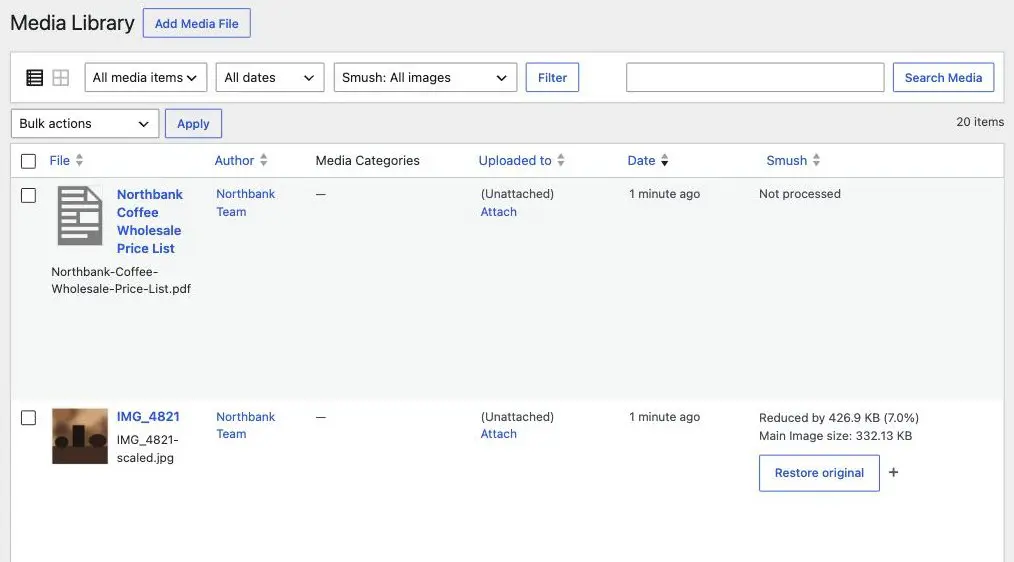
What actually works: search your site for the picture using your site’s own search, look at the pages you know are likely, and check the reusable blocks. Or ask us, because we can list every page referencing a given file in one query. If you are about to change something that appears in more than one place, that question is worth asking first.
Photos of people and premises are the ones to be careful with. A staff photo of somebody who has left, or a shot of an old location, tends to be in more places than anyone remembers: a team page, an about page, a blog post, and often the image that shows when a page is shared on social media. If you are removing a particular person or place, tell us and let us sweep for it properly. That is a search job rather than an editing job.
What we need if something fails
The page address, which image, and whether you want it changed on that page only or everywhere. That last part is the one we always end up asking, so leading with it saves a round trip.
Related
Still haven’t found what you’re looking for?
Let us know and we’ll do our best to help out!