

Have questions about paid ads, campaign optimisation, or platform features? Browse our knowledge base for step-by-step guides, FAQs, and expert insights to help you succeed.
Adding or editing a field on a form
On This Page
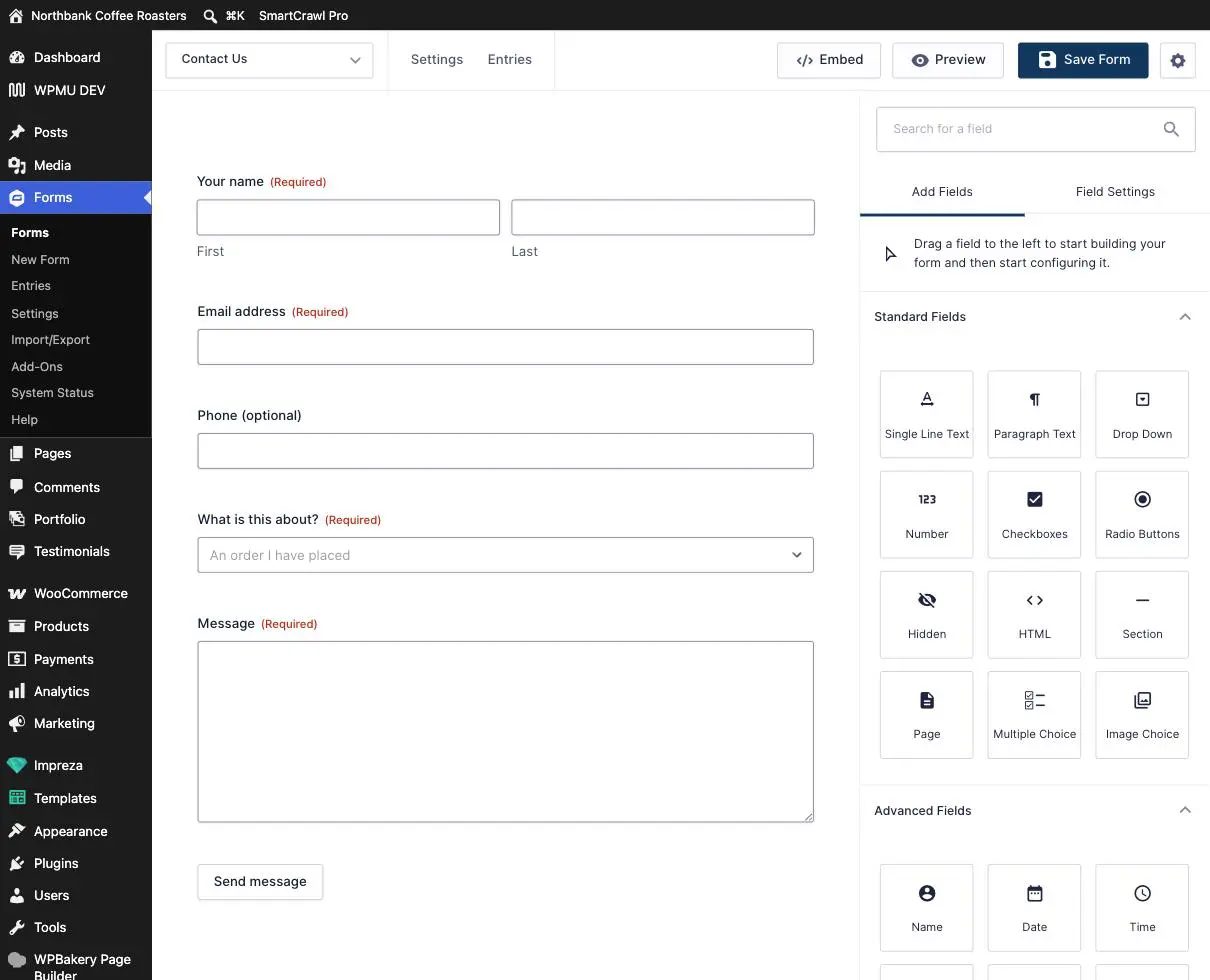
A form is a stack of fields, and each field is one question. You build a form by dragging field types from the panel on the right onto the form on the left, then clicking a field to change its settings. Nothing you do in this editor is live until you press Save Form, so you can move things around and change your mind freely.
Nothing saves until you click Save Form. That means you can experiment safely: drag a field in, look at it, drag it out again. If it goes wrong, leave the page without saving and the form is exactly as it was.
Opening the editor
Go to Forms and click the name of the form. You land on the editor: your form on the left, and on the right the Add Fields panel with every available field type.
Adding a field
- Find the field type you want in the panel on the right. Use the search box if the list is long.
- Drag it onto the form and drop it where you want it. A line shows where it will land.
- The panel switches to Field Settings for the field you just added.
- Change Field Label to the actual question you want to ask.
- Click Save Form at the top right.
- Open the form on your own site and submit a test to make sure the new question comes through.
Which field type to use
| If you are asking for | Use |
|---|---|
| A short answer: company, town, order number | Single Line Text |
| A longer message | Paragraph Text |
| One choice from several | Drop Down for five or more options, Radio Buttons for two to four so people can see them all at once |
| Several choices at once | Checkboxes |
| A name, email or phone number | The dedicated Name, Email and Phone types under Advanced Fields, not Single Line Text. They check the answer makes sense. |
| A date | Date, which gives a proper date picker |
| A heading to break up a long form | Section, which is a label rather than a question |
Use the dedicated Email field, not a text box. It quietly catches the person who types their address with a space in it or misses the @. You get fewer enquiries you cannot reply to, for no extra work.
Editing a field that is already there
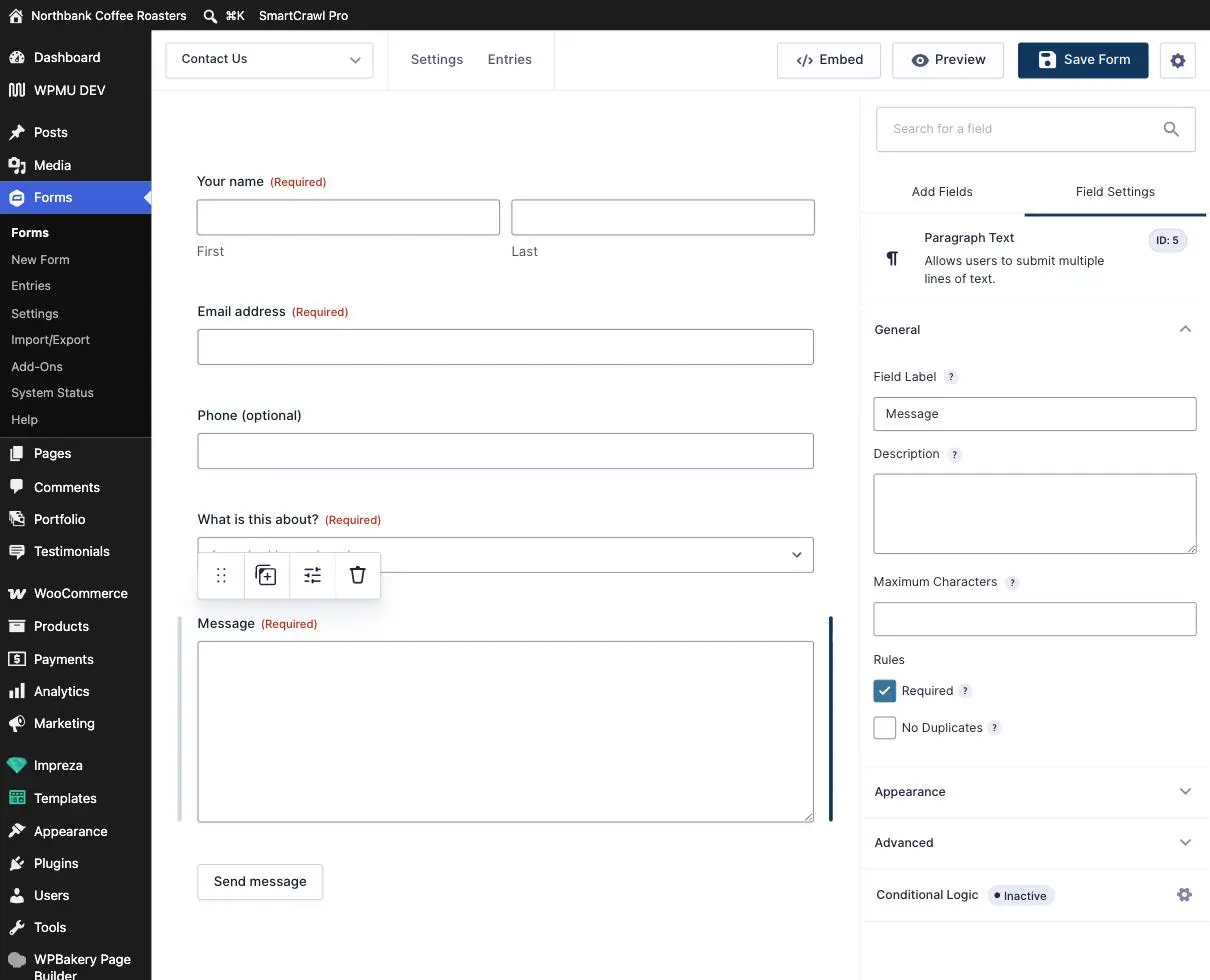
- Click the field on the left. The right panel switches to its settings.
- Field Label is the question text.
- Description adds a line of help underneath, which is the right place for “we will only use this to confirm your booking”.
- Click Save Form.
Reordering and removing
Hover over a field and a small toolbar appears with four icons: drag to move, duplicate, settings, and a bin to delete.
- Reorder by dragging the dotted handle. Free to do, and no consequences.
- Duplicate when you want another field configured the same way. Remember to change its label.
- Delete with more care. See the warning below.
Deleting a field hides the answers people already gave. The old entries keep their data, but the column disappears from the entries list and from exports, so it looks like the answers are gone. If you might want that history, export the entries first, or just relabel the field instead of deleting it. If you have already deleted one and need the answers back, stop and email us rather than saving again.
Things to leave alone
- Conditional Logic, which shows or hides fields based on other answers. Powerful and genuinely useful, but easy to leave in a state where a required field is hidden and the form cannot be submitted at all. Ask us.
- Anything in Advanced beyond the label, particularly Allow field to be populated dynamically and Visibility.
- The Custom CSS Class box. That is usually us hooking styling onto the field, and clearing it changes how the form looks.
- Fields on a form that takes payments. Changing those can affect what customers are charged. Always ask first.
After you save
Always submit the real form on your live site once. It takes thirty seconds and catches the two things that are otherwise invisible: a new required field that blocks submission, and a new question that does not appear in the notification email.
A new field does not automatically appear in your notification email. Depending on how the email was written, you may see the new answer only by opening the entry on the site. If a new question matters to you in the email, tell us and we will add it.
When to email us instead
- You want conditional logic, or a field that only some people see.
- The form takes payments or bookings.
- You need a file upload, which has security and storage implications worth a conversation.
- You deleted a field and want the old answers back.
- The form is long enough that people abandon it. Often the fix is fewer questions rather than a better layout.
Related guides
Still haven’t found what you’re looking for?
Let us know and we’ll do our best to help out!