

Have questions about paid ads, campaign optimisation, or platform features? Browse our knowledge base for step-by-step guides, FAQs, and expert insights to help you succeed.
Changing who receives form notifications
On This Page
Each form has its own list of notifications, and a notification is simply an email the site sends when somebody submits. Changing who gets your enquiries means editing the notification, not the form. This is the single most common change clients want to make themselves, and it is a two-minute job once you know which screen it lives on.
You cannot lose enquiries by getting this wrong. Every submission is saved on the site regardless of who the email goes to. If you mistype an address, the email bounces but the enquiry is still there under Entries, so nothing is actually lost while you sort it out.
Getting there
- Go to Forms and click the name of the form you want to change.
- Click Settings along the top.
- Click Notifications in the list on the left.
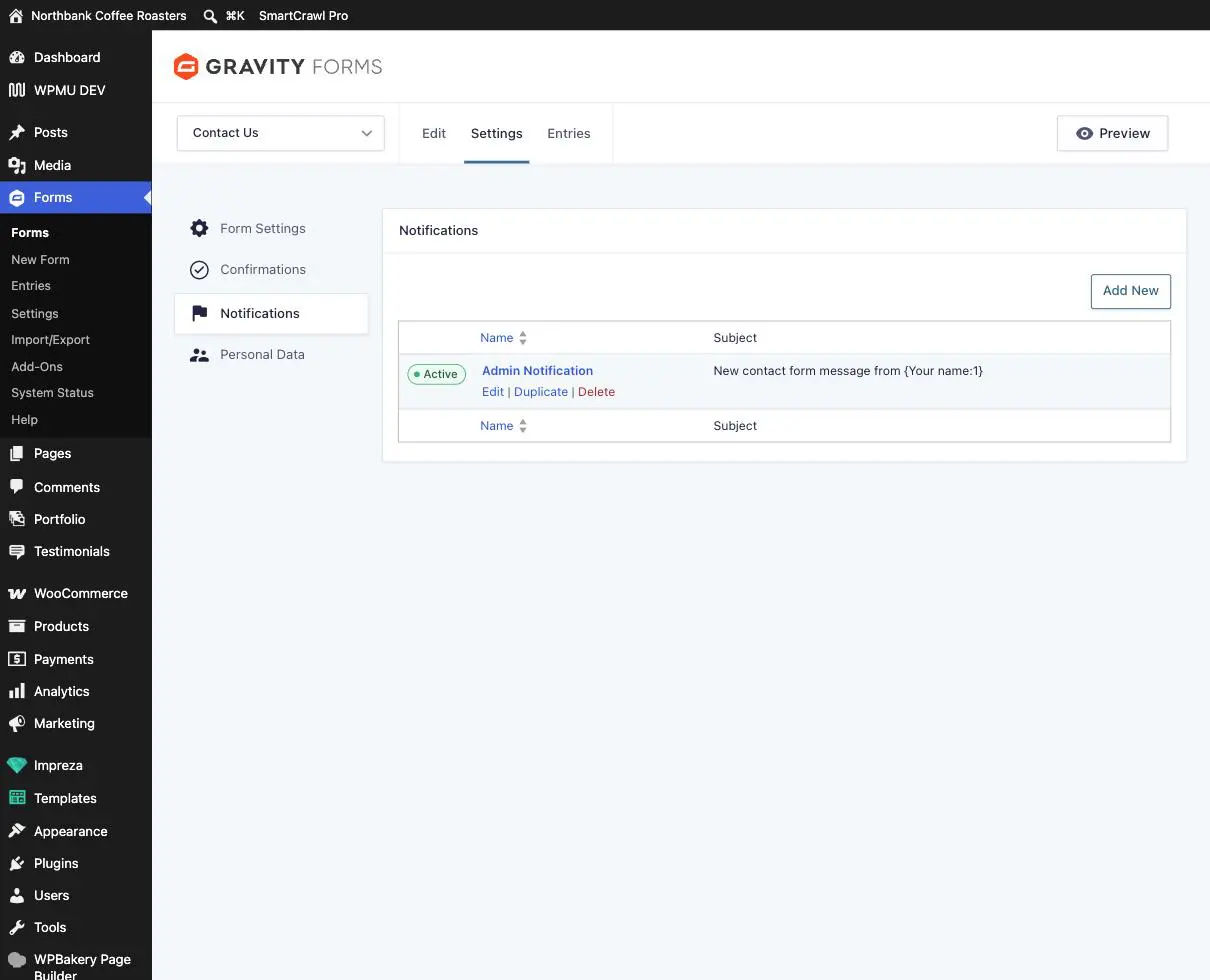
Changing the recipient
- Click the notification’s name, or Edit underneath it.
- Find Send To Email and change the address.
- To send to more than one person, separate the addresses with commas.
- Scroll to the bottom and click Update Notification. It does not save until you do.
- Test it. Go to the form on your own site, submit something obvious like “test, please ignore”, and check it arrives.
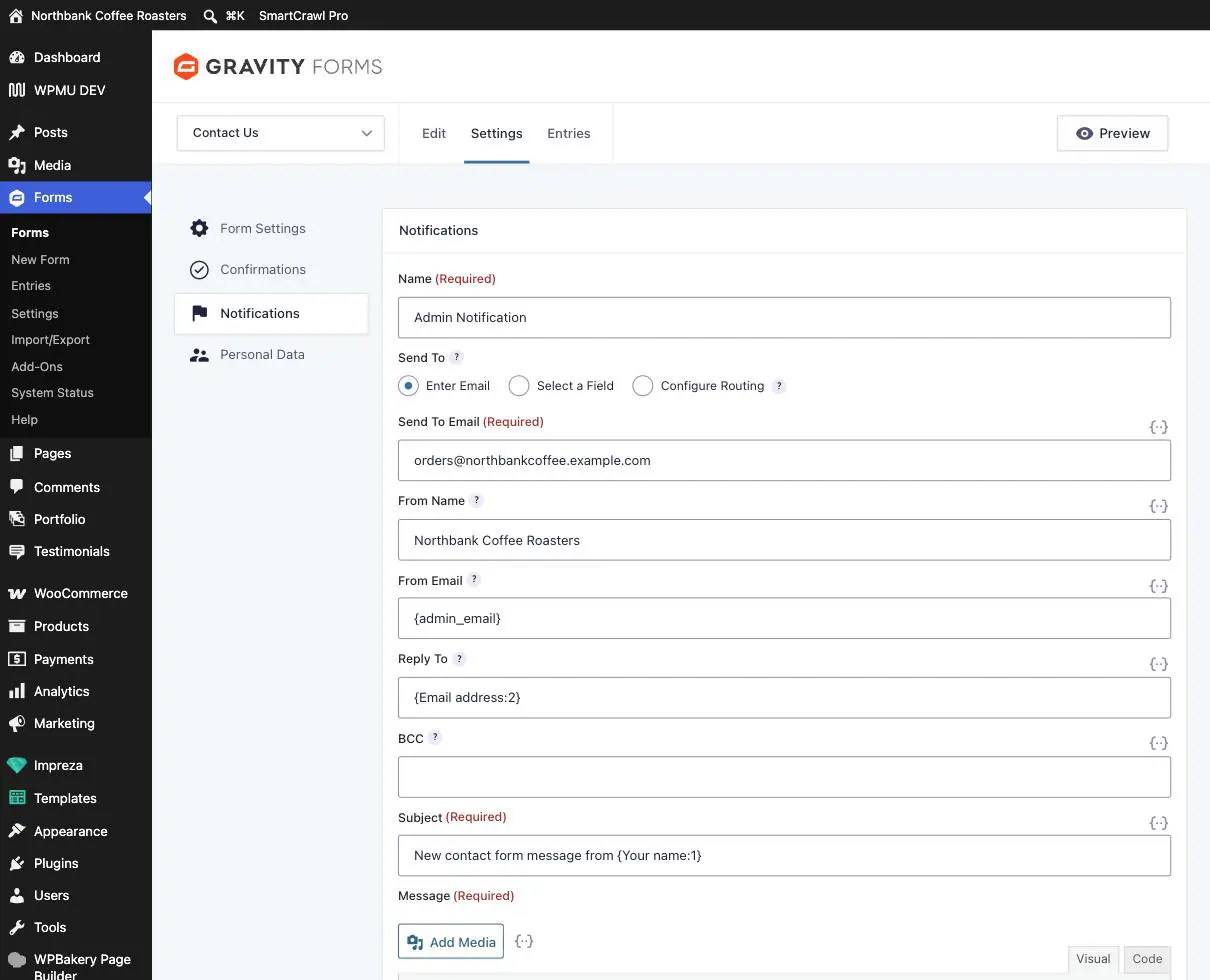
{Email address:2}, pull answers out of the form itself.
Always send the test from the real form on your live site, not from the Preview button. Preview submits differently, and the whole point of the test is to prove the path a real customer takes actually works.
The other fields, and which to leave alone
| Field | What it does |
|---|---|
| Send To Email | Who receives the enquiry. Yours to change freely. |
| Subject | The email’s subject line. Safe to edit. Keep any curly-bracket bits intact if you want the sender’s name in there. |
| From Name | Who it appears to be from. Safe to edit. |
| From Email | Leave this alone. See the warning below. This one genuinely breaks things. |
| Reply To | Where your reply goes when you hit Reply. Normally set to the sender’s own address, which is what you want. |
| BCC | A silent extra copy. Fine to use, though a comma-separated Send To is usually clearer. |
| Message | The body of the email. Editable, but the curly-bracket placeholders are what put the answers in it. |
Do not change From Email to a Gmail, Outlook or Yahoo address. It is the most tempting field on this screen and it quietly breaks your form emails. Your website is not allowed to send email claiming to be from Gmail, so Google and Microsoft will treat it as forged and either bin it or drop it in spam. Leave it as it is. If you want enquiries arriving at a Gmail address, put that address in Send To Email, which is a completely different thing and perfectly safe.
Sending to different people depending on the answer
The three options at the top of Send To do different jobs:
- Enter Email is the normal one. A fixed address, or several separated by commas.
- Select a Field sends the notification to an address the visitor typed. Useful for a confirmation to the customer, not for your own copy.
- Configure Routing sends to different people based on the answers, so wholesale enquiries go to one inbox and everything else to another. It works well, but it is fiddly to set up and easy to leave with a gap that silently swallows enquiries. Ask us and we will set it up and test every branch.
Adding a second recipient without touching the first
If you would rather not edit something that is working, use Duplicate on the notifications list. You get a copy to point at the new address, and the original keeps running untouched. Rename the copy to something you will recognise in six months.
When to email us instead
- You want routing by answer, or notifications that only fire in certain conditions.
- You want the customer to get an automatic acknowledgement as well as you. That is a second notification plus a confirmation message, and it is worth having us write it.
- You changed the address, tested it, and nothing arrived. Try My form emails are not arriving first, then send us the form name.
- Somebody has left and you are not sure which forms still point at their address. We can check all of them at once.
Related guides
Still haven’t found what you’re looking for?
Let us know and we’ll do our best to help out!