

Have questions about paid ads, campaign optimisation, or platform features? Browse our knowledge base for step-by-step guides, FAQs, and expert insights to help you succeed.
How your pages are built: rows, columns and elements
On This Page
Your pages are not one long document. They are a stack of rows, each row is divided into columns, and each column holds elements, so changing anything means finding the one element that holds it rather than scrolling through a page of text.
This is the one page worth reading before the others. Once these three words make sense, every other editing guide becomes a short set of steps rather than a hunt.
The three words
| Word | What it is |
|---|---|
| Row | A horizontal band across the page. Rows stack down the page in order. A row is usually one “section” as you would describe it out loud: the hero, the intro, the three boxes. |
| Column | A vertical division inside a row. A row can be one column across the full width, or split into two, three or four. |
| Element | The actual content: a heading, a paragraph, an image, a button, a form. Elements always live inside a column. |
What that looks like in the builder
Open any page with Edit and you will see the builder rather than a text document.
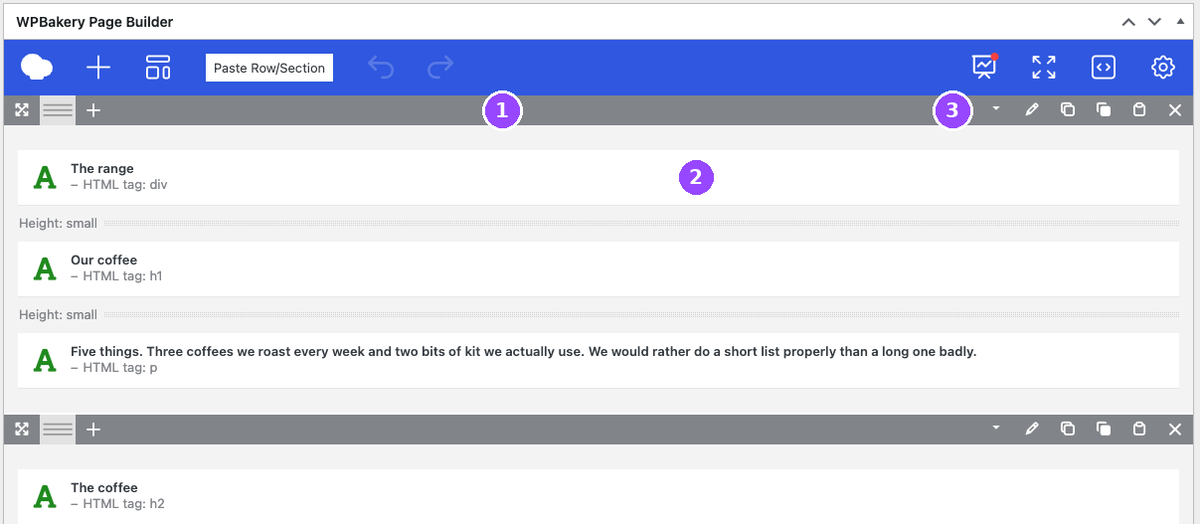
Reading that screen:
- The grey bars are rows. Everything between one grey bar and the next belongs to that row.
- The white boxes are elements. The little green letter tells you the type, and the grey line under the name tells you what it is doing, for example HTML tag: h1 for a main heading.
- The icons on the right of a grey bar act on the whole row: edit its settings, copy it, duplicate it, or delete it.
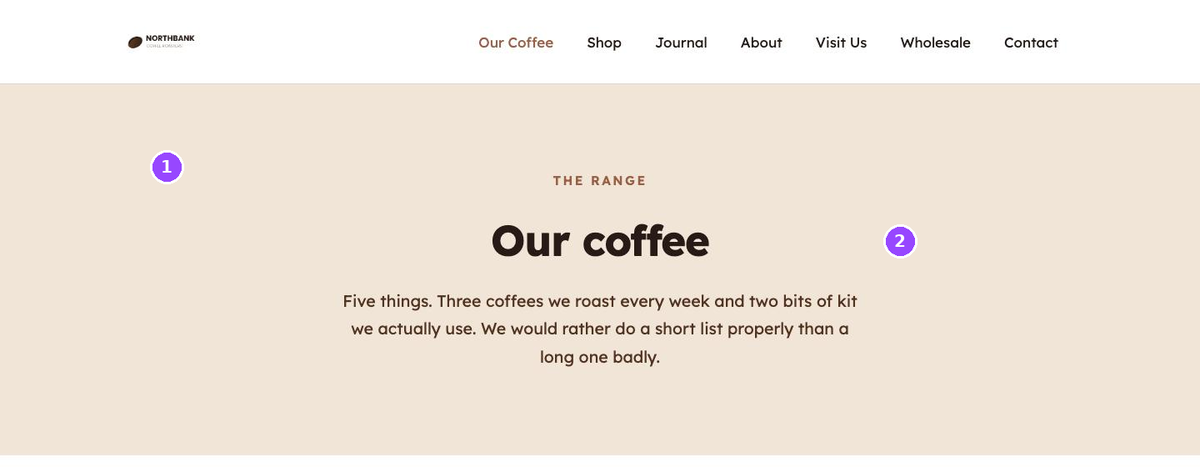
Compare the two pictures above. They are the same row. Once you can look at the builder and picture the page, and look at the page and picture the builder, you can find anything.
Columns
When a row is split, each column is its own container and the elements inside it stay in that column.
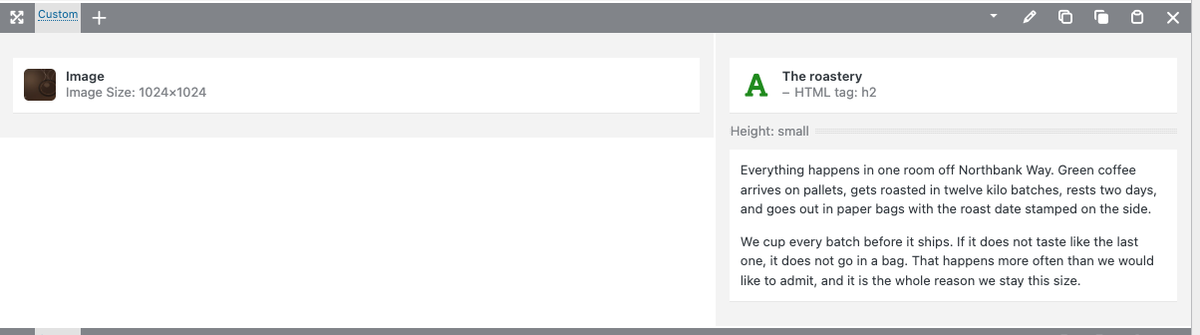
Columns are why something can look fine on a laptop and cramped on a phone. On a narrow screen columns do not shrink side by side, they stack top to bottom in the order they appear here. If you add a lot of text to one column, check the phone layout afterwards.
Which part do I actually want?
Work from the outside in. Ask what you are changing, and that tells you which level to open.
| What you want to change | What to open |
|---|---|
| Some wording, an image, a button, a form | The element. Hover it and click the pencil. |
| The background colour or spacing of a whole band | The row. Use the pencil on the grey bar. |
| How wide the halves of a split section are | The column, and this one is worth asking us about. |
| Something that appears on every page | None of the above. That is the header, footer or a shared block. |
Two habits that save trouble
- Change one thing, then save and look. It is far easier to see what a single change did than to unpick five at once.
- If you cannot find the wording on the page, it is probably not on the page. Repeated bands and calls to action are often one shared item used in several places. Email us rather than hunting.
The delete cross on an element does not ask you to confirm. It removes the element straight away. It is recoverable from Revisions as long as you have not saved, and even after saving, but it is worth knowing that the X is not a two-step button.
Related guides
Still haven’t found what you’re looking for?
Let us know and we’ll do our best to help out!