

Have questions about paid ads, campaign optimisation, or platform features? Browse our knowledge base for step-by-step guides, FAQs, and expert insights to help you succeed.
Editing your footer
On This Page
Your footer is not part of any page. It is one block, stored once and shown at the bottom of every page on the site. That is why you cannot find it when you open a page in the builder, and it is why a change to it appears everywhere at once.

Two different things live side by side down there. The address and the copyright line are text, and you edit them in the footer block. The row of links is a menu, and you edit it under Appearance. Getting the wrong one is the most common reason people give up on the footer.
Which is which
| What you want to change | Where it lives |
|---|---|
| Address, phone number, opening hours | The footer block, below |
| The copyright line and its year | The footer block |
| A sentence or tagline | The footer block |
| The row of links | A menu, under Appearance then Menus |
| Social media icons | Usually the footer block, sometimes Theme Options. Ask us. |
| The colours, spacing or number of columns | Your design. Email us. |
Opening the footer
- In the left menu of your dashboard, hover Templates.
- Click Reusable Blocks.
- Find the one called Footer and click its name.
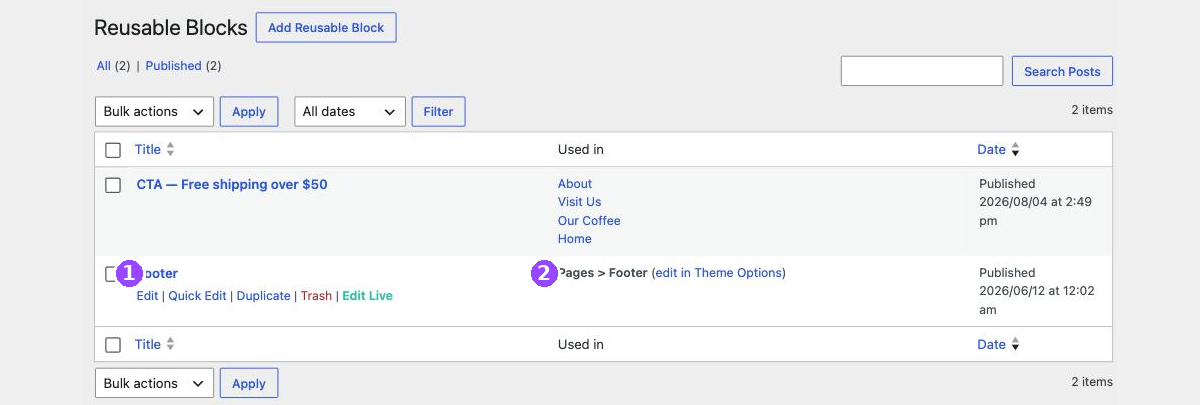
The Used in column tells you the truth about scope. For a normal shared block it lists the pages affected. For the footer it says Pages > Footer, which is WordPress’s way of saying this one is wired into your design rather than dropped onto particular pages.
Editing the text
The footer opens in the same builder you use for pages, with the same rows and elements.
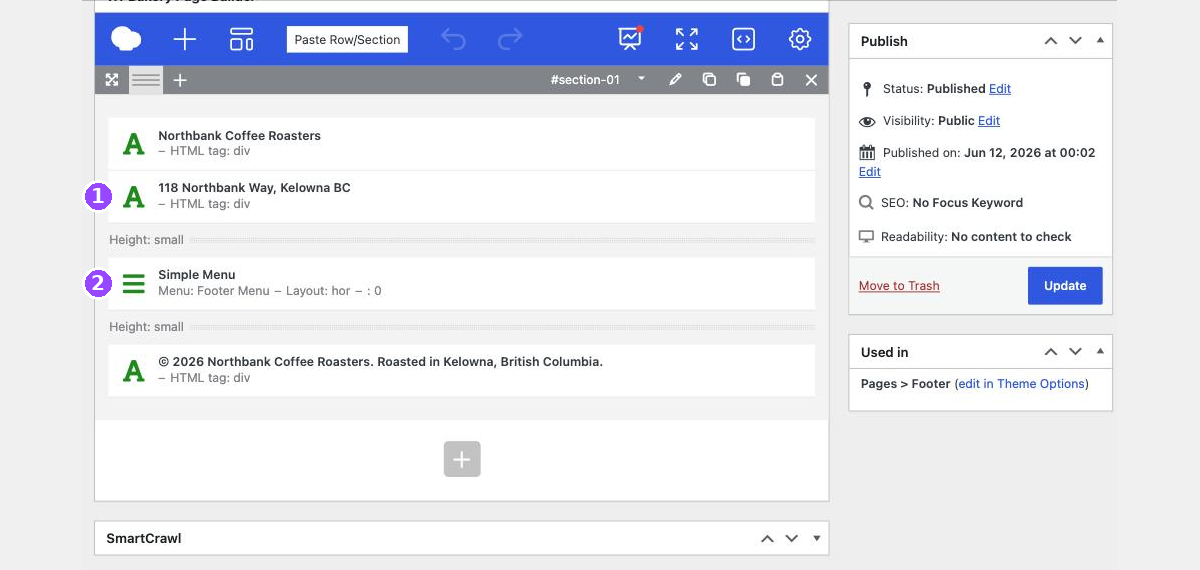
- Hover the text you want to change and click the pencil on its toolbar.
- Change the wording. Leave the settings around it alone.
- Click Save changes to close the element.
- Click Update.
- Open any page on your site and look at the bottom of it.
Check two pages, not one. Footers sit under content of wildly different lengths, and a footer that reads well under a long page can collide with something on a short one. A home page and a contact page make a good pair.
The links are a menu, not text
If you open the footer block looking for the words “About” or “Contact”, you will not find them. All you will find is an element called Simple Menu with the name of a menu next to it, usually Footer Menu.
To change those links, go to Appearance, then Menus, choose the footer menu from the dropdown at the top, and edit it exactly as you would the main menu. There is a separate guide for that.
This is worth the two minutes it takes to understand. Once you know the footer is text plus a menu, the footer stops being mysterious. Text in the block, links in the menu, and nothing else to it.
The copyright year
Sometimes the year is typed in and sometimes it updates itself. Open the footer block and look at the copyright element: if you can see the year as ordinary text, you can change it. If it is not there, it is being generated automatically and will look after itself.
What to leave alone
- The rows and columns. Their widths are set to match the rest of your design.
- The Simple Menu element’s settings. It is a pointer, and repointing it changes which links appear.
- Move to Trash. Trashing the footer block removes the footer from every page on the site.
- The block’s title. Your design finds the footer by it.
When to email us instead
- You want another column, or the columns reordered.
- You want to add a form, a map or a logo to the footer.
- The footer looks wrong on a phone but fine on a computer.
- You want a different footer on one page.
- You edited the footer and something has moved that you did not touch.
Related guides
Still haven’t found what you’re looking for?
Let us know and we’ll do our best to help out!