

Have questions about paid ads, campaign optimisation, or platform features? Browse our knowledge base for step-by-step guides, FAQs, and expert insights to help you succeed.
Adding A Partner To Pinterest Business Account and Ads
On This Page
Pinterest keeps agency access in a separate area called Business Access, and partners are added by business ID rather than by email address. That is the one thing that catches people: you are not inviting a person, you are connecting two businesses. Once connected, you choose which of your profiles and ad accounts we can work on.
Our Pinterest business ID is 50947176943063394. That is the only detail you need from us. You keep ownership of the account and can remove the partnership whenever you like.
Before you start
You need a Pinterest business account, not a personal one. If you only have a personal profile, you can convert it or create a business account free in a couple of minutes. Business Access does not exist on personal accounts, which is why the menu item below sometimes seems to be missing.
Steps
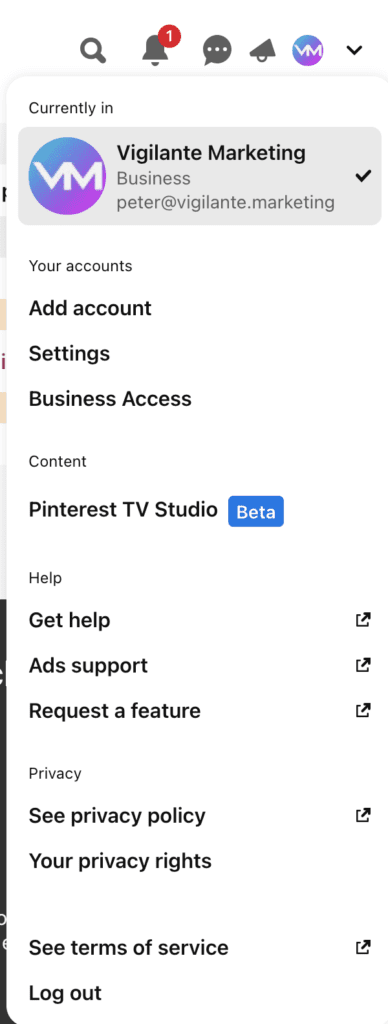
- Log in to Pinterest, then click the arrow to the right of your account picture in the top right corner.
- In the menu, under Your accounts, choose Business Access.
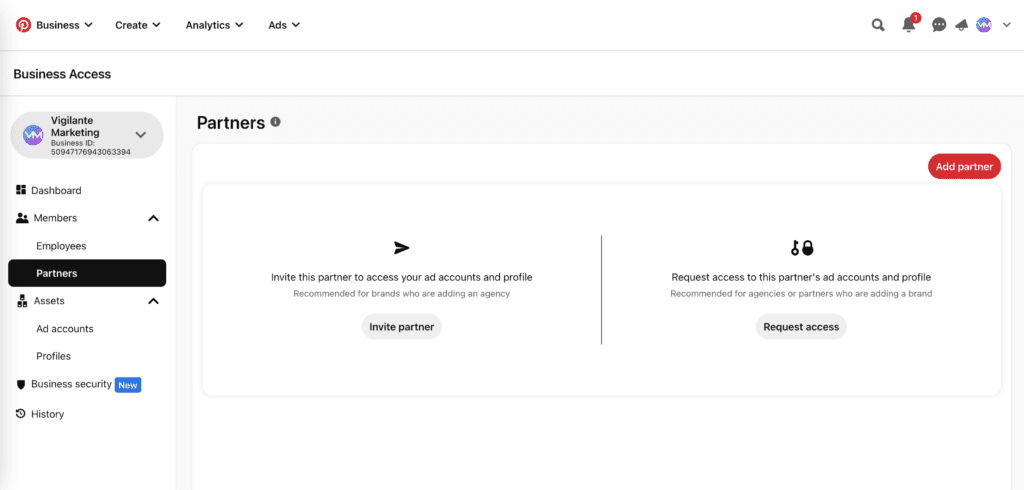
- In the left-hand menu of the Business Access screen, under Members, choose Partners.
- Choose Invite partner.
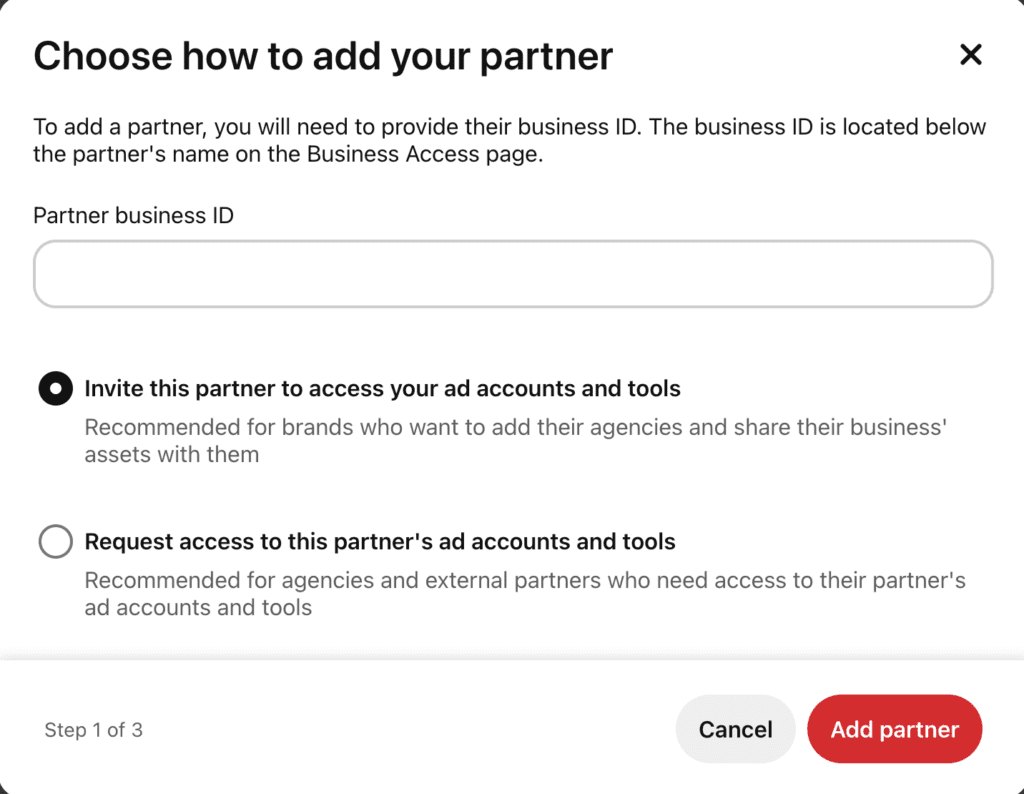
- Enter our business ID, 50947176943063394, and select Invite this partner to access your ad accounts and tools. Do not choose the “request access to this partner’s accounts” option; that is the reverse direction and does nothing useful here.
- Click Add partner.
- On the left, select the profile you want us to work on. On the right, tick Publisher and click Assign permissions. You can do this now or come back to it later, but until it is done we are connected to your business without being able to see anything.
Publisher is the permission we need, and it is not granted automatically. Adding the partner and assigning permissions are two separate actions on two separate screens. Almost every “we still cannot see it” conversation about Pinterest is the second one having been missed.
Is Pinterest worth your time?
Honestly, it depends on what you sell. Pinterest earns its place for retail, food and drink, trades, weddings, interiors and anything else where people plan a purchase visually and well in advance. For most business-to-business services it does not, and we would rather tell you that than set up an account nobody uses. Ask us if you are unsure; it is a short conversation.
If it does not go to plan
- No Business Access in the menu. Personal account. Convert it first.
- The business ID is rejected. Check for a stray space at either end when pasting. It is all digits and no spaces.
- We report seeing the business but no boards. The Publisher permission in step 7 has not been assigned to a profile.
- Someone else already appears as a partner. Often a previous agency. Leave them in place and tell us; removing the wrong partner can detach an ad account.
What we need if something fails
Which step, and what the screen said. If Pinterest gives you an error with a code in it, include the code.
Related
Still haven’t found what you’re looking for?
Let us know and we’ll do our best to help out!