

Have questions about paid ads, campaign optimisation, or platform features? Browse our knowledge base for step-by-step guides, FAQs, and expert insights to help you succeed.
Alt text and filenames: the two-minute habit
On This Page
Two habits, about two minutes between them, that most websites skip. The filename is what the file is called when you upload it. The alt text is a short written description of what the picture shows. Both are read by search engines and by screen readers, and neither is visible on the page, which is exactly why they get forgotten.
This is the cheapest improvement available to you. No design decision, no approval, no risk. It helps people using screen readers, it helps your images show up in image search, and it gives you something readable in place of a broken image if a file ever goes missing. We are not being pious about this; it genuinely pays.
Filenames: get it right before you upload
You cannot rename a file after uploading without breaking every page that uses it. So this is a before job.
| Do not | Do |
|---|---|
IMG_4821.JPG |
northbank-roastery-interior.jpg |
Screen Shot 2026-08-06 at 3.42.11 PM.png |
online-booking-form.png |
final FINAL v3 (2).jpg |
team-photo-2026.jpg |
logo.png |
northbank-coffee-logo.png |
The rules are short: lowercase, words separated by hyphens, no spaces, no apostrophes or brackets, describe the subject. Spaces in particular turn into %20 in the address and make links ugly and occasionally fragile.
Alt text: what to write
Describe what the image shows and why it is there, in a sentence, as if reading the page aloud to someone on the phone.
- Good: “Two staff members packing coffee bags at the Northbank roastery bench”
- Too vague: “coffee”
- Wasted words: “Image of two staff members…” The software already knows it is an image.
- Keyword stuffing: “coffee Kelowna coffee roaster Kelowna best coffee”. This is actively penalised, and it is unusable for anyone relying on a screen reader.
Where to put it
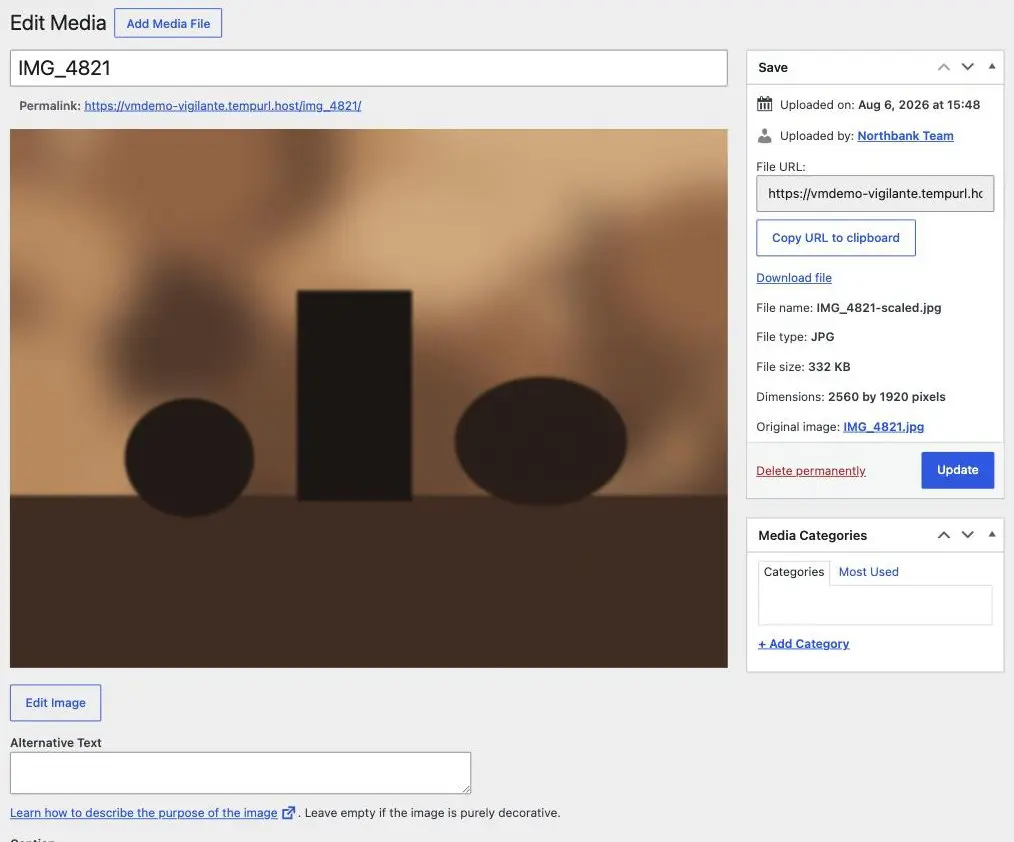
- Go to Media, then Library, and click the image.
- Type into the Alternative Text box.
- Choose Update. That is the whole job; it applies wherever the image is used.
The exception worth knowing
If an image is purely decorative, a background texture or a divider that carries no information, leave the alt text empty. That is not laziness; it is the correct answer, and it tells a screen reader to skip past rather than reading out something pointless. WordPress says as much on the screen itself.
Everything that carries meaning does need it: photos of your people, your premises, your products, and any image containing words.
An image of text is invisible to search engines and to screen readers. If you have a poster, a price list or an opening-hours graphic saved as a picture, none of that wording exists as far as Google is concerned, and a screen reader cannot read any of it. Alt text is a patch, not a fix. Put the important words on the page as real text as well, and use the image alongside it.
Caption, description and title
The same screen offers three other boxes, and they are not the same thing:
- Caption appears on the page, underneath the image, visible to everyone. Use it when there is something to say.
- Alternative Text does not appear on the page. This is the one that matters.
- Title and Description are for your own organization inside the library. They do very little for anybody else. Do not spend time on them.
Catching up on a backlog
Do not try to do a whole library in one sitting. Two approaches that work: fix the alt text on any image you happen to open for another reason, and fix your most important pages first, which usually means the home page and your top two or three service pages. Ask us if you would like a list of which images on your site are missing it, since we can pull that in a minute.
Related
Still haven’t found what you’re looking for?
Let us know and we’ll do our best to help out!