

Have questions about paid ads, campaign optimisation, or platform features? Browse our knowledge base for step-by-step guides, FAQs, and expert insights to help you succeed.
Grids and post lists: what they are and why not to edit them
On This Page
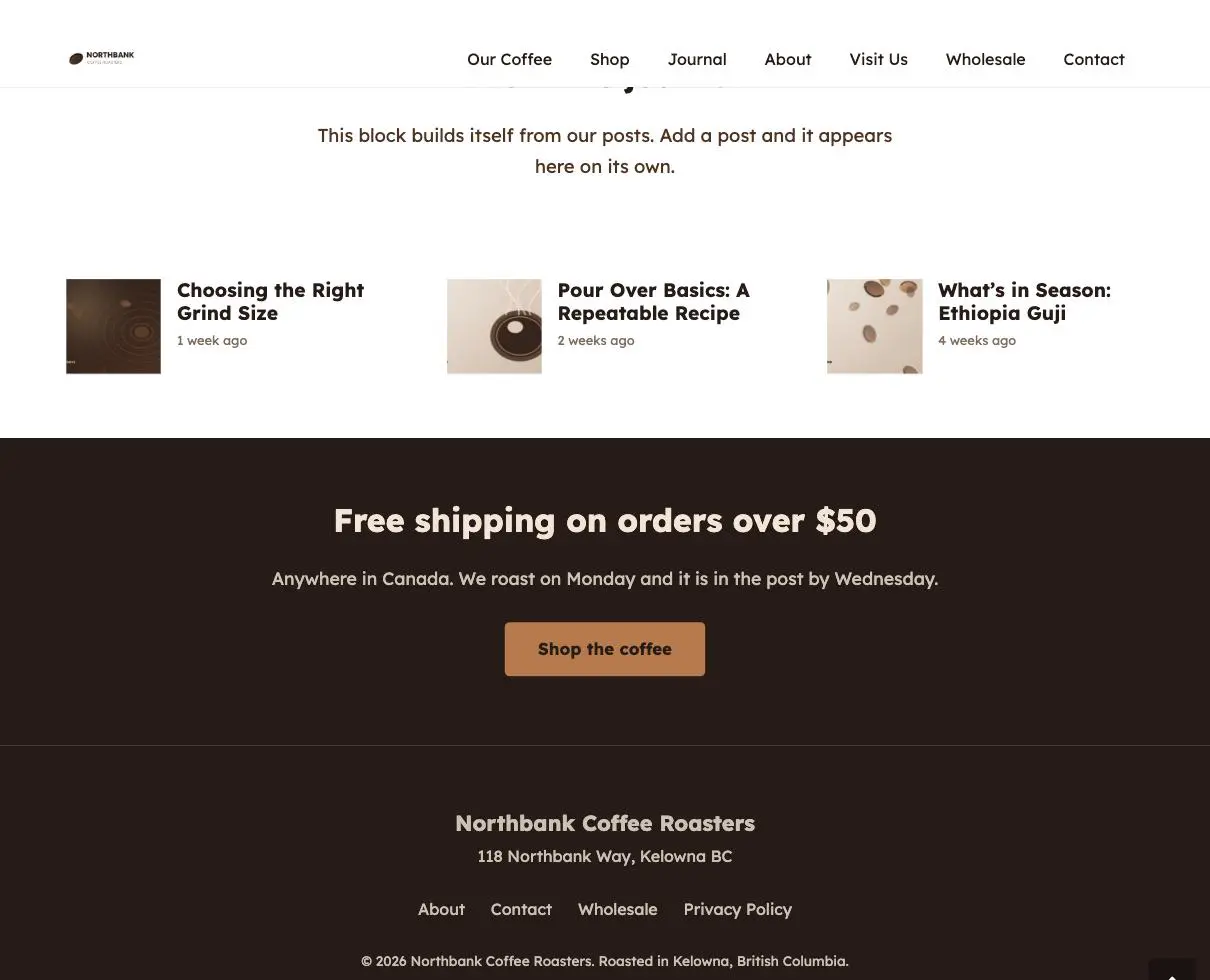
Some blocks on your site are not written, they are generated. A grid or post list is a set of instructions that says “show the three newest blog posts here, laid out like this”. Nobody typed those three posts onto the page, and nobody has to update them. Publish a new post and it appears at the front of the list on its own. Understanding that one thing explains why these blocks behave differently from everything else you edit.
This is the block that saves you the most work. A “Latest news” section built as a grid updates itself forever. The same section typed out by hand needs editing every time you publish. If a part of your site keeps itself current, this is why.
What one looks like to a visitor
What one looks like in the builder
This is where people get confused, because the builder does not show you the posts. It shows you the instructions.
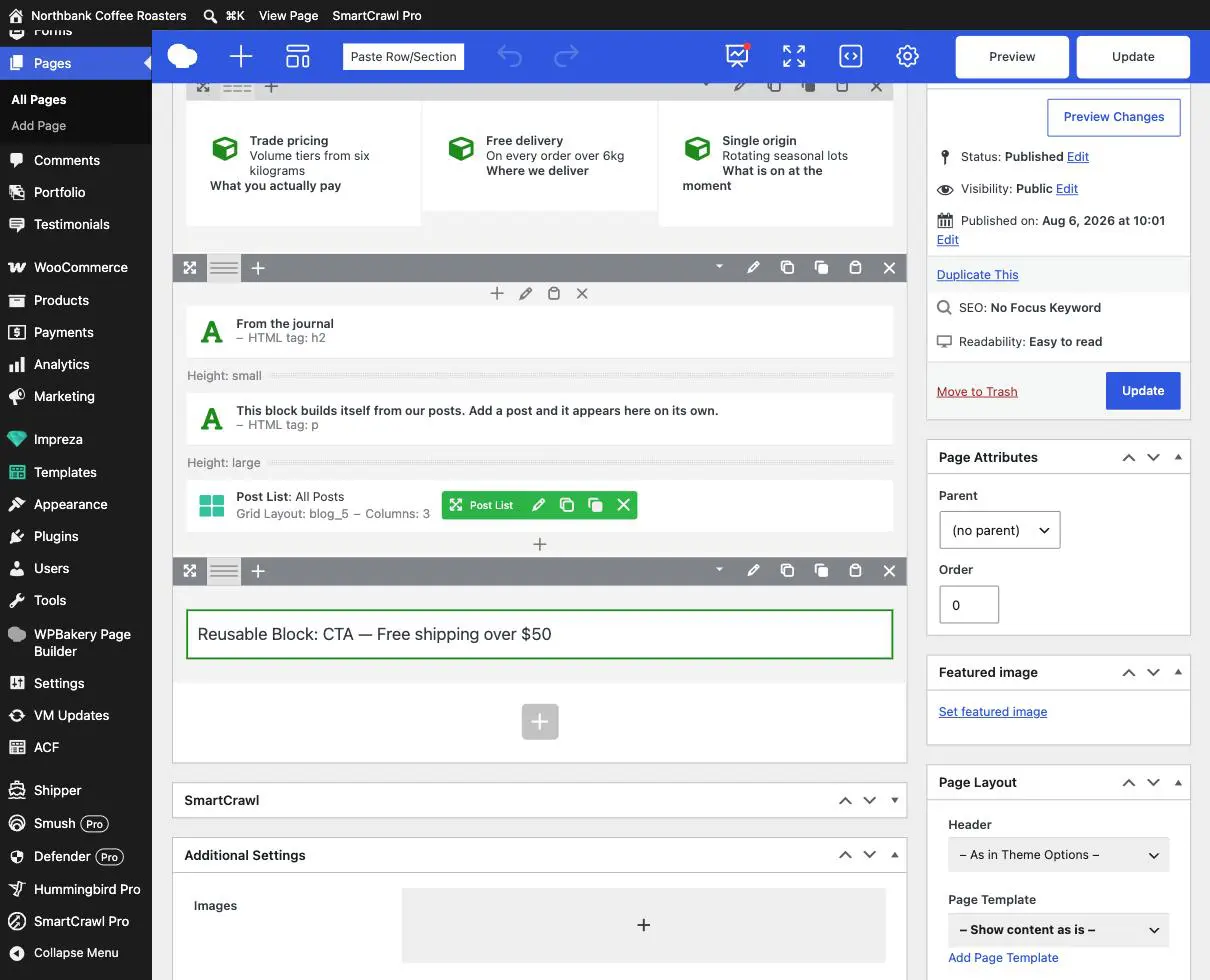
If you cannot find the text you want to change, this is usually why. Looking for a post’s title in the builder and not finding it is not a fault. That title lives on the post. Edit the post and the grid updates itself.
How to change what it shows
Almost always, by editing the thing it is listing rather than the grid itself.
| You want to | Do this |
|---|---|
| Fix a typo in a title shown in the grid | Edit that post. See finding the page or post you want to edit. |
| Change the picture in one of the cards | Change that post’s featured image. The grid uses whatever the post has. |
| Get a new item to appear | Publish it. It appears on its own, usually at the front. |
| Remove one item from the grid | Unpublish or trash that post. Do not try to remove it from the grid. |
| Change the order, the number shown, or the layout | Email us. See below. |
Why not to edit the grid itself
The settings look simple and are not. Opening a post list’s settings shows a long panel: which content type, how many, ordering, filters, and a Grid Layout chosen from a list. The trap is that they interact. Narrow the filter slightly and the grid can silently show nothing at all, leaving a blank space on the page with no error to tell you why. It is the most common way a client-edited page ends up looking broken in a way nobody can explain.
Do not change the Grid Layout setting. That dropdown points at a separate design template which controls what each card shows and how it is arranged. Those templates are shared, so switching this grid to a different one can change the appearance of other grids across your site at the same time. It is one of the few settings on a page that reaches beyond that page.
The other kinds
The same idea appears in several places, and they all behave this way:
- Post lists for blog posts and news.
- Product lists for shop items, generated from your products.
- Portfolio and team grids, generated from those entries.
- Carousels, which are the same thing that scrolls sideways instead of stacking.
In every case the rule holds: edit the thing being listed, not the list.
Telling a grid from ordinary content
Two quick tests when you are not sure what you are looking at:
- In the builder, does the section appear as one short summary line rather than the individual items? Then it is generated.
- Does the section change on its own when you publish something? Then it is generated.
When to email us instead
- You want a different number of items, a different order, or a different layout.
- You want a grid filtered to one category, for example only news and not case studies.
- The grid has gone blank. Usually a filter no longer matches anything, and it is quick for us to see.
- Something is appearing in a grid that you do not want public. Tell us straight away and we will take it out of the list.
- You want a new self-updating section somewhere. This is a good thing to ask for, because it stops being your job once it exists.
Related guides
Still haven’t found what you’re looking for?
Let us know and we’ll do our best to help out!