

Have questions about paid ads, campaign optimisation, or platform features? Browse our knowledge base for step-by-step guides, FAQs, and expert insights to help you succeed.
Working with accordions, tabs and toggles
On This Page
Accordions, tabs and toggles are all the same thing wearing different clothes: a container holding a stack of sections, where each section has a title and some hidden content behind it. The container decides how the titles are presented and how many can be open at once. Once you see that, all three stop being separate things to learn.
These are the safest complicated-looking things on your site. Editing the words inside a section is exactly like editing any other text, and adding a section is one click. Nothing here can affect another page.
Which is which
| What you see | What it is |
|---|---|
| A vertical list of titles, click one and it opens downwards. Opening a second closes the first. | An accordion. Best for FAQs, where one question at a time is the point. |
| The same vertical list, but several can be open at once. | Also an accordion, just set to toggle mode. Best when people want to compare two answers. |
| Titles in a horizontal strip, click one and the panel below changes. | Tabs. Best for a few parallel topics of similar length. |
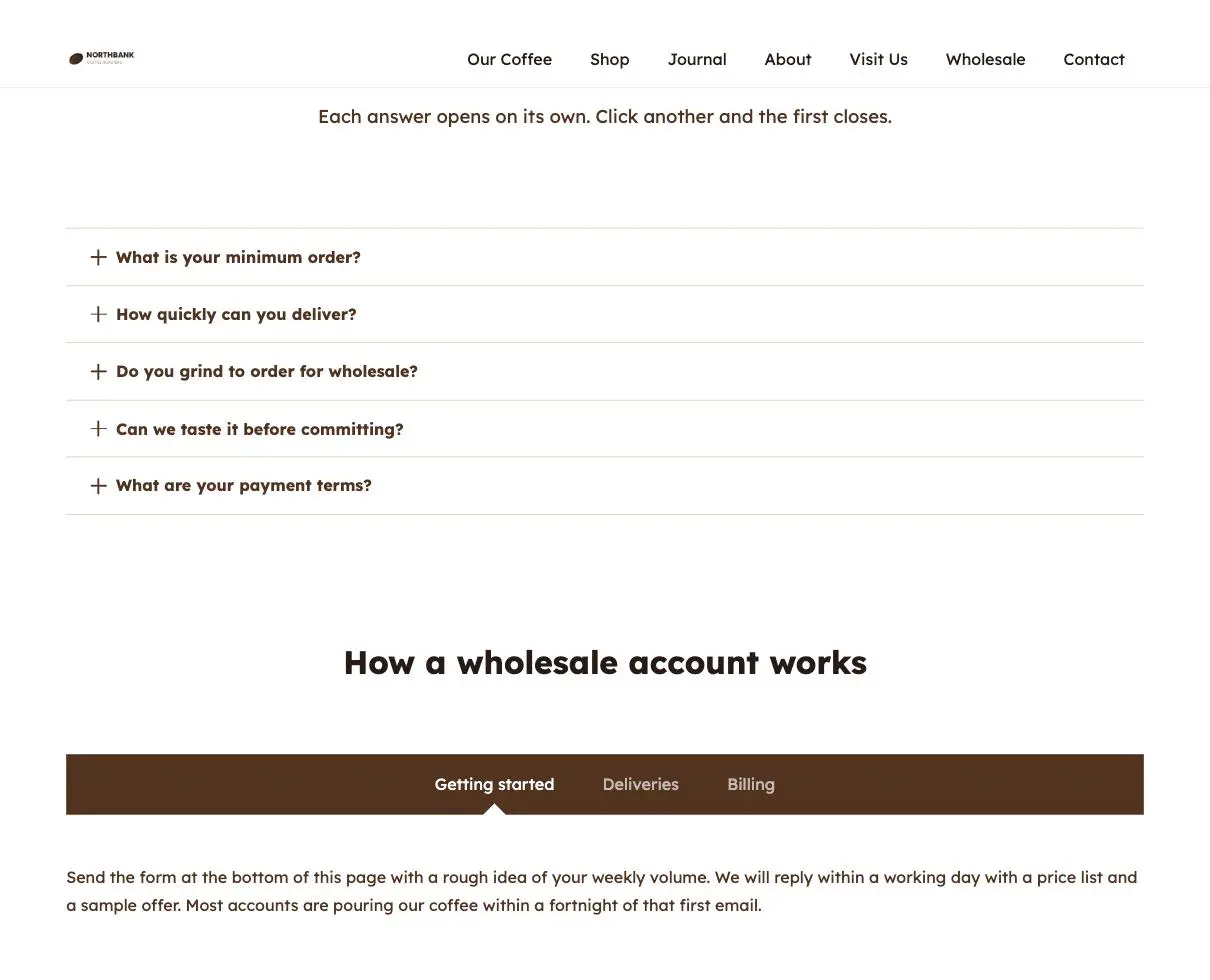
Tabs turn into an accordion on a phone by themselves. A horizontal strip of tabs will not fit on a narrow screen, so the theme quietly converts it into a stacked accordion. You do not need to do anything, and it is worth knowing so the difference on your phone does not look like a fault.
How they look in the builder
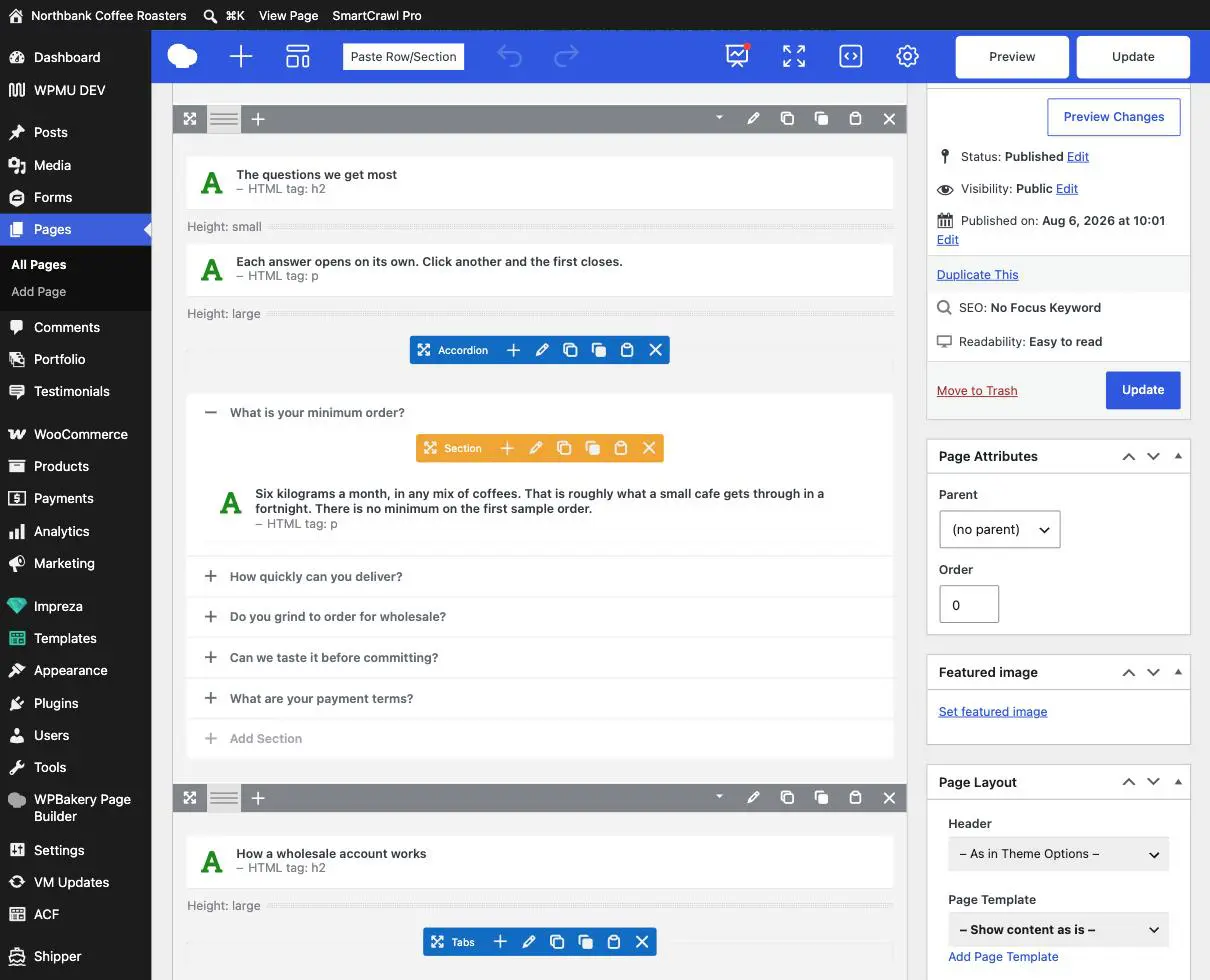
Open the page the normal way and you will see nested toolbars. The colours are the clue to what you are looking at.
Changing the words
- Click the row’s title in the builder to expand it, so you can see what is inside.
- To change the question, hover the orange Section bar and click its pencil. The title is the first field.
- To change the answer, click the text element inside the row and edit it as you would any other text.
- Update the page and check it on the live site.
Adding a section
- Scroll to the bottom of the container and click Add Section.
- Give it a title.
- Add a text element inside it for the answer. The quickest route is to duplicate an existing section instead, using the copy icon on the orange bar, then change its title and text. That way the formatting already matches.
- Drag the section by its handle if it needs to be in a different position.
- Update.
Duplicating beats building from scratch. A copied section inherits every setting the original had. Renaming a copy takes ten seconds and it will look right straight away.
Removing one
The X on the orange Section bar removes that row and the content inside it. Be certain, because there is no revision history for a single element the way there is for a whole page. If you might want the wording back, copy it into an email to yourself first.
Deleting the blue container deletes every section in it. The X on the blue Accordion or Tabs bar takes the whole block. If you meant to remove one question and the entire FAQ disappears, you clicked the wrong bar. Undo it immediately with the page’s revisions rather than trying to rebuild it, since revisions will bring the lot back at once.
Settings worth leaving alone
The pencil on the blue container bar opens settings for the whole block. Two of them are genuinely useful, and the rest are ours.
- Fine to change: whether several sections can be open at once, and which indicator icon appears beside the titles.
- Leave alone: the layout and style options, the accordion-collapse width, and anything under Design. These are set to match your site, and changing them here makes this one block look unlike everything else.
If your FAQ has structured data switched on, keep the titles as real questions. Some FAQ blocks are set up to tell Google they are questions and answers, which can earn you extra space in search results. That only works while the titles actually read as questions. Rewriting “What are your payment terms?” as “Payment” quietly throws that away.
Choosing well
- Two short things? Use neither. Two columns of plain text is clearer than making people click.
- Six or more items? Accordion. A tab strip that long wraps and looks broken.
- Something important? Do not hide it. Anything collapsed will be missed by most visitors, and search engines give hidden text less weight.
When to email us instead
- You want a section shown only to some visitors, or only at certain times.
- You want the first section open when the page loads, or all of them open.
- You deleted the container and revisions did not bring it back.
- You want a new FAQ block set up with the search-result markup done properly.
Related guides
Still haven’t found what you’re looking for?
Let us know and we’ll do our best to help out!