

Have questions about paid ads, campaign optimisation, or platform features? Browse our knowledge base for step-by-step guides, FAQs, and expert insights to help you succeed.
Reusable Blocks explained: why editing one page changed three
On This Page
Some things on your site are written once and shown in several places, so the words live in a Reusable Block rather than on any one page. Editing that block changes every page showing it, which is the feature working correctly rather than something going wrong.
This is a good thing, once you know it exists. When your opening hours or a promotional banner appear on six pages, a shared block means changing them once instead of six times, with no chance of five pages agreeing and one not.
How to tell you are looking at one
Inside a page, a shared block does not show its content. It shows a green-outlined placeholder naming the block.

That is the signal. If you were looking for some wording and found this instead, the wording is not on this page at all.
If you cannot find the text you want to change, this is usually why. The other common answers are the header, the footer, and the menu. None of those live on individual pages either.
Before you edit one, check where it is used
This is the step that prevents surprises, and it takes about ten seconds.
- In the left menu, go to Templates, then Reusable Blocks.
- Find your block in the list.
- Read the Used in column. Every page listed there will change.
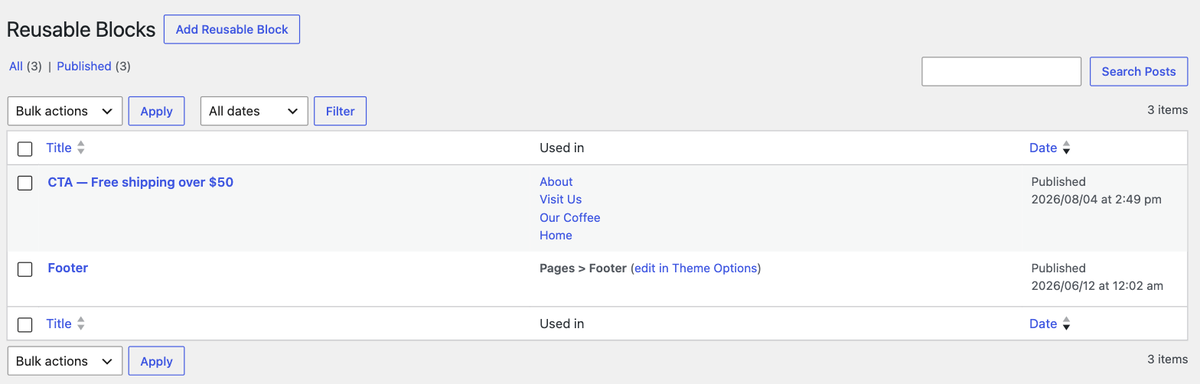
WordPress tells you the answer up front. You do not have to guess or check pages one by one. If the column lists four pages, your edit affects four pages, and if that is what you wanted then go ahead with confidence.
Editing the block itself
- Check the Used in column first, as above.
- Click the block’s name to open it.
- Edit it exactly as you would a page, using the same builder.
- Click Update.
- Open two of the pages listed in Used in and check both look right.
Check two pages, not one. A block that reads well in a wide section can be cramped in a narrow one. The same words appear in different surroundings, and the only way to know is to look.
If you only want the change on one page
You cannot edit a shared block on just one page. That is the nature of it: one block, one set of words, everywhere it appears.
If you genuinely need one page to differ, the block has to be split into two, which is a five-minute job for us. Tell us which page should be different and what it should say.
Do not solve this by deleting the block from a page. Removing the element takes the whole section off that page, which is almost never what somebody wants when they only meant to change a few words.
The other things that behave the same way
| If you are trying to change | Where it actually lives |
|---|---|
| A banner or call to action on several pages | A Reusable Block, as above |
| Anything in the strip at the very top | The header, edited in Templates |
| Anything at the very bottom of every page | The footer, usually also a Reusable Block |
| The list of links across the top | The menu, under Appearance |
| A list of posts or products that fills itself | A grid, which pulls its content automatically |
When to email us instead
- You want one page to show something different from the rest.
- A change you made has appeared somewhere you did not expect. Tell us what you edited and roughly when.
- You want a new shared block created.
- A block is listed as used on a page but you cannot see it there. That usually means it is hidden at some screen sizes.
Related guides
Still haven’t found what you’re looking for?
Let us know and we’ll do our best to help out!