

Have questions about paid ads, campaign optimisation, or platform features? Browse our knowledge base for step-by-step guides, FAQs, and expert insights to help you succeed.
Editing a button and where it links to
On This Page
A button is two separate things stored in one element: the words on it, and the address it sends people to. Changing one does not change the other, which is why a button can end up saying “Book now” while still pointing at last year’s page.
Buttons are one of the safest things to edit. A button holds no layout, so changing its words or its link cannot move anything else on the page.
Editing a button
- Open the page with Edit.
- Find the button. In the builder it looks like the button itself rather than a text box.
- Hover it and click the pencil on the green toolbar.
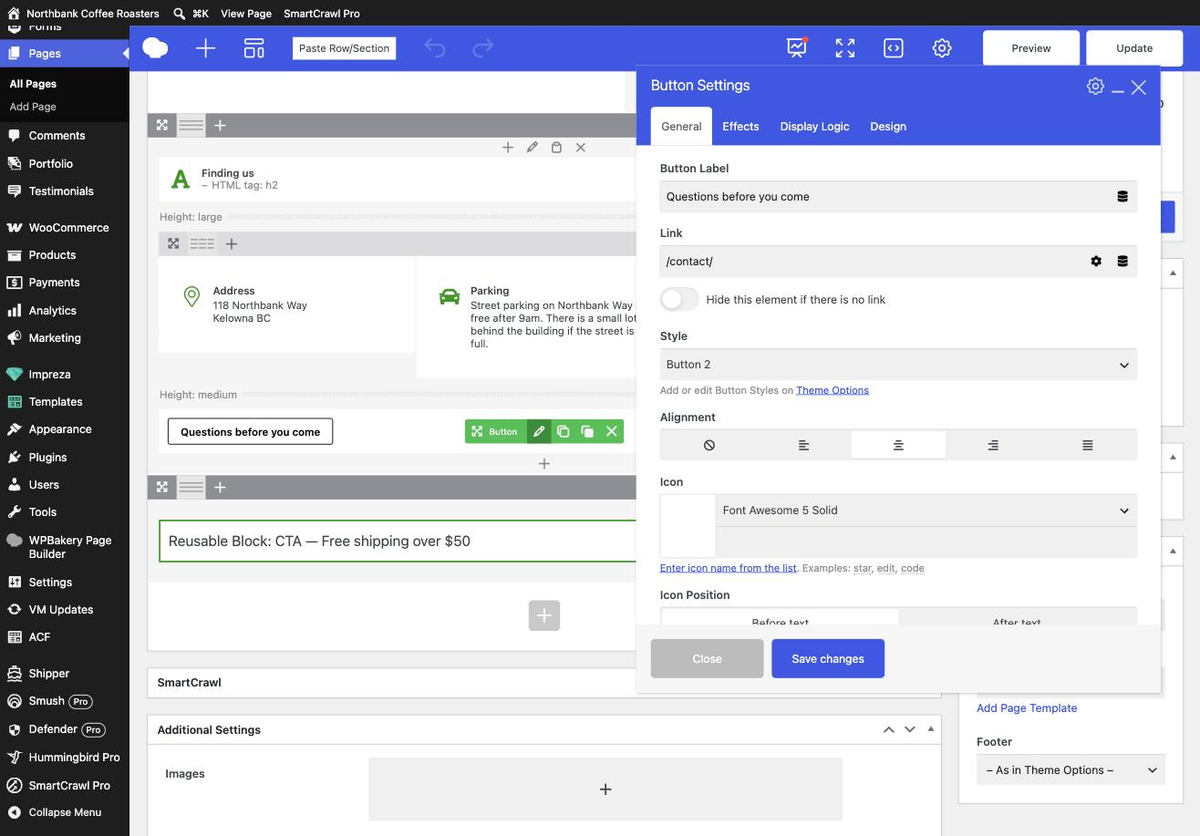
- Change Button Label for the words on the button.
- Change Link for where it goes.
- Click Save changes.
- Click Update on the page.
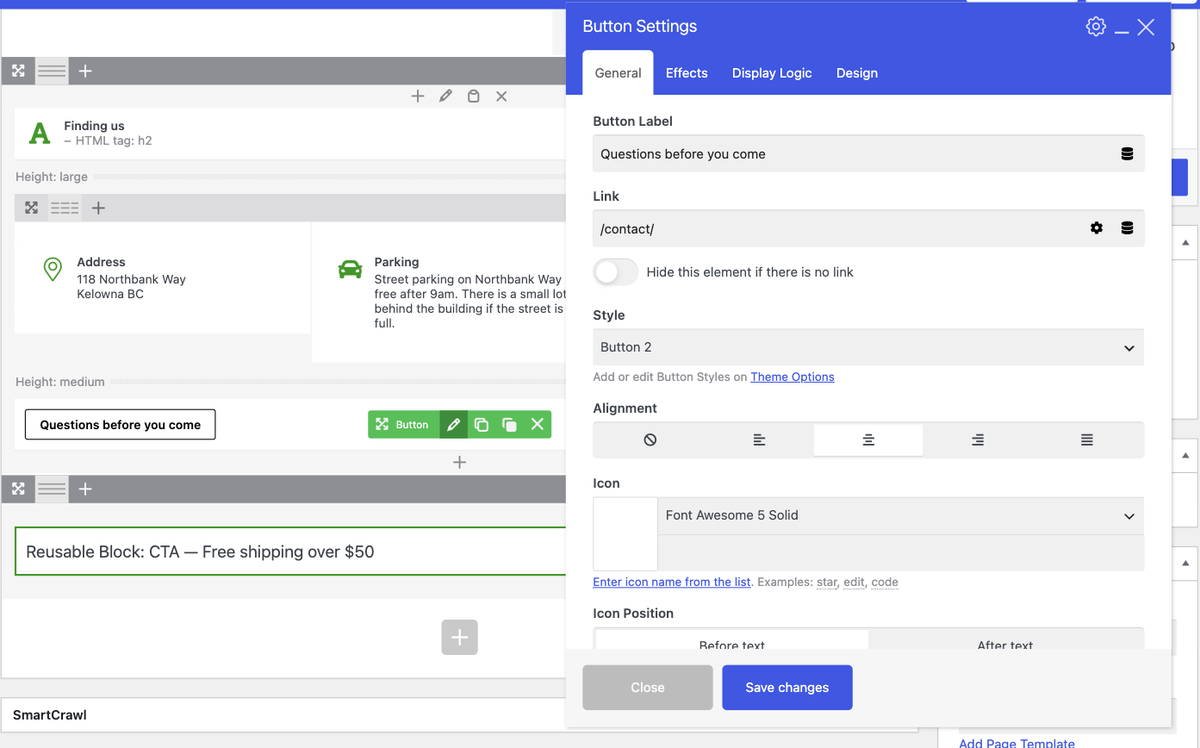
Two saves again. Save changes only closes the panel. Nothing reaches your visitors until you click Update on the page itself.
What to put in the Link field
| Where it should go | What to type |
|---|---|
| Another page on your own site | Just the path, starting with a slash: /contact/ |
| Somebody else’s website | The full address including https: https://example.com/page/ |
| An email address | mailto:[email protected] |
| A phone number | tel:+15550001234 |
| A PDF or document | Upload it to Media first, then paste the file’s URL |
Use the short form for your own pages.
/contact/ keeps working if your site ever moves to a new domain, whereas a full address with the old domain in it would not.
Words that work on a button
A button label is not a sentence. Aim for two to four words that say what happens next.
- Good: Book a table, See our menu, Get a quote
- Weaker: Click here, Submit, More
Long labels break the layout on phones. A label that fits comfortably on a laptop can wrap onto three lines in a narrow column. Check it, or keep it short in the first place. See checking your changes on mobile.
Leave the Style dropdown alone
The Style setting decides the button’s colour and shape, and the options come from your site’s design rather than from this page.
Changing Style on one button makes your site look inconsistent. If your buttons are the wrong colour or the wrong shape, that is a design change we should make once for the whole site rather than one button at a time. Ask us.
Always test the link afterwards
- Click Update.
- Open the live page.
- Click the button and check you land where you expected.
- If it opens a “page not found” screen, the address is wrong. The most common causes are a missing slash and a typo.
When to email us instead
- The button appears on several pages and needs changing everywhere. It is probably in a shared block, see Reusable Blocks explained.
- You want a new button rather than to change an existing one.
- The button is in your header or footer.
- It should open a booking system, a form popup or anything that is not simply another page.
Related guides
Still haven’t found what you’re looking for?
Let us know and we’ll do our best to help out!