

Have questions about paid ads, campaign optimisation, or platform features? Browse our knowledge base for step-by-step guides, FAQs, and expert insights to help you succeed.
How to Create a New Company Page on LinkedIn
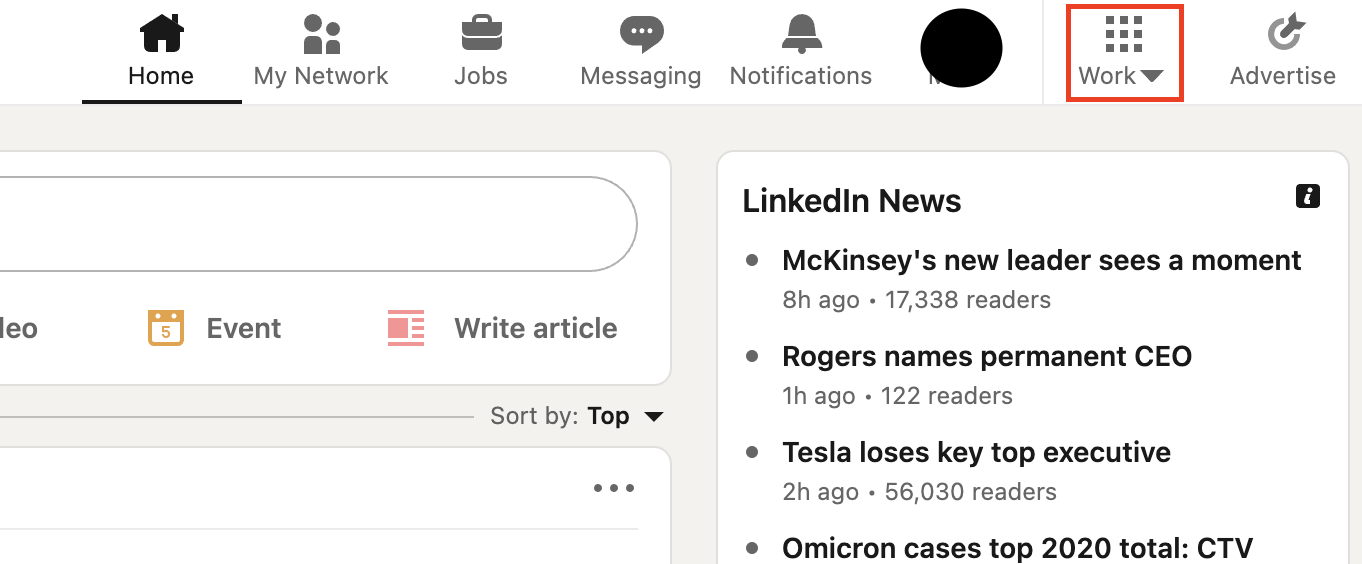
Select “Work” from the top menu on the site’s desktop version.
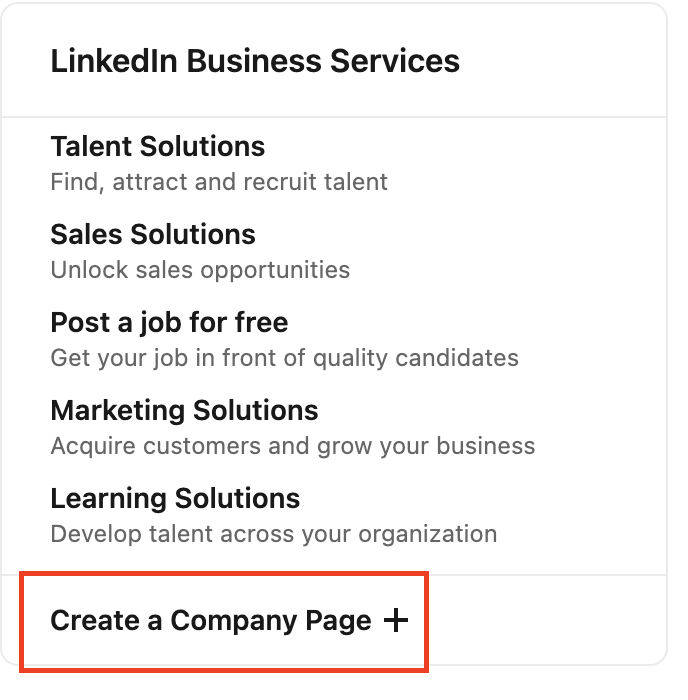
A menu will dropdown. From that new menu, select “Create a Company Page +.”
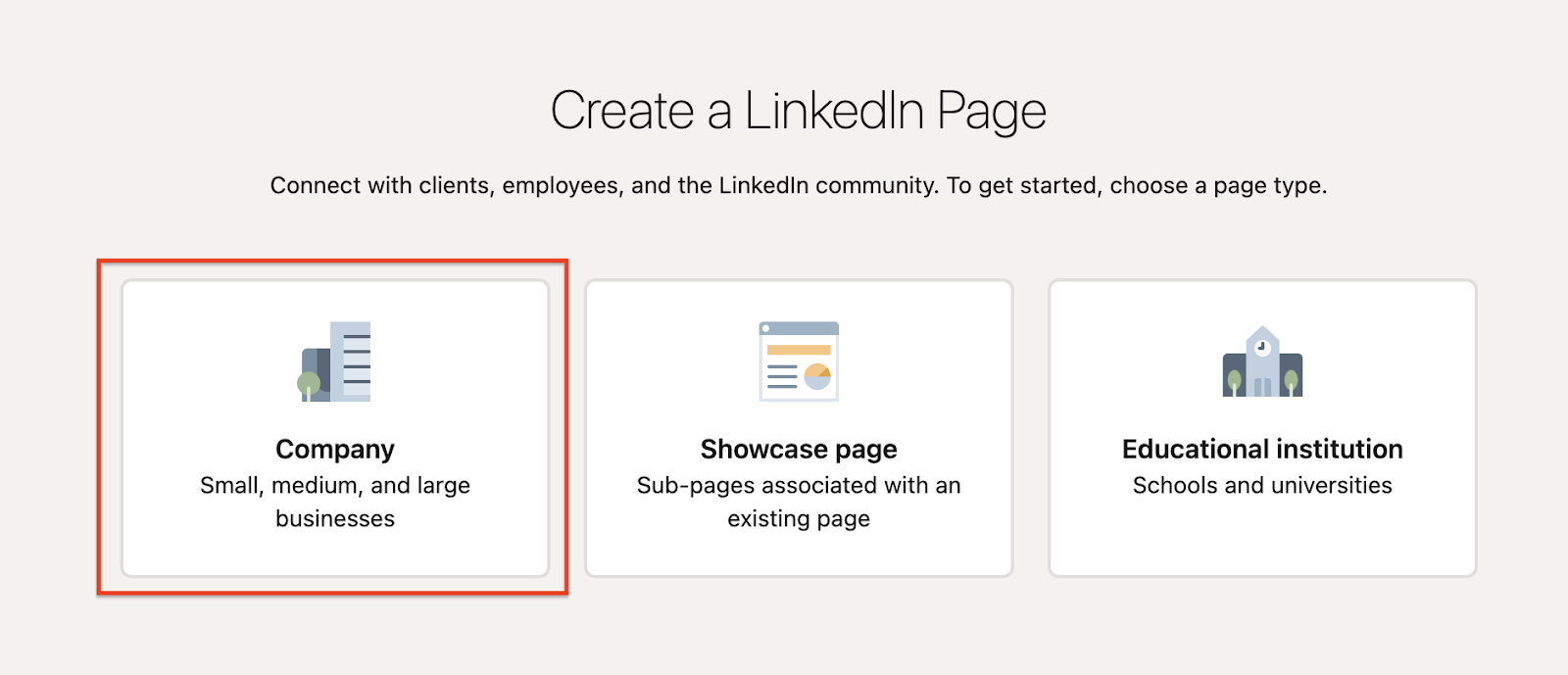
In the new window, select “Company.”
Complete all required fields to set up your company page identity.
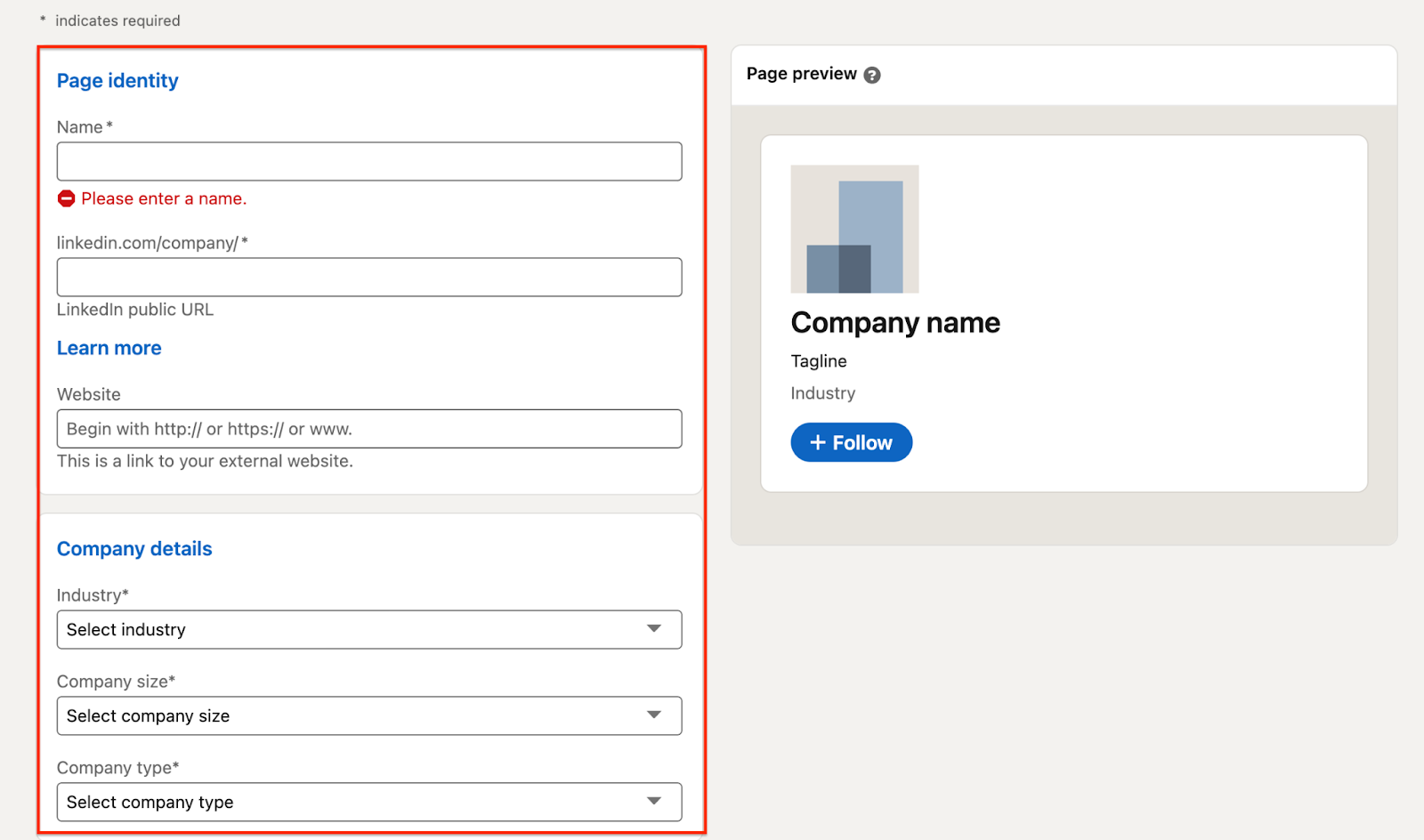
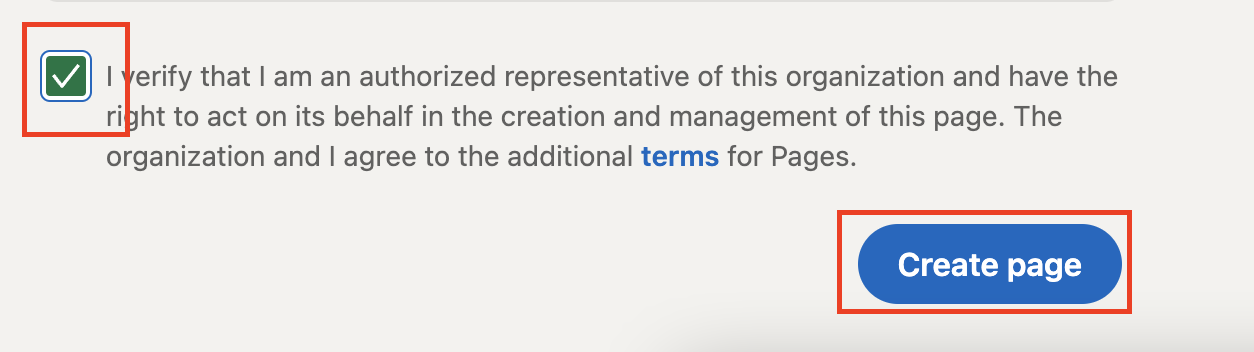
When you have completed all of the required fields, check off that you are the authorized representative of your organization and select “Create Page.”
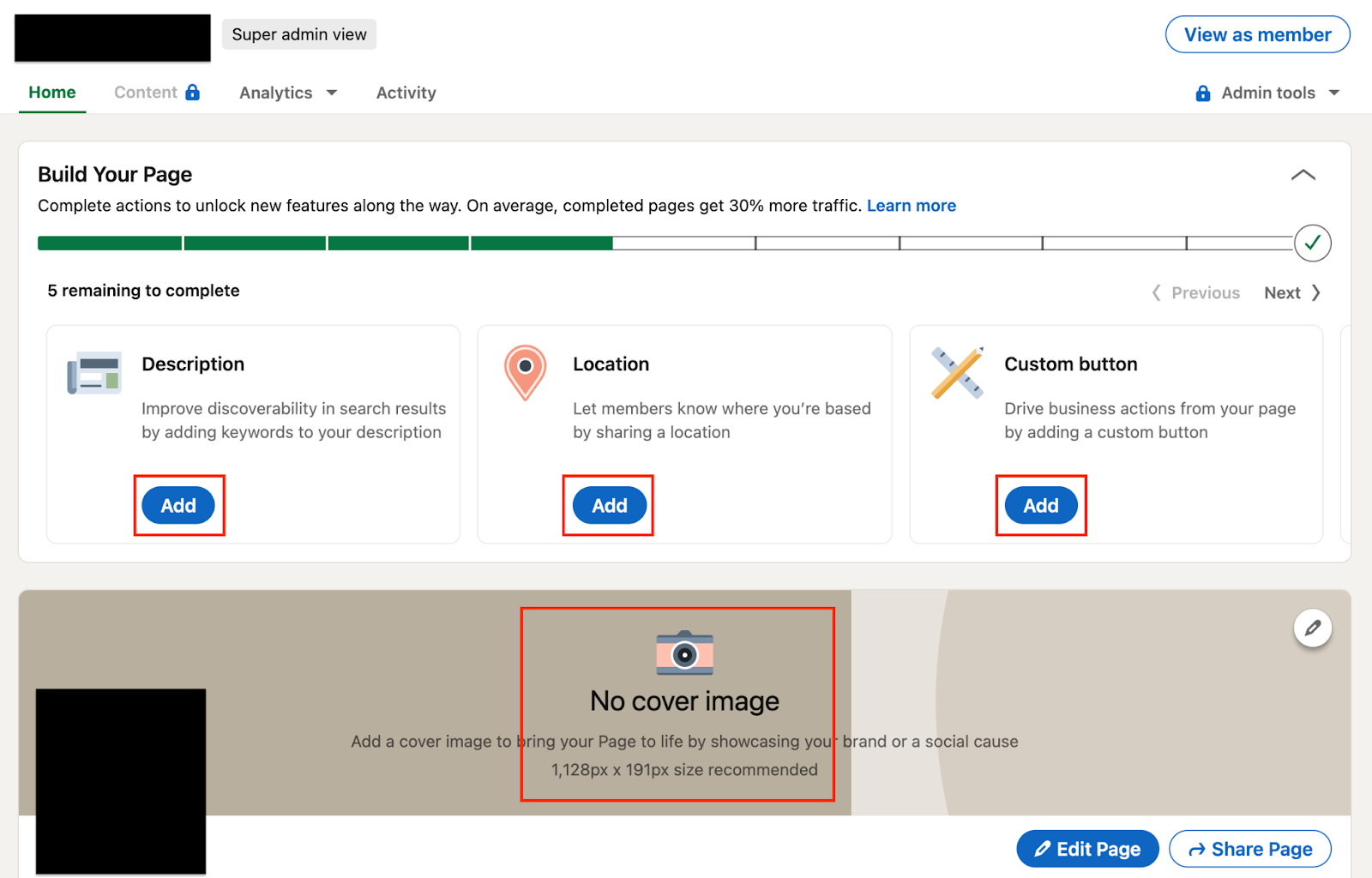
Your company page is now live. It is recommended that you go through the LinkedIn steps to building your page as well as adding a cover page.
Still haven’t found what you’re looking for?
Let us know and we’ll do our best to help out!