

Have questions about paid ads, campaign optimisation, or platform features? Browse our knowledge base for step-by-step guides, FAQs, and expert insights to help you succeed.
How to Create a New Business Page on Facebook
On This Page
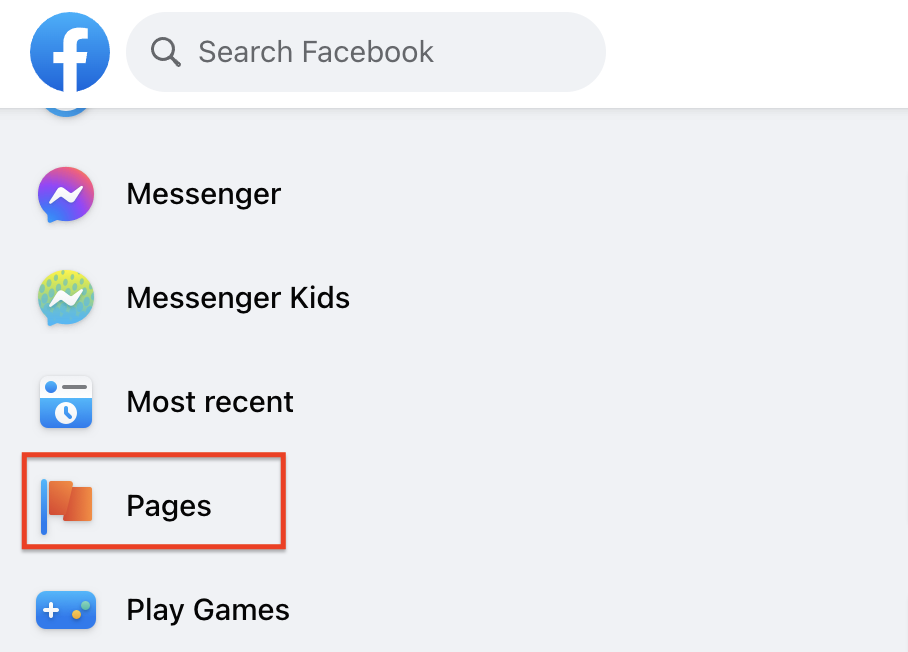
Select “Pages” from the menu on the left side from the desktop version.
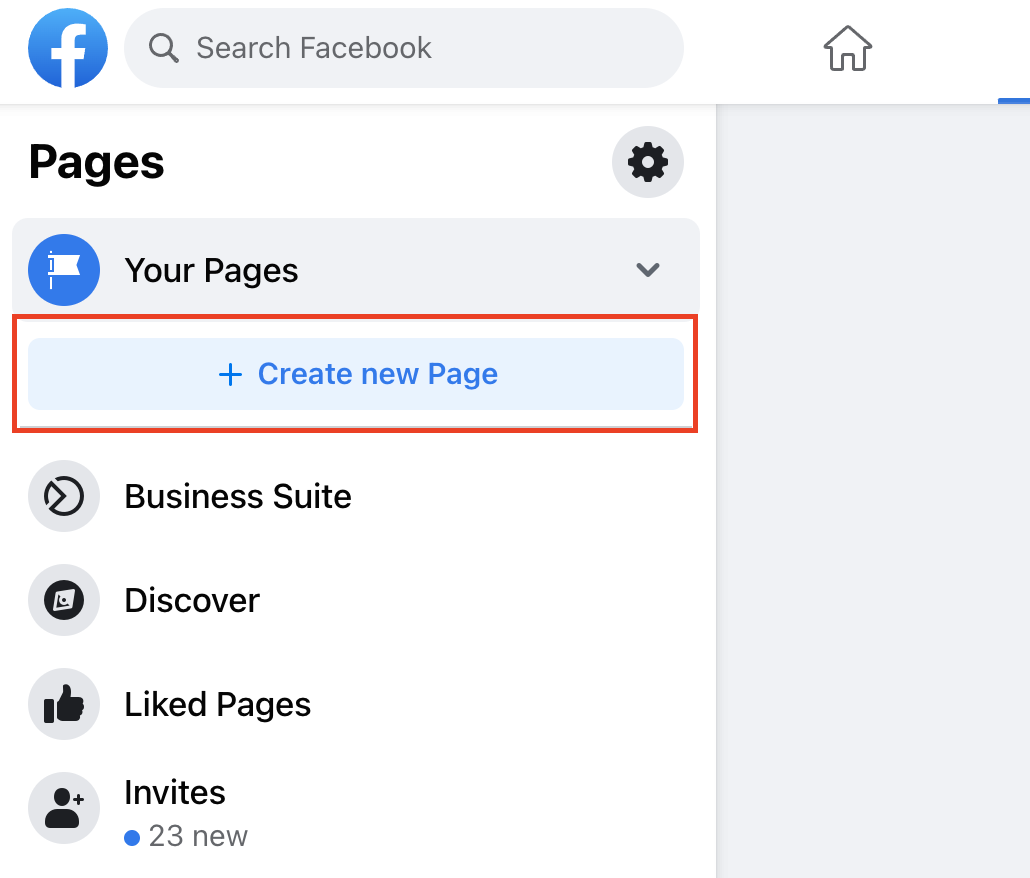
This will take you to “Your Pages.” From here, select “Create New Page,” located on the left side of the page.
Complete the page information, including page name, category, and description. Once done, select “Create Page.”

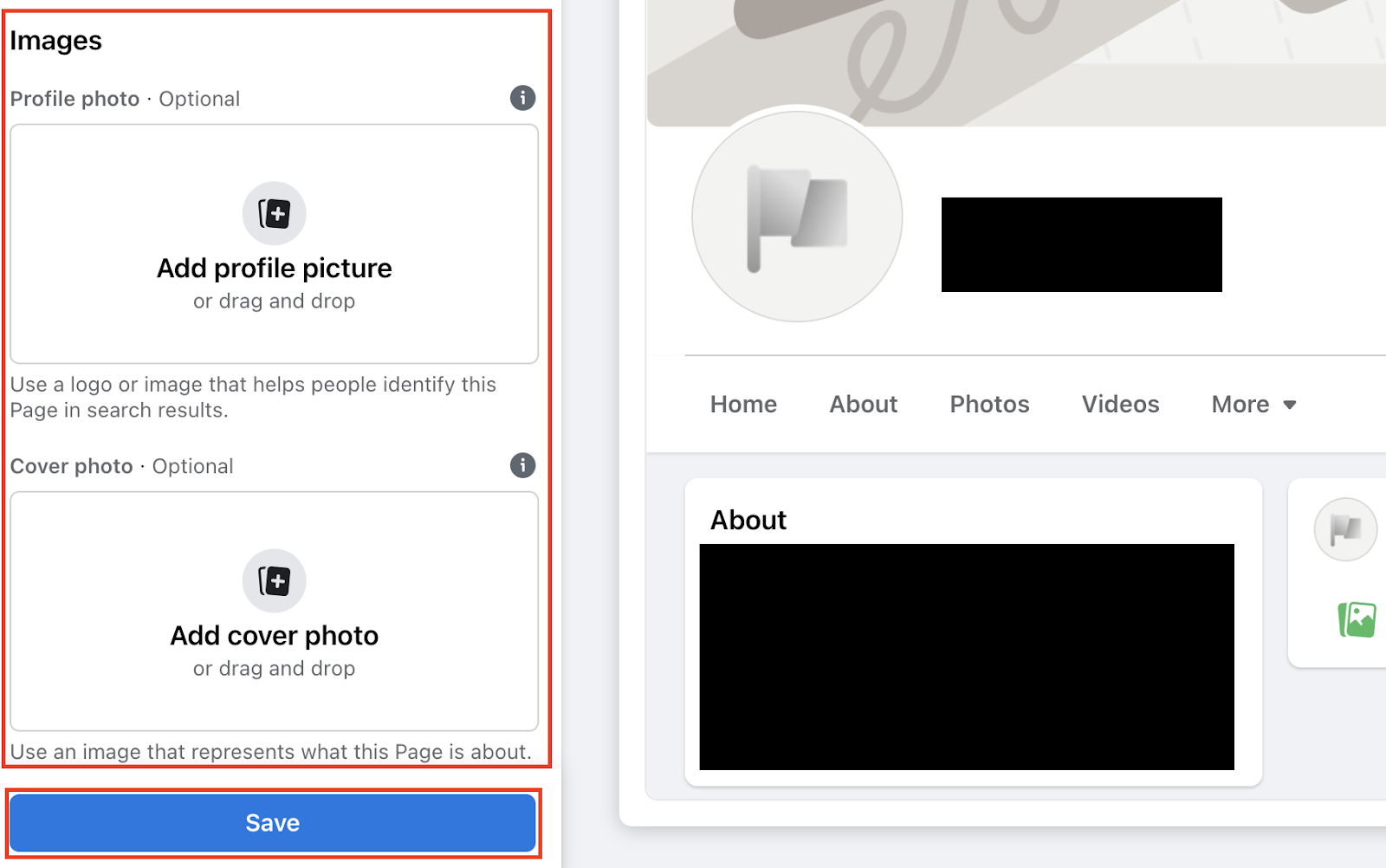
After selecting “Create Page,” the “Images” section will be available on the left side menu. Upload your company’s logo and cover photo. Before selecting “Save,” confirm the page and images are correct in the preview.
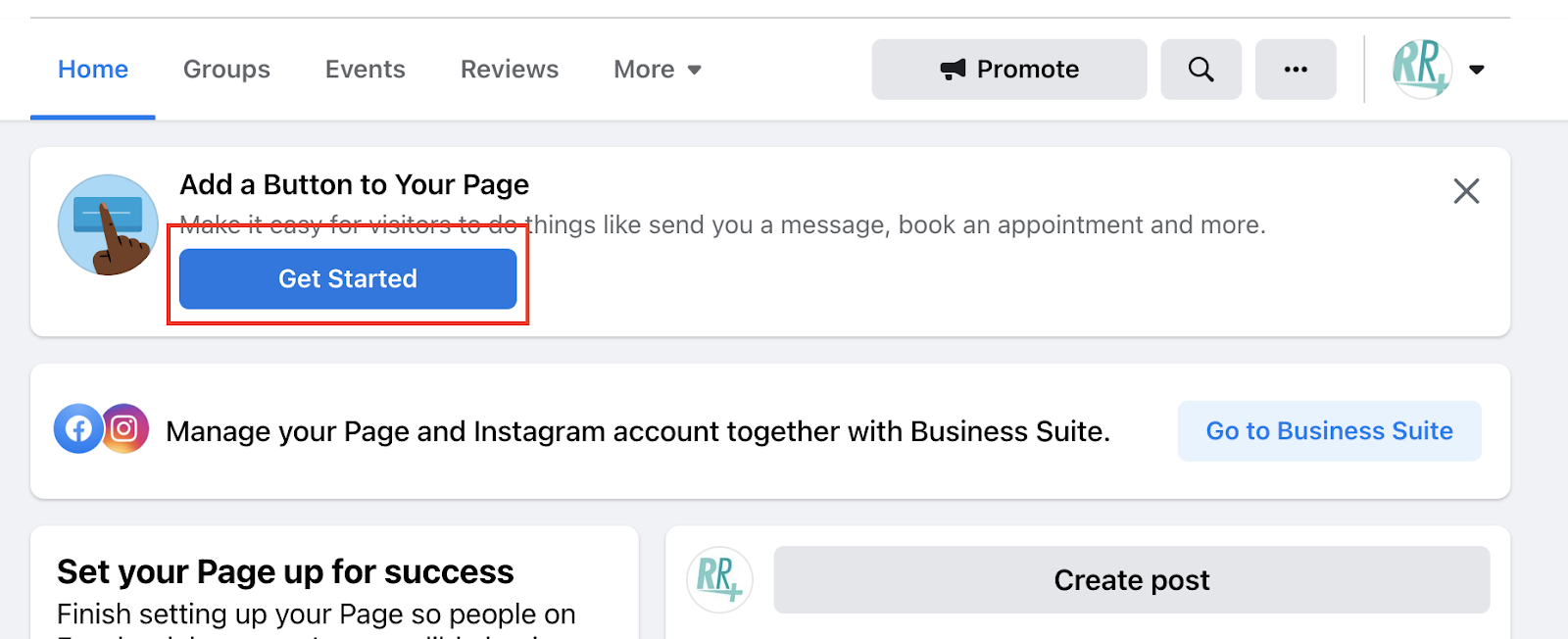
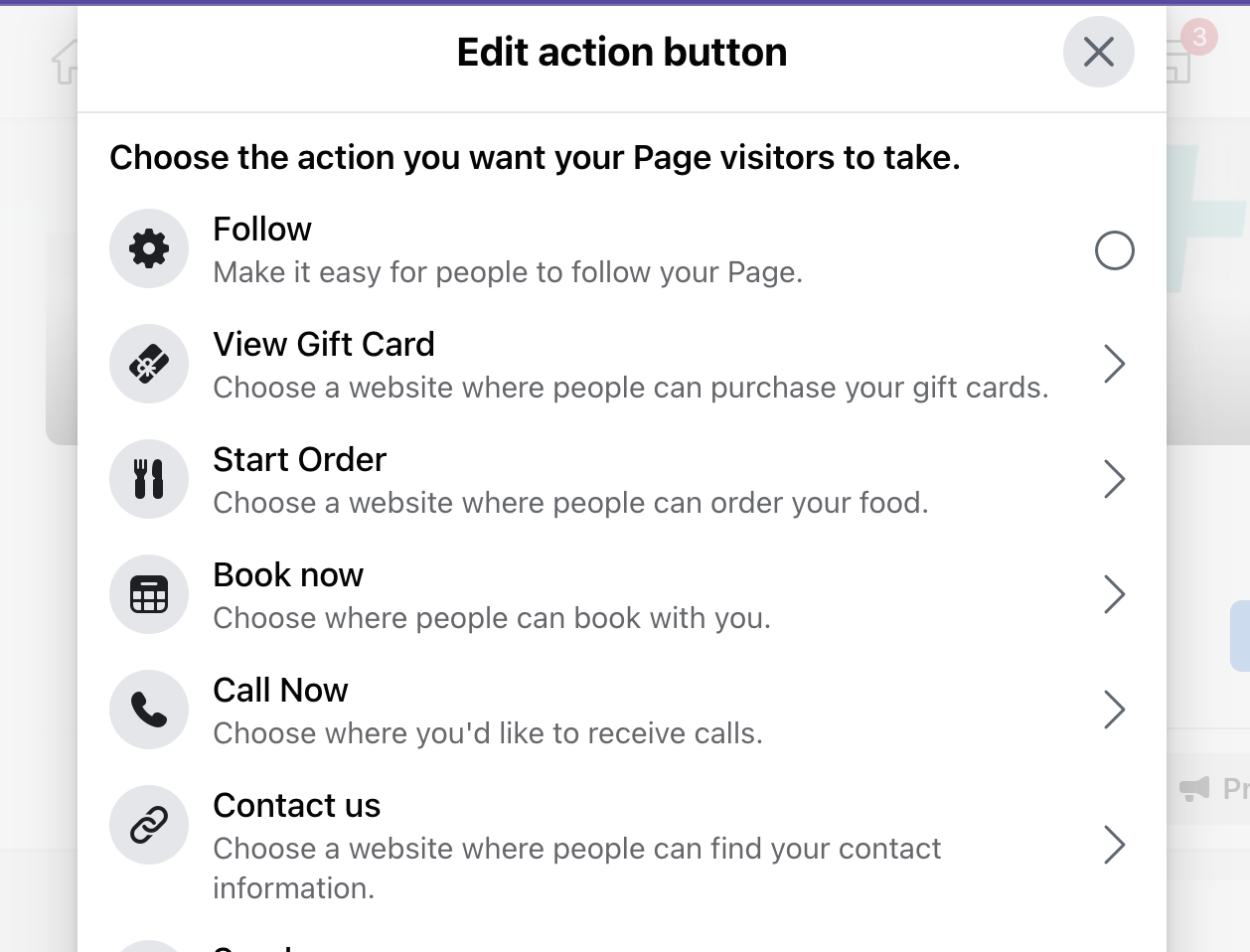
After saving your profile and cover image, select “Get Started.” Next, choose the option that best suits what action you would like potential customers to complete from this list of button options.
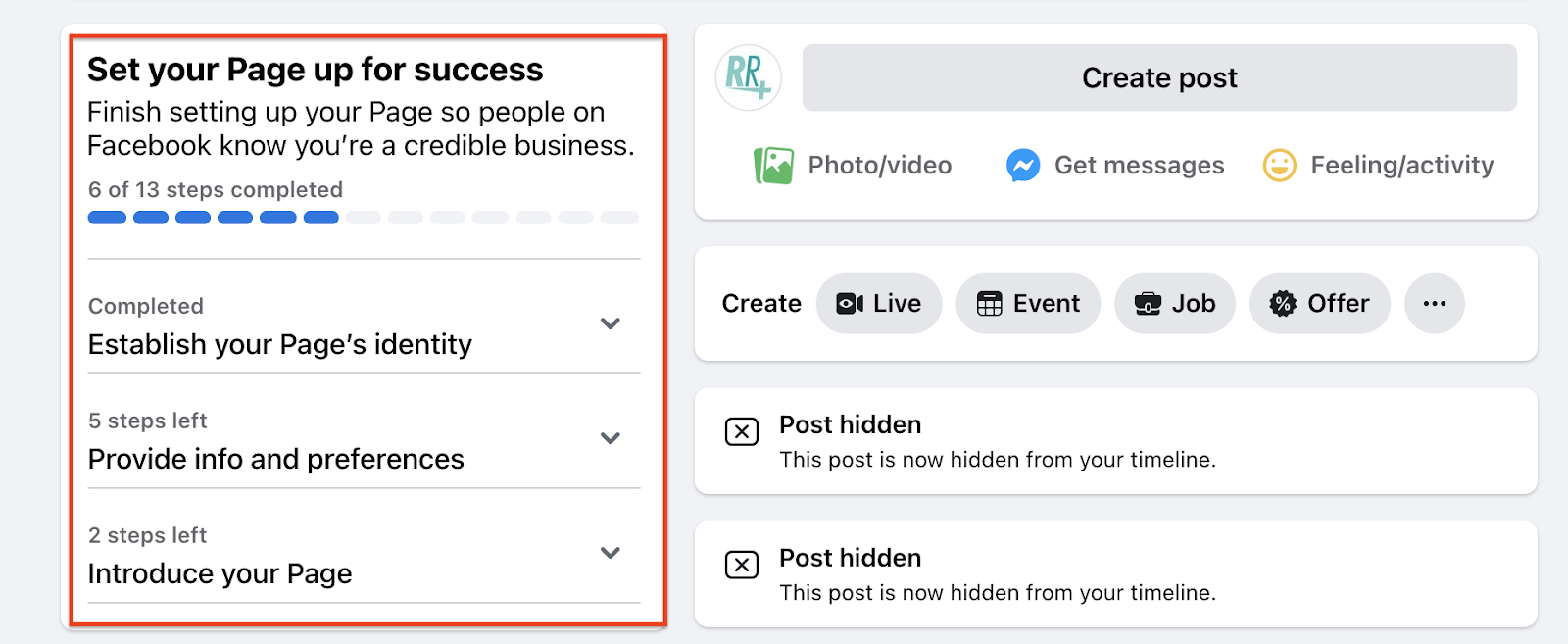
It is recommended that you now complete all steps that Facebook requests to finalize your page to ensure your brand’s success.
Still haven’t found what you’re looking for?
Let us know and we’ll do our best to help out!