

Have questions about paid ads, campaign optimisation, or platform features? Browse our knowledge base for step-by-step guides, FAQs, and expert insights to help you succeed.
Design settings: what is safe and what is global
On This Page
Design on your site is set in two completely different places, and telling them apart is the whole of this guide. An element’s Design tab changes that one element on that one page. Theme Options changes every page at once. Same kinds of setting, colours and spacing and fonts, wildly different blast radius. Before you change anything that looks like styling, work out which of the two you are standing in.
The test is where you found it. Did you get here by clicking an element on a page? Then it affects that element only. Did you get here from the Impreza menu on the left? Then it affects the whole site. That is reliable enough to act on.
Local: an element’s Design tab
Click any element, then the Design tab in its settings.
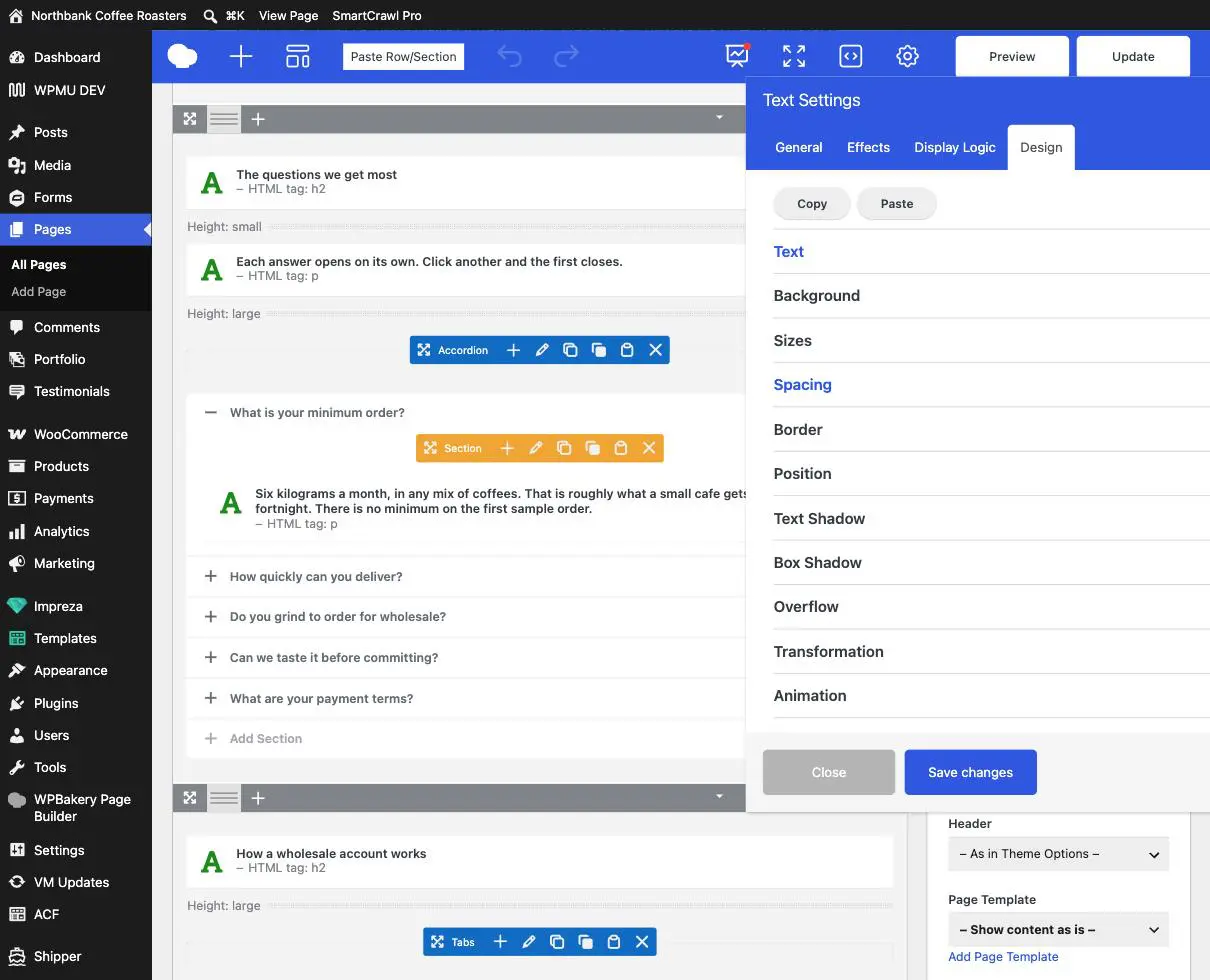
That colour difference is the most useful thing on the screen. A heading in the accent colour has something set; a plain one is following the site’s defaults. So if an element looks wrong, open this tab and see which sections are lit up, because that is where the override lives.
Design settings here override the site’s design, and stay overridden. If we later change your brand colour site-wide, anything with a colour hard-set in its own Design tab keeps the old one. You then get a page that is mostly the new palette with a few stubborn patches of the old. This is the main reason we would rather set colours centrally than per element.
Copy and Paste
The two buttons at the top of the tab copy every design setting from one element and paste them onto another. Genuinely useful for making a new card match its neighbours. Worth knowing it copies all of it, including padding and borders you may not have noticed, so paste onto something similar rather than something different.
Global: Theme Options
Impreza then Theme Options in the left menu. Everything in here applies to every page on the site.
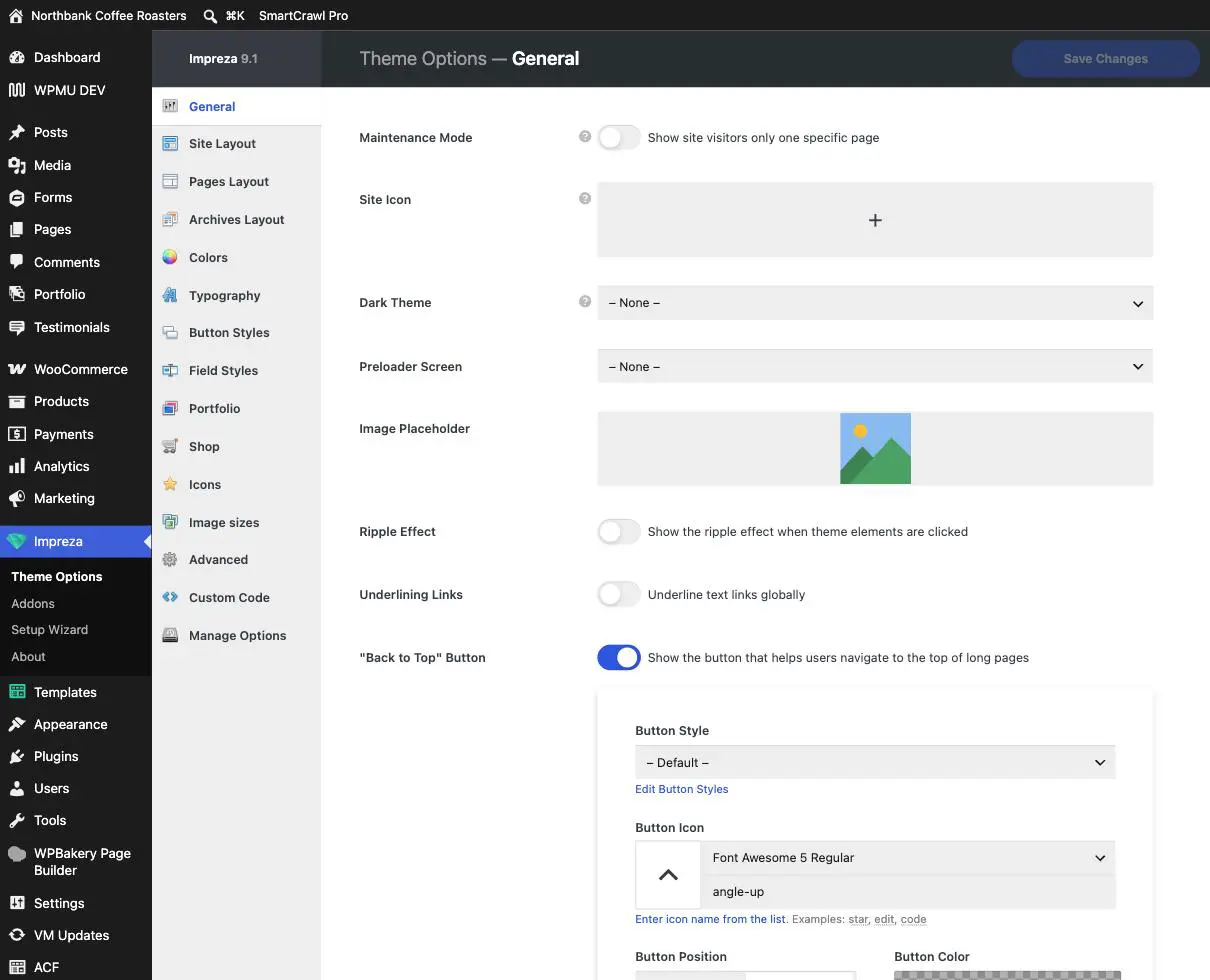
Maintenance Mode is at the top of this screen and it takes your website down. One toggle, no confirmation, and every visitor sees a holding page instead of your site. It sits directly above harmless-looking settings, so it is genuinely easy to hit by accident while looking for something else. If you have switched it on, switch it straight back off and check the site in a private browser window. This is the single most expensive switch in your dashboard.
| Section | What it governs, site-wide |
|---|---|
| Colors | Your whole palette. Every heading, link, button and background refers back to it. |
| Typography | Fonts and sizes for body text and every heading level, on every page. |
| Button Styles | The look of every button. Editing a style changes every button using it. |
| Site Layout and Pages Layout | Page width, sidebars, spacing. Structural. |
| Icons, Image sizes | Which icon sets load, and the sizes images are generated at. Changing image sizes affects images already uploaded. |
| Advanced, Custom Code | Ours. Custom Code can take the site down if it is malformed. |
A colour change here is not one change. Palette colours are referenced by name throughout the site, so altering one can move text, borders, hovers and backgrounds you never thought about, including places where the result fails contrast and becomes hard to read. When you want a colour changed, ask. It is usually a five-minute job for us and we check the knock-on effects at the same time.
What is genuinely safe to change
Not much, and that is the honest answer rather than a lack of trust. On the Design tab of a single element:
- Spacing, meaning the padding and margin around one element, if something is sitting too close to its neighbour. Low risk and easy to see.
- Nothing else, without asking, unless we have shown you a specific setting for a specific job.
In Theme Options: nothing. There is no setting in there that only does a small thing.
If you have already changed something
- Do not fix it by changing more settings. That usually adds a second problem on top of the first.
- If it was one element’s Design tab, use the page’s revisions to step back.
- If it was Theme Options, revisions do not cover it, because those settings are not part of any page. Email us and say roughly what you changed and when. We can restore it.
- Tell us even if you think you got away with it. Something that looks fine on your screen can be broken on a phone.
Theme Options changes are not covered by page revisions. That is worth knowing before you experiment rather than after. Pages have a full history; site-wide settings do not, so undoing them means somebody knowing what the previous value was.
The better way to ask
You do not need to find the setting. Send us the outcome and we will find it:
- “The green on the buttons is too dark, can we lighten it a bit.”
- “On the about page the heading is too close to the photo under it.”
- “Body text feels small on my laptop, is it worth bumping up.”
Each of those is a few minutes, done in the right place, and checked on a phone before we call it finished.
Related guides
Still haven’t found what you’re looking for?
Let us know and we’ll do our best to help out!