

Have questions about paid ads, campaign optimisation, or platform features? Browse our knowledge base for step-by-step guides, FAQs, and expert insights to help you succeed.
Uploading and organizing images in the Media Library
On This Page
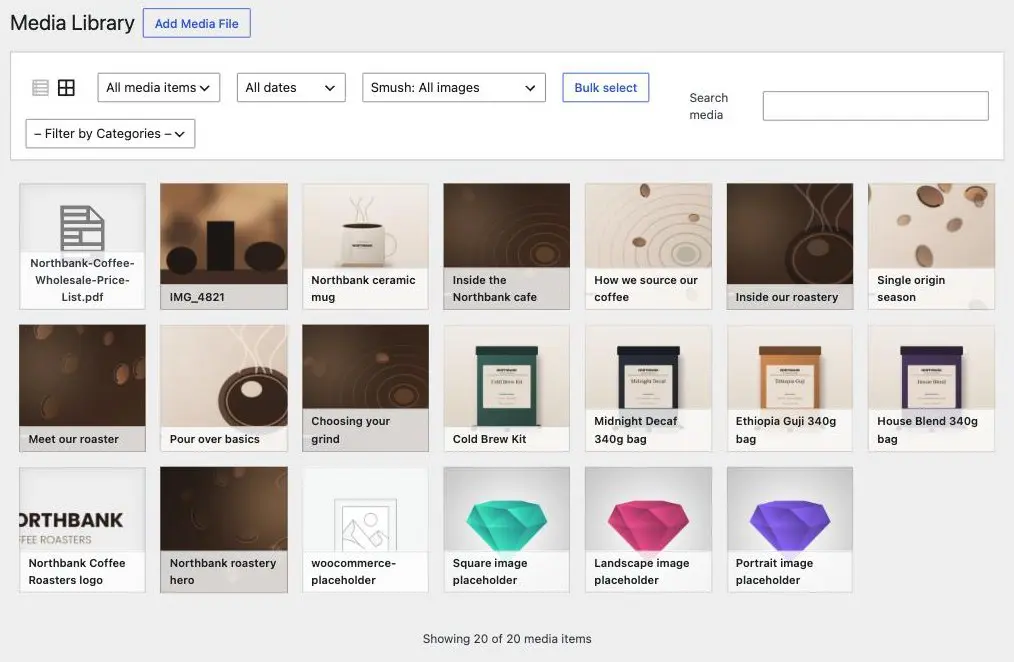
The Media Library is one shared shelf for the whole website, not a folder per page. Every image, PDF and video anyone has ever uploaded lives in it, and the same file can be used on as many pages as you like. Understanding that it is shared explains almost everything else on this page, including why deleting from it is the one genuinely risky action.
The easier route is to upload from inside the page. When you are editing a page and you swap an image, the uploader that opens is the Media Library. Uploading there attaches the file to that page and saves you a trip. Go to Media directly when you are adding a batch in advance, tidying up, or fetching a link to a PDF.
Finding it
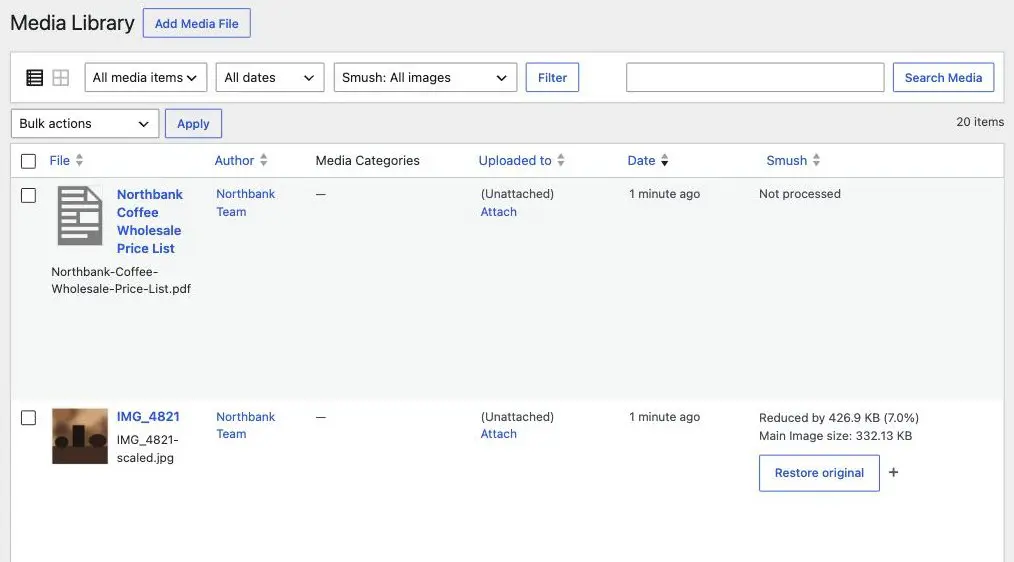
Media in the left-hand menu of your dashboard, then Library. There are two views, and the two small buttons at the top left switch between them.
Uploading
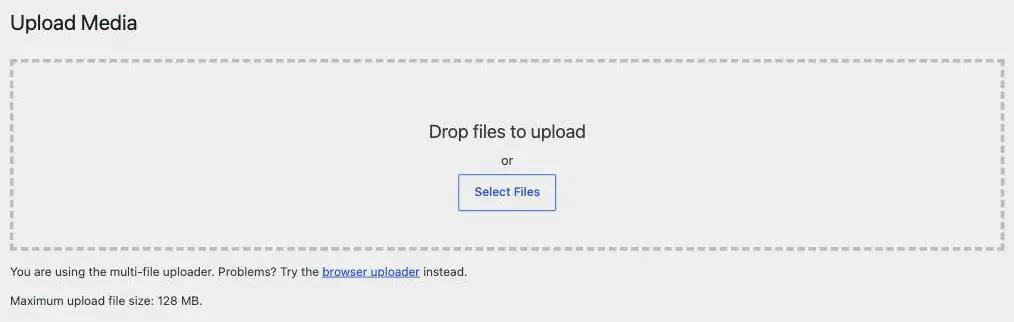
- Choose Add Media File at the top of the Library, or Media then Add Media File in the menu.
- Drag the files onto the dashed area, or use Select Files. You can do several at once.
- Wait for each to finish. A large file on a slow connection can take a while and closing the tab mid-upload leaves a half-finished file.
- Click into each one and add its alt text now rather than later. Later never comes.
Finding one file among hundreds
- Search looks at the title, the filename, the caption and the alt text. It does not look inside the picture. This is the practical reason filenames matter.
- All media items narrows to images, or to documents such as PDFs.
- All dates jumps to the month something was uploaded, which is often the fastest route when you remember roughly when.
- Filter by Categories is an extra we have on your site for grouping media. Ask us if you want a set of categories setting up.
What “(Unattached)” means
The Uploaded to column shows which page a file was uploaded from, and plenty of files say “(Unattached)”. That is normal and harmless. It only records where a file was first uploaded, not where it is being used, so a file can be unattached and still appear on six pages. Do not treat that column as a safety check before deleting.
Delete permanently means everywhere. Removing a file from the Library does not remove it from the pages that use it; it leaves a broken image on every one of them, and there is no undo. If you are tidying up, the safe habit is to leave files alone. An unused image costs you nothing but disk space. Before deleting anything you are unsure about, read replacing an image used in several places or just ask us.
Keeping it tidy without breaking anything
- Name files before you upload. The single highest-value habit, because it cannot be fixed afterwards.
- Do not upload the same picture twice. Search first. Duplicates are how a library ends up with four versions of a logo and nobody knowing which is live.
- Write alt text as you go. Thirty seconds each, and it is the accessibility and search win.
- Leave the deleting to us. Genuinely. We can check what is in use across the whole site in one query; from the dashboard you cannot.
What we need if something fails
The filename and what happened. If an upload failed, tell us the file size and format, because that narrows it to two or three causes immediately.
Related
Still haven’t found what you’re looking for?
Let us know and we’ll do our best to help out!