

Have questions about paid ads, campaign optimisation, or platform features? Browse our knowledge base for step-by-step guides, FAQs, and expert insights to help you succeed.
Exporting form entries to a spreadsheet
On This Page
Everything anybody has ever submitted through a form is stored on your site, and you can pull it out as a spreadsheet whenever you like. You choose which form, which questions to include and which dates to cover, and you get a CSV file, which is a spreadsheet that Excel, Numbers and Google Sheets all open without any fuss.
Nothing leaves your site by doing this. Exporting takes a copy. The entries stay exactly where they are, so there is no way to lose anything by exporting too often or by exporting the wrong thing and starting again.
Doing it
- In the left menu, go to Forms, then Import/Export.
- Make sure Export Entries is selected on the left.
- Choose your form from Select a Form. The list of questions appears once you do.
- Tick the fields you want. See the note below on which ones are actually useful.
- Scroll down and set a date range if you want one. Leave it empty to export everything.
- Click Download Export File at the bottom. The file lands in your Downloads folder.
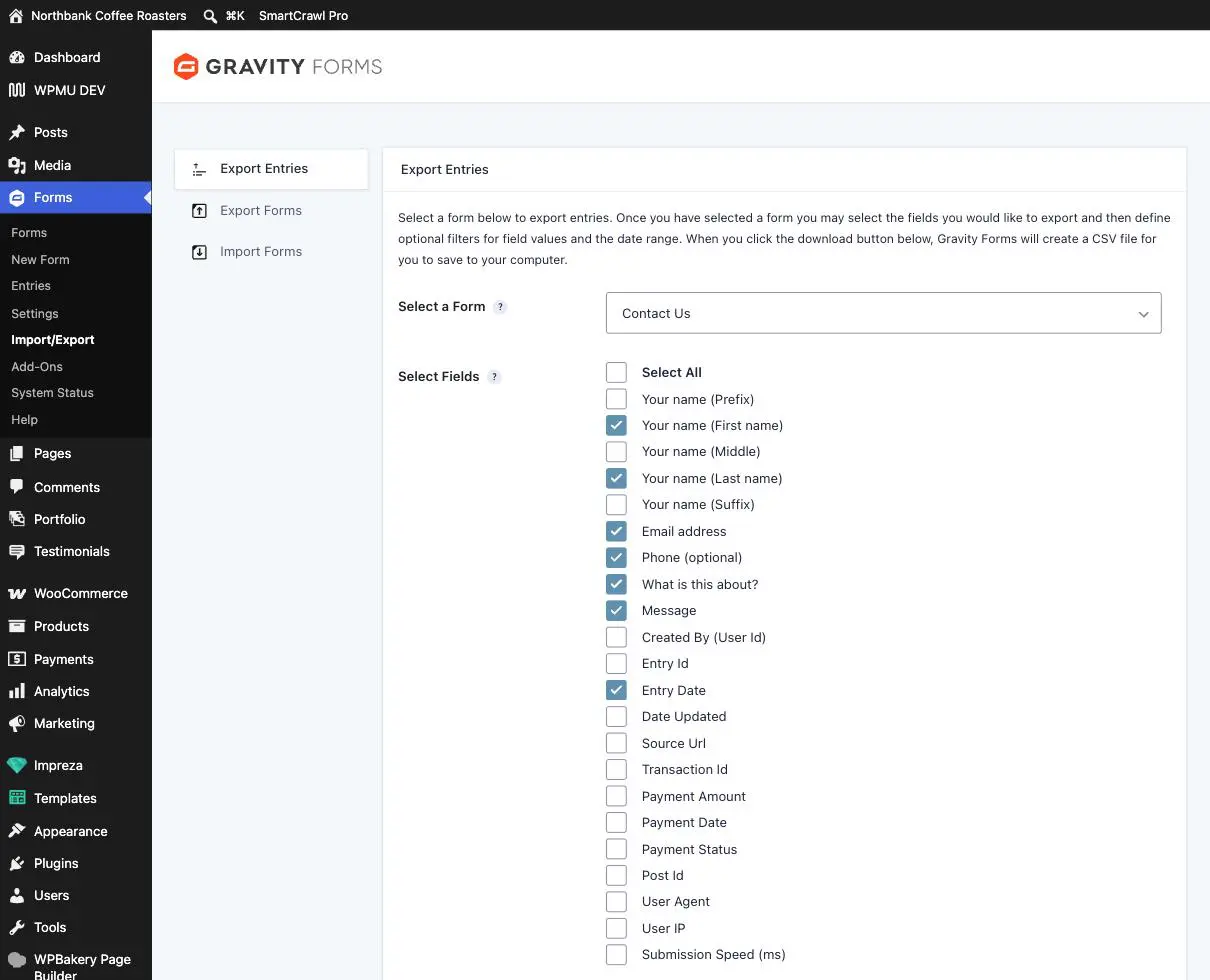
Which fields to tick
Select All is tempting and usually wrong. It adds twenty-odd columns of technical detail that make the spreadsheet harder to read. A good default is every question on the form plus Entry Date, and nothing else.
| Field | Worth including? |
|---|---|
| The form’s own questions | Yes. This is the actual content. |
| Entry Date | Yes, nearly always. Without it you cannot sort by when things arrived. |
| Entry Id | Only if you need to match a row back to the entry on the site. |
| Source Url | Useful when the same form sits on several pages and you want to know which page brought each enquiry. |
| User Agent, User IP, Submission Speed | Rarely. Technical detail, and IP addresses are personal data you probably do not want sitting in a shared spreadsheet. |
| The Payment and Transaction fields | Only if this form takes payments. Otherwise they export as empty columns. |
An export is personal data, so treat the file accordingly. It contains real people’s names, email addresses and phone numbers. Keep it somewhere access-controlled rather than emailing it around, and delete it when you are done with it. If you are on a shared or public computer, remember it is sitting in Downloads.
Opening it without wrecking it
One habit saves a lot of irritation. If you are on Excel and you open the CSV by double-clicking, Excel sometimes mangles things: long phone numbers turn into scientific notation, and numbers with leading zeros lose them.
- Google Sheets: use File then Import, and it handles it correctly.
- Excel: use the Data tab, then From Text/CSV, rather than double-clicking the file. You get a preview where you can set the phone column to Text.
- Numbers on a Mac: double-clicking is fine.
If a column looks wrong, nothing has been damaged. Your entries on the site are untouched. Close the file without saving and import it again.
What to use this for
- Handing a month of enquiries to somebody who does not have a website login.
- Counting things. How many wholesale enquiries came in last quarter, which options people pick most often.
- Getting a list of addresses into your mailing list tool. Do check people actually consented to marketing before you do that.
- Keeping a copy before we make changes to a form, so you have the old answers in their original shape.
When to email us instead
- The download does nothing, or produces an empty file. On a form with a lot of entries this is usually a timeout, and there are ways round it.
- You need this on a schedule rather than by hand. It can be automated to land somewhere every month.
- You need entries from a form that has since been deleted. Often still recoverable, but not from this screen.
Related guides
Still haven’t found what you’re looking for?
Let us know and we’ll do our best to help out!