

Have questions about paid ads, campaign optimisation, or platform features? Browse our knowledge base for step-by-step guides, FAQs, and expert insights to help you succeed.
How to Add an Admin to Your LinkedIn Page
LinkedIn Page super admins can add, edit, or remove the page and paid media admins through the Super admin view or an email notification process. The super admin role is automatically assigned to the creator of a Page.
Super admins will receive admin requests through their Activity tab and can view pending requests through their Admin tools.
Important: If you’re the only super admin on the Page, you must assign another super admin before removing yourself.
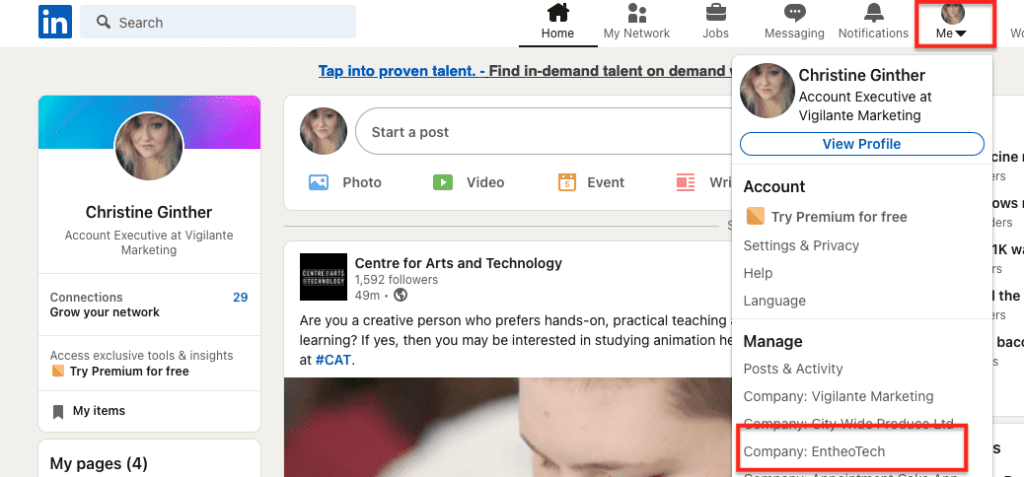
Access your Page Super admin view.
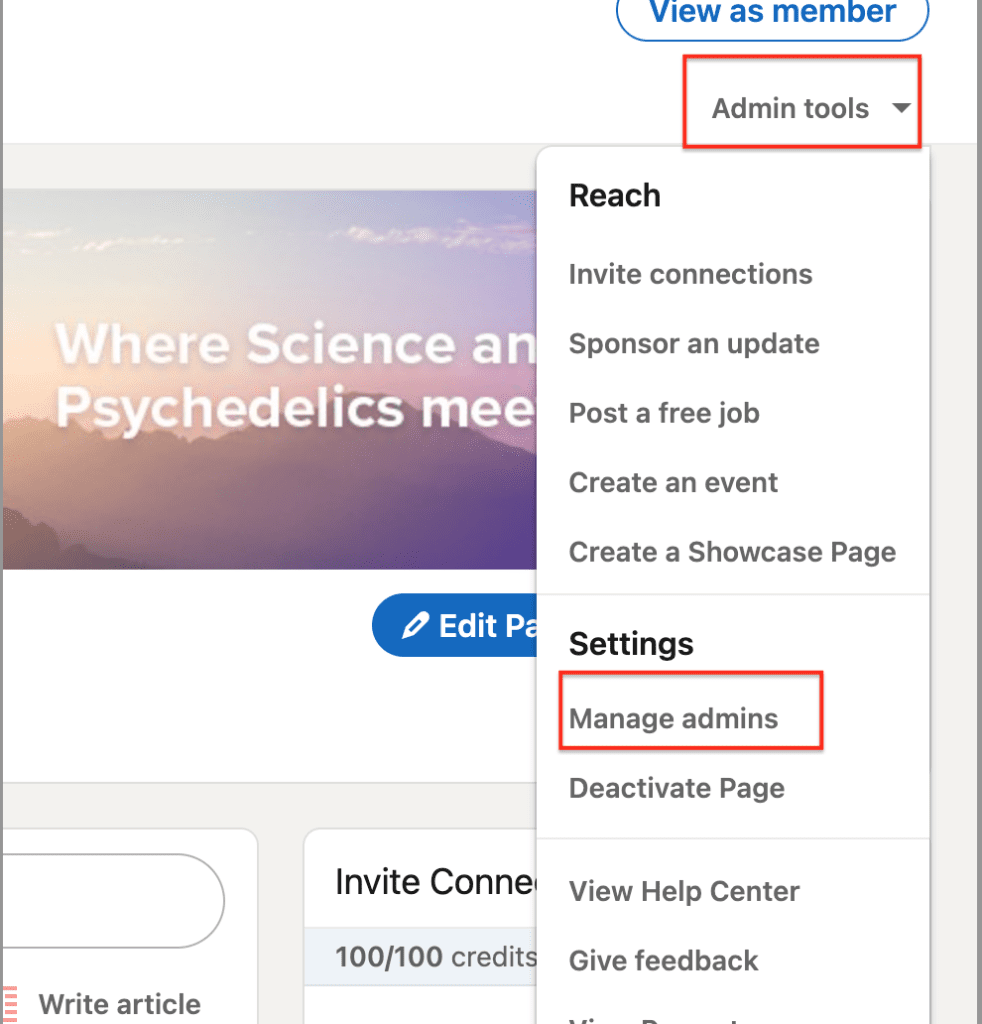
Click the Admin tools dropdown at the top of the page and select Manage admins.
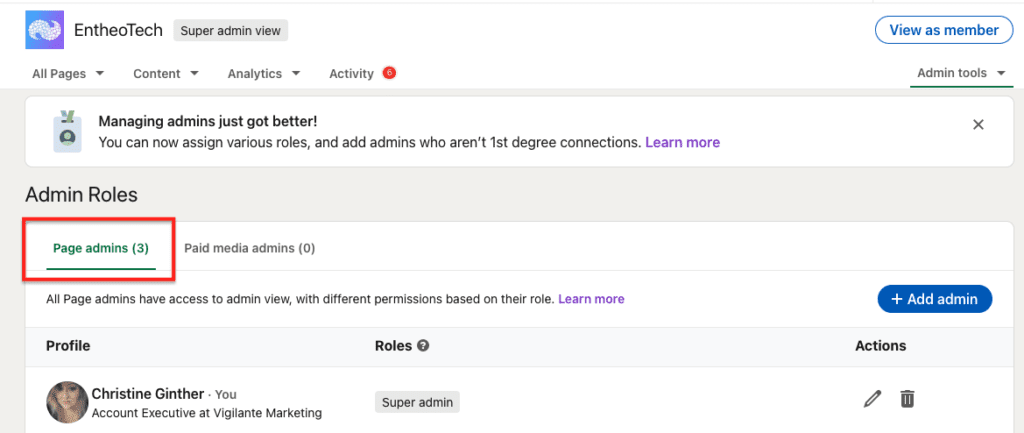
Click the Page admins or Paid media admins tab.
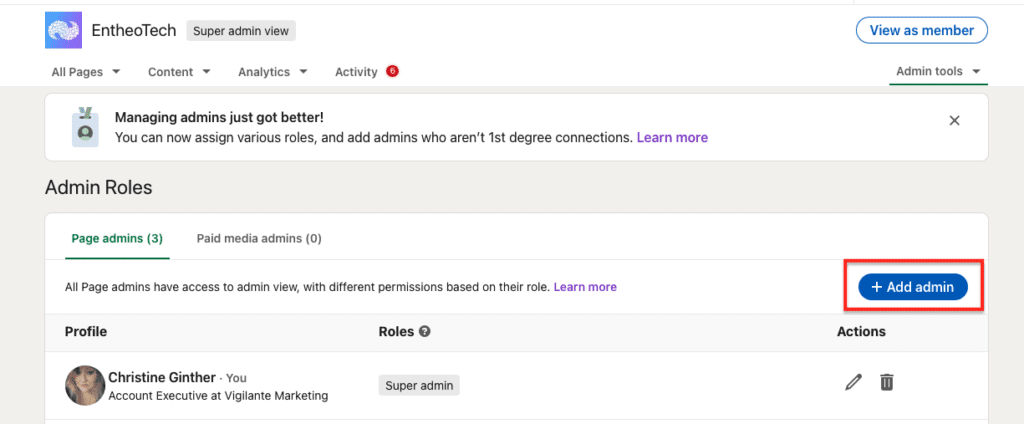
Click the Add admin button.
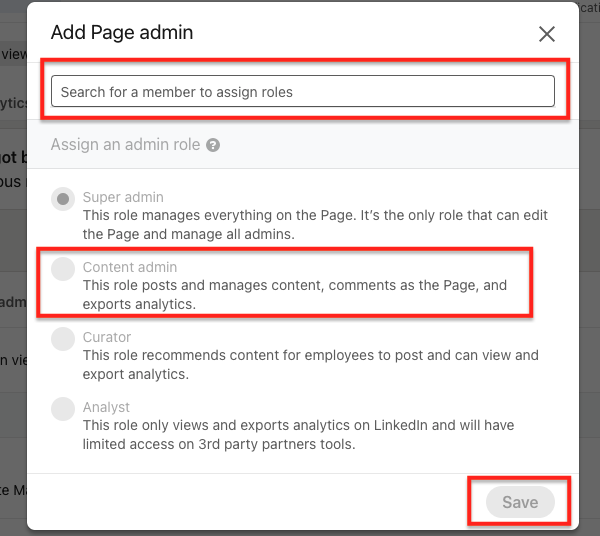
Type the name of the member, associated employee, or advertiser you’d like to add in the Search for a member… text field. Click the member’s name from the menu that appears. Select the correct Admin role. Click the Save button.
Still haven’t found what you’re looking for?
Let us know and we’ll do our best to help out!