

Have questions about paid ads, campaign optimisation, or platform features? Browse our knowledge base for step-by-step guides, FAQs, and expert insights to help you succeed.
Providing Feedback on Designs in Figma
On This Page
At Vigilante Marketing, we utilize Figma to create website prototyped design mockups. The prototyping allows us to preview design elements that will be interactive on the website build. This guide will familiarize you with navigating a Figma prototype and using it to provide feedback for design revisions.
First Glance
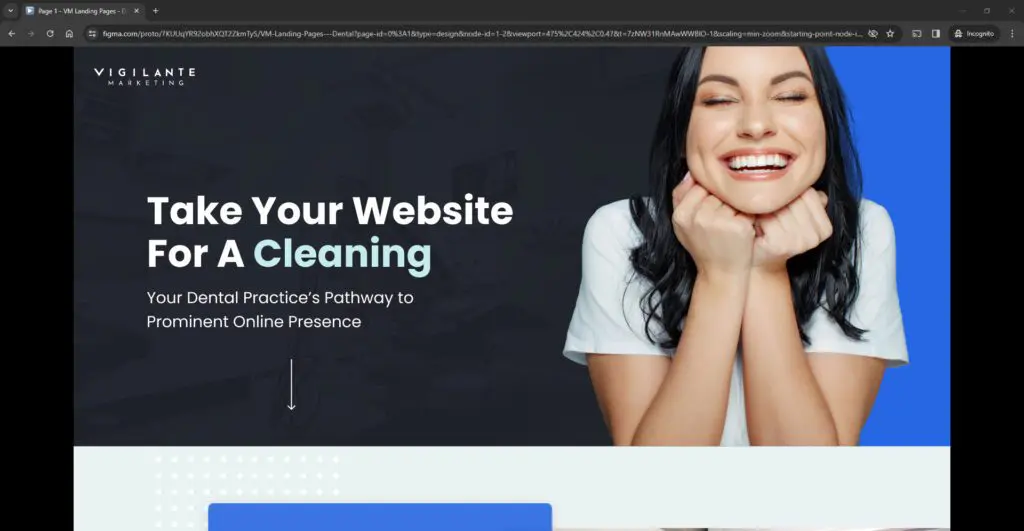
You will be emailed a Figma prototype link. Vigilante Marketing always provides the homepage design before creating subpage designs, so that design direction can be established and approved first and foremost.
NOTE: This is purely a prototyped design and not a built out website. Not all functionality that will be created in the build will be viewable here.
Viewing the Menu Bar
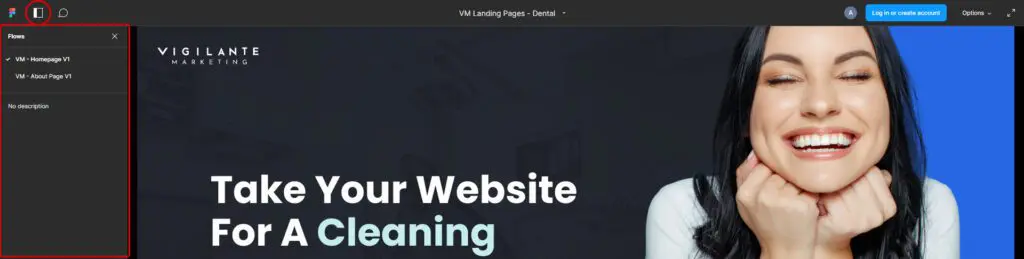
Moving the cursor near the top of the design will open the menu bar. Moving the mouse away again will hide this menu bar. On the left, we see a couple buttons: one for Flows and one for Comments.
Flows
The Flows button will open a sidebar that shows links to other page design prototypes if any have been created, such as the about page and contact page designs:
Comments
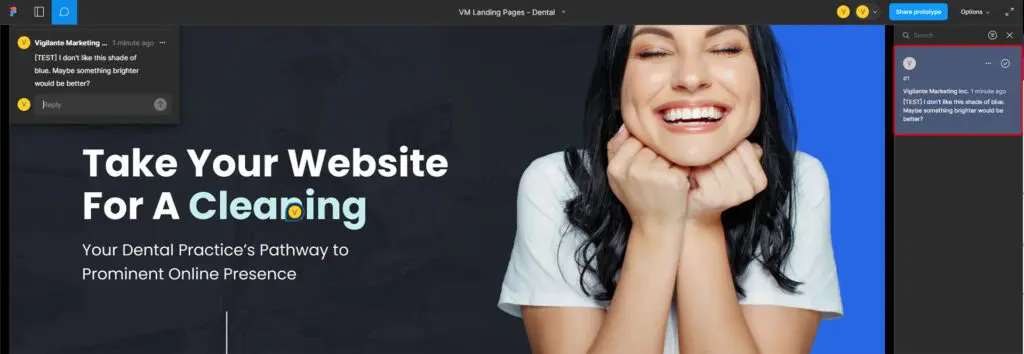
The Comment button will allow you to click on specific areas on the design to leave comments. These comments can be replied to and resolved, and are a helpful way for the designer to know exactly where the issue is. This requires being logged into a Figma account.
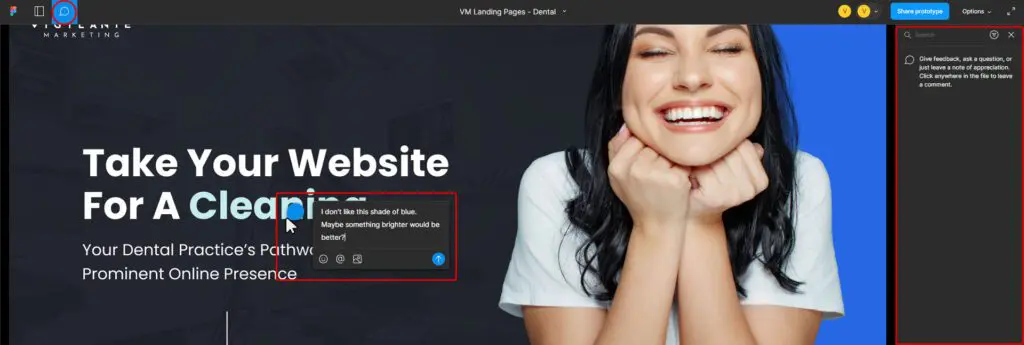
Click on the area of the design you’d like to provide feedback on, type in your comment and click the arrow. You can attach images to your comment if you want to provide an example or replace a photo used on the design.
Logging In to Figma
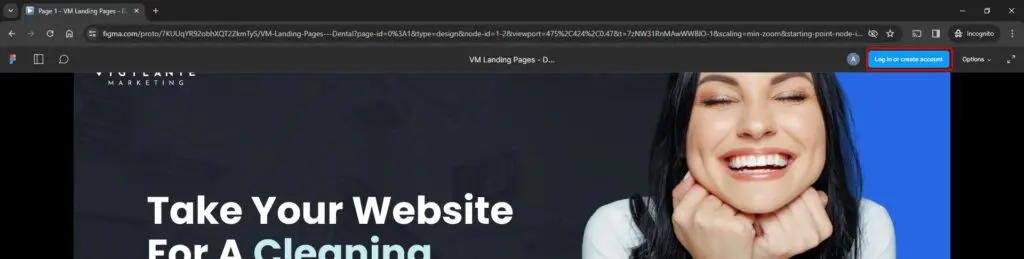
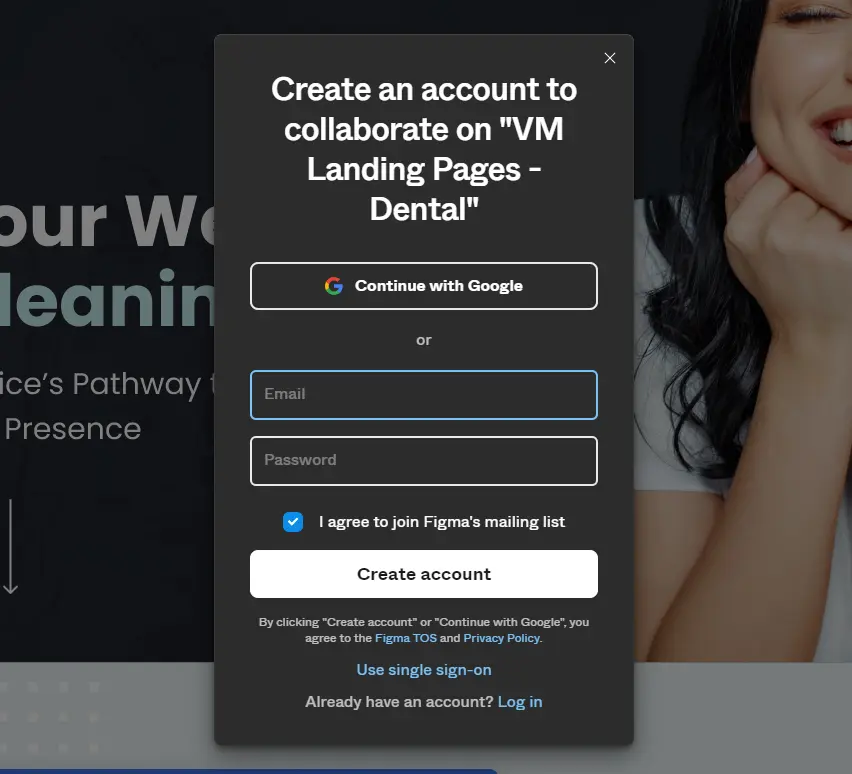
To create an account or log in, click the button on the right side of the menu bar, and follow the prompts.
Prototyped Elements
While viewing the design, some prototyped elements might have hover or click effects. Clicking anywhere on the will highlight prototyped elements in blue. Some examples of prototyped elements may include dropdown menus in the header, project card hover effects, and button hover effects.
NOTE: Mousing over a hover effect will disable scrolling. Move the cursor away from prototyped elements to continue scrolling.

Completing Your Feedback
Once you’ve completed your review of the website design and added any feedback, please notify us at [email protected] so we know to begin applying the revisions to the design.
Still haven’t found what you’re looking for?
Let us know and we’ll do our best to help out!